
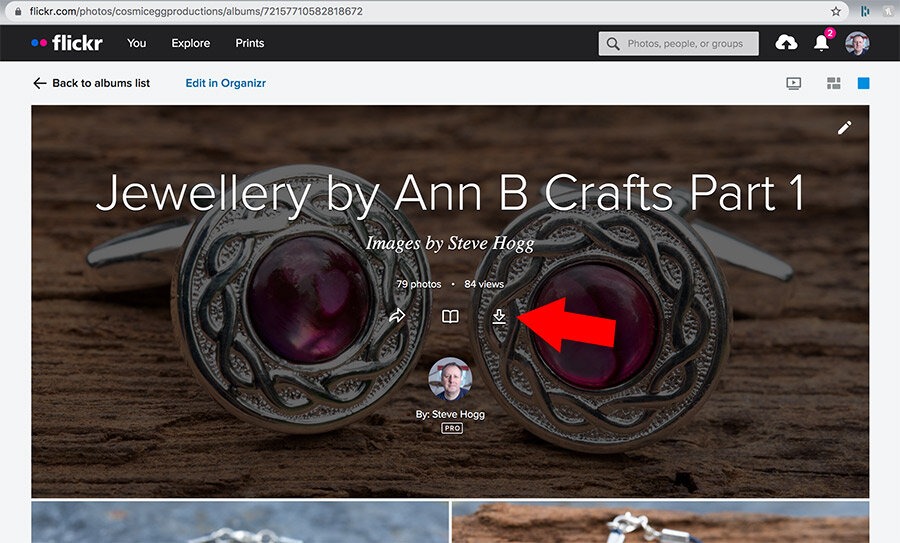
How to Download Photos From Flickr: A Step-by-step Guide
Are you an avid user of Flickr, looking to download high-quality photos from this popular online platform? Look no further! In this comprehensive guide, we will walk you through the steps to download photos from Flickr using various methods, including direct downloads from the website and app, as well as using third-party programs and extensions.
Why Download Photos From Flickr?
Before we dive into the nitty-gritty of downloading photos from Flickr, let’s quickly explore why this might be useful for you:
- Backup Purposes: If you’ve uploaded high-quality photos to Flickr and want to save them locally on your device or computer, downloading them is a great way to create backups.
- Personal Use: Downloading photos from Flickr can also be useful if you want to use them for personal projects, such as photo editing, design, or even printing them out.
Method 1: Direct Download From The Website
To download photos directly from Flickr’s website, follow these steps:
- Open a web browser and navigate to Flickr.Com.
- Search for the photo you want to download by typing in the search bar.
- Click on the photo to open its details page.
- Click on the “Download” button located below the photo.
Method 2: Downloading From The App
If you’re using a mobile device, you can also download photos directly from the Flickr app:
- Open the Flickr app and sign in with your account credentials.
- Search for the photo you want to download by typing in the search bar.
- Tap on the photo to open its details page.
- Tap on the “Save image” button located below the photo.
Method 3: Using Third-party Programs And Extensions
If you’re looking for more flexibility or need to download multiple photos at once, consider using third-party programs and extensions:
- Jdownloader: A popular software that allows you to download images from Flickr and other websites.
- Photo Download & Save Image Extension (for Chrome and Edge): An extension that enables you to download images directly from the browser.
To use JDownloader or similar software, follow these steps:
- Download and install the program on your computer.
- Copy the URL of the photo you want to download.
- Paste the URL into the program’s interface.
- Select the desired output folder and format for the downloaded image.
Troubleshooting Common Issues
- No Download Button: If you can’t find a download button, it may be because the author has placed specific rights on the photo. In this case, try checking if the image is protected by copyright or use JDownloader instead.
- Download Issues With Jdownloader: If you’re experiencing issues with JDownloader, refer to our guide on troubleshooting common problems.
Conclusion
Downloading photos from Flickr can be a convenient and efficient way to save high-quality images for personal or professional purposes. By following the methods outlined in this article, you should be able to successfully download photos from Flickr using various methods. Happy downloading!


