
How to Secure Your Wi-fi Network: A Step-by-step Guide
Are you tired of worrying about the security of your home network? Do you want to protect yourself from unauthorized access and potential hacking? Look no further! In this article, we will guide you through the process of securing your Wi-Fi network with a strong password.
Why Secure Your Wi-fi Network?
Securing your Wi-Fi network is essential for protecting yourself and your family from online threats. A weak or default password can make it easy for hackers to access your network and steal sensitive information, such as login credentials and credit card numbers.
How to Create a Strong Password
To create a strong password, you should follow these guidelines:
- Choose a Word That Has High Entropy: This means selecting a word that is not commonly used or easily guessable.
- Use 12-16 Characters: A longer password is more secure than a shorter one.
- Include a Mix of Uppercase And Lowercase Letters, Numbers, And Special Characters: This will make it harder for hackers to crack your password.
How to Set Up Your Wi-fi Network
Now that you have created a strong password, let’s move on to setting up your Wi-Fi network.
Setting Up Your Wi-fi Network
To set up your Wi-Fi network, follow these steps:
- Access The Router’s Settings Page: This can usually be done by typing in the router’s IP address (usually 192.168.0.1 Or 192.168.1.1) Into your web browser.
- Log in With The Administrator Username And Password: The default username and password are usually printed on the underside of the router or can be found in the user manual.
- Change The Wi-fi Network Name (SSID): Give your network a unique name that will help you identify it.
- Set up The Wireless Settings: Choose the encryption type (WPA2-AES is recommended) and set up any other advanced settings as needed.
Specific Instructions For Popular Router Brands
Below, we have provided specific instructions for popular router brands:
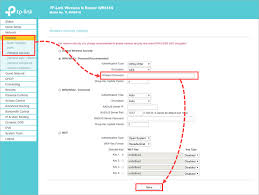
Tp-link
- Access The Web Interface: Type in the IP address of your router (usually 192.168.0.1).
- Log in With Administrator Credentials: The default username and password are usually printed on the underside of the router or can be found in the user manual.
- Click on Wireless Settings: Choose WPA2-AES as the encryption type.
- Set up Your Wi-fi Network Name (SSID): Give your network a unique name.
Netgear
- Access The Web Interface: Type in the IP address of your router (usually 192.168.0.1).
- Log in With Administrator Credentials: The default username and password are usually printed on the underside of the router or can be found in the user manual.
- Click on Wireless Settings: Choose WPA2-AES as the encryption type.
- Set up Your Wi-fi Network Name (SSID): Give your network a unique name.
Tim
- Access The Web Interface: Type in the IP address of your router (usually 192.168.0.1).
- Log in With Administrator Credentials: The default username and password are usually printed on the underside of the router or can be found in the user manual.
- Click on Wireless Settings: Choose WPA2-AES as the encryption type.
- Set up Your Wi-fi Network Name (SSID): Give your network a unique name.
Vodafone Station
- Access The Web Interface: Type in the IP address of your router (usually 192.168.0.1).
- Log in With Administrator Credentials: The default username and password are usually printed on the underside of the router or can be found in the user manual.
- Click on Wireless Settings: Choose WPA2-AES as the encryption type.
- Set up Your Wi-fi Network Name (SSID): Give your network a unique name.
Securing Your Devices
Now that you have secured your Wi-Fi network, let’s move on to securing your devices.
Securing Your Windows PC
To secure your Windows PC:
- Click on The Wi-fi Icon: Located in the system tray.
- Choose Your Network: Select the network you want to connect to.
- Enter The Password: Type in the password you created earlier.
- Connect: Click on the Connect button.
Securing Your Mac
To secure your Mac:
- Click on The Wi-fi Icon: Located in the menu bar.
- Choose Your Network: Select the network you want to connect to.
- Enter The Password: Type in the password you created earlier.
- Connect: Click on the Connect button.
Securing Your Android Device
To secure your Android device:
- Tap on The Wi-fi Icon: Located in the notification bar.
- Choose Your Network: Select the network you want to connect to.
- Enter The Password: Type in the password you created earlier.
- Connect: Tap on the Connect button.
Securing Your Iphone or Ipad
To secure your iPhone or iPad:
- Tap on The Wi-fi Icon: Located in the menu bar.
- Choose Your Network: Select the network you want to connect to.
- Enter The Password: Type in the password you created earlier.
- Connect: Tap on the Connect button.
Conclusion
Securing your Wi-Fi network is a crucial step in protecting yourself and your family from online threats. By following the steps outlined above, you can create a strong password and set up your network to ensure it remains secure. Remember to always use a VPN when connecting to public networks and to regularly update your router’s firmware to stay ahead of potential security threats.
Faqs
- Q: Why is Securing my Wi-fi Network Important?
A: Securing your Wi-Fi network is essential for protecting yourself and your family from online threats, such as hacking and identity theft. - Q: How do I Create a Strong Password?
A: To create a strong password, choose a word that has high entropy (is not commonly used or easily guessable), use 12-16 characters, and include a mix of uppercase and lowercase letters, numbers, and special characters. - Q: How do I Set up my Wi-fi Network?
A: To set up your Wi-Fi network, access the router’s settings page (usually by typing in the IP address), log in with administrator credentials, change the Wi-Fi network name (SSID), and set up any other advanced settings as needed. - Q: How do I Secure my Windows Pc?
A: To secure your Windows PC, click on the Wi-Fi icon, choose your network, enter the password you created earlier, and connect to the network. - Q: How do I Secure my Mac?
A: To secure your Mac, click on the Wi-Fi icon, choose your network, enter the password you created earlier, and connect to the network. - Q: How do I Secure my Android Device?
A: To secure your Android device, tap on the Wi-Fi icon, choose your network, enter the password you created earlier, and connect to the network. - Q: How do I Secure my Iphone or Ipad?
A: To secure your iPhone or iPad, tap on the Wi-Fi icon, choose your network, enter the password you created earlier, and connect to the network. - Q: Why Should I Use a Vpn When Connecting to Public Networks?
A: Using a VPN when connecting to public networks helps protect yourself from online threats and ensures that any data transmitted is encrypted and secure.


