
How to Connect Your Smartphone to a Samsung Tv: A Comprehensive Guide
Are you tired of using cables to connect your smartphone to your TV? Do you want to experience seamless video streaming without the hassle of wires? Look no further! In this article, we will guide you through various methods on how to connect your smartphone to a Samsung TV, including wireless connections.
Why Connect Your Smartphone to Your Samsung Tv?
Connecting your smartphone to your Samsung TV offers numerous benefits. You can enjoy:
- Streaming videos and music directly from your phone
- Playing games on the big screen with ease
- Sharing photos and videos with family and friends
- Accessing various apps and content available on your phone
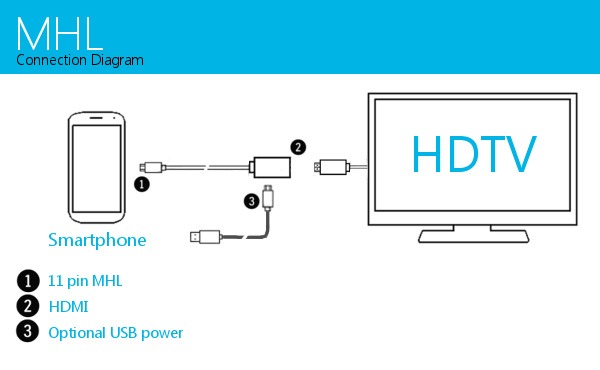
Method 1: Using a Cable (USB to Hdmi)
To connect your smartphone to your Samsung TV using a cable, you’ll need:
- A USB to HDMI adapter or a cable that specifically supports MHL (Mobile High-Definition Link) technology
- A compatible cable that matches the type of port on your phone (e.G., Micro-USB or USB-C)
For Android devices, use a USB to HDMI adapter with an MHL chip for optimal performance. For iPhones, use a Lightning to HDMI adapter.
Method 2: Wireless Connection Using Smartthings
If you have a Samsung TV that supports wireless connectivity, you can use the SmartThings app to connect your smartphone to your TV.
To set up SmartThings:
- Install the SmartThings app on your phone and TV
- Ensure both devices are connected to the same Wi-Fi network
- Open the SmartThings app and follow the setup instructions
Once set up, you can access various features such as:
- Sharing content from your phone to your TV
- Monitoring and controlling your smart home devices remotely
- Enjoying seamless video streaming with low latency
Method 3: Using Chromecast
If your Samsung TV does not support wireless connectivity or SmartThings, you can use a third-party device like Chromecast to connect your smartphone to your TV.
To set up Chromecast:
- Purchase a Chromecast device (available in two versions: Standard and Google TV)
- Connect the Chromecast to your TV using an HDMI cable
- Configure the Chromecast app on your phone
- Use the app to stream content from your phone to your TV
Method 4: Using Airplay/apple TV
If you have an iPhone or iPad, you can use Apple’s AirPlay technology to connect your device to a compatible TV.
To set up AirPlay:
- Ensure your TV is connected to the same Wi-Fi network as your phone
- Open the Control Center on your phone and select the AirPlay icon
- Choose the name of your TV from the list
- Select the content you want to share, and it will be mirrored on your TV
Method 5: Using Samsung All Share Cast Dongle
Samsung offers an All Share Cast dongle specifically designed for connecting Android devices to a TV.
To set up the All Share Cast dongle:
- Connect the dongle to your TV using an HDMI cable
- Configure the app on your phone
- Select the content you want to share, and it will be mirrored on your TV
Troubleshooting Tips
If you encounter any issues while connecting your smartphone to your Samsung TV, try the following troubleshooting tips:
- Ensure both devices are connected to the same Wi-Fi network
- Restart both devices to refresh their connections
- Check that all cables are securely plugged in and functioning properly
Conclusion
Connecting your smartphone to a Samsung TV offers numerous benefits, including seamless video streaming and content sharing. By following this comprehensive guide, you can choose the method that best suits your needs, whether it’s using a cable, wireless connection with SmartThings, Chromecast, AirPlay/Apple TV, or Samsung All Share Cast dongle.


