
The Ultimate Guide to Downloading And Using Zoom
Are you looking for a comprehensive guide on how to download and use Zoom? Look no further! In this article, we will walk you through the step-by-step process of downloading Zoom on your PC, Mac, smartphone, and tablet, as well as provide tips on how to use it effectively.
What is Zoom?
Zoom is a video conferencing software that allows users to hold virtual meetings with colleagues, friends, and family members from anywhere in the world. With Zoom, you can participate in online meetings, share your screen, and even record your sessions.
System Requirements For Zoom
Before we dive into the download process, let’s take a look at the system requirements for Zoom:
- Operating System: Windows XP SP3 or later, macOS 10.7 Lion or later, Ubuntu 12.04 Or later (and its derivatives)
- Processor: Single-core processor with at least 1 GHz frequency
- RAM: At least 4 GB
Downloading Zoom on PC
If you’re using a PC, follow these steps to download and install Zoom:
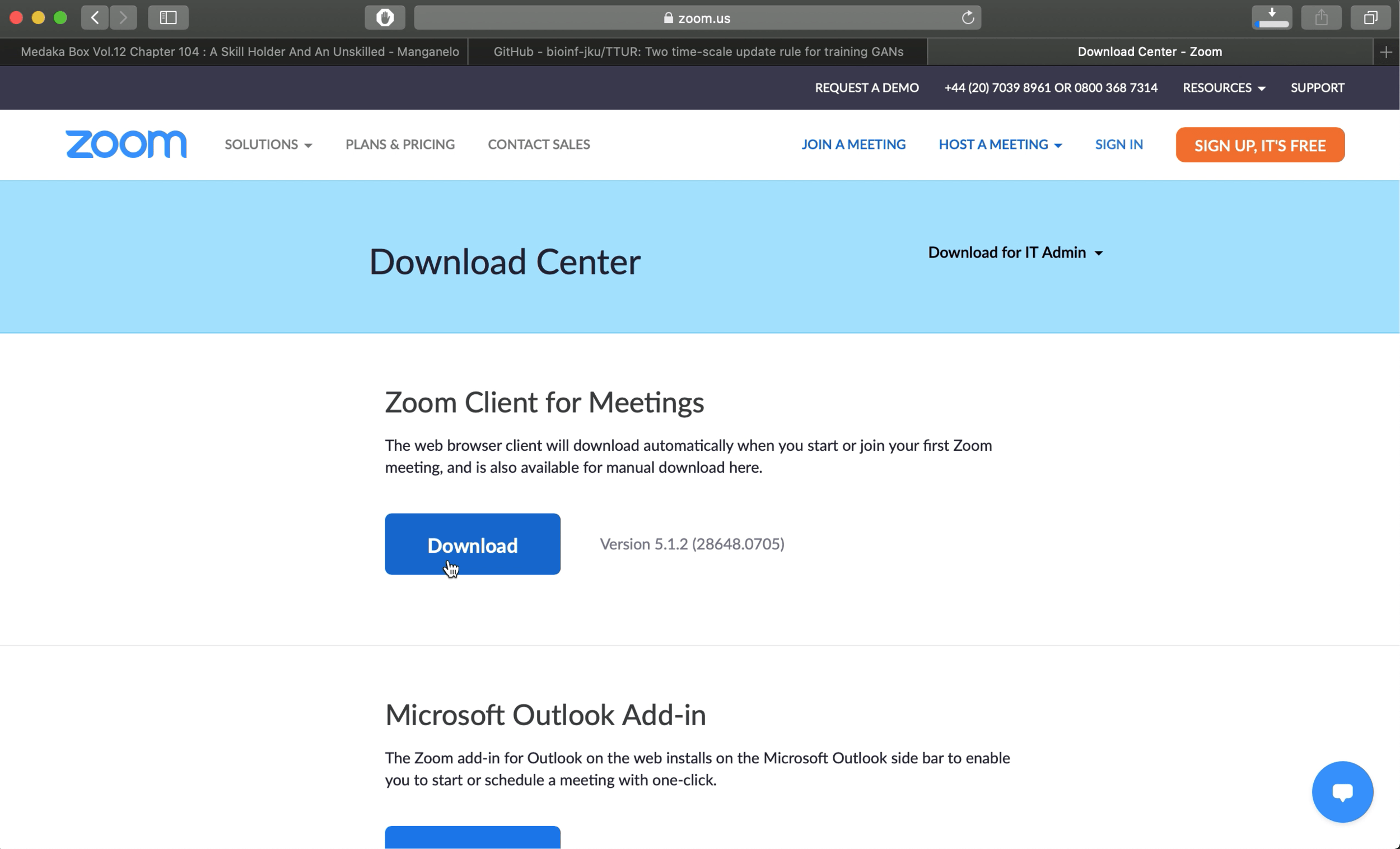
- Go to the official Zoom website (www.Zoom.Us) and click on the “Download” button.
- Select your operating system (Windows or macOS) from the dropdown menu.
- Click on the “Download” button again to initiate the download process.
- Run the downloaded file (.Exe) and follow the installation prompts.
Downloading Zoom on Mac
If you’re using a Mac, follow these steps to download and install Zoom:
- Go to the official Zoom website (www.Zoom.Us) and click on the “Download” button.
- Select your operating system (macOS) from the dropdown menu.
- Click on the “Download” button again to initiate the download process.
- Run the downloaded file (.Pkg) and follow the installation prompts.
Downloading Zoom on Smartphone And Tablet
If you’re using a smartphone or tablet, follow these steps to download and install Zoom:
- For Android devices:
- Go to the Google Play Store and search for “Zoom Cloud Meetings”.
- Click on the app icon and click on the “Install” button.
- For iOS devices (iPad and iPhone):
- Go to the App Store and search for “Zoom Cloud Meetings”.
- Click on the app icon and click on the “Get” button.
System Requirements For Zoom on Mobile Devices
Before installing Zoom on your mobile device, make sure that it meets the following system requirements:
- Android: 5.0 Or later
- IOS: 8.0 Or later
Using Zoom
Once you’ve installed Zoom on your device, follow these steps to use it effectively:
- Launch the app and sign in with your email address.
- Click on the “New Meeting” button to create a new meeting.
- Select the participants you want to invite and click on the “Invite” button.
- Join the meeting by clicking on the “Join” button.
Tips For Using Zoom
Here are some tips to keep in mind when using Zoom:
- Make sure that your internet connection is stable before joining a meeting.
- Use a headset or earbuds to improve audio quality.
- Adjust your camera settings to ensure that you’re visible and clear on the screen.
- Keep your microphone muted when not speaking.
Frequently Asked Questions (FAQs)
Here are some frequently asked questions about Zoom:
- Q: What is Zoom?
A: Zoom is a video conferencing software that allows users to hold virtual meetings with colleagues, friends, and family members from anywhere in the world. - Q: How do I Download Zoom on my Pc/mac?
A: Go to the official Zoom website (www.Zoom.Us) and click on the “Download” button to initiate the download process. - Q: What Are The System Requirements For Zoom?
A: The system requirements for Zoom include Windows XP SP3 or later, macOS 10.7 Lion or later, Ubuntu 12.04 Or later (and its derivatives), a single-core processor with at least 1 GHz frequency, and at least 4 GB of RAM. - Q: Can I Use Zoom on my Smartphone/tablet?
A: Yes, you can download and install Zoom on your Android device from the Google Play Store or on your iOS device (iPad and iPhone) from the App Store. - Q: How do I Join a Meeting on Zoom?
A: To join a meeting on Zoom, launch the app, sign in with your email address, click on the “Join” button, and select the meeting you want to join.
We hope that this guide has been helpful in downloading and using Zoom effectively. If you have any further questions or need additional assistance, please don’t hesitate to ask!


