
The Ultimate Guide to Using Google Classroom on PC
Are you tired of using Google Classroom only on your smartphone or tablet? Do you want to access it directly from your computer? Look no further! In this article, we’ll show you how to use Google Classroom on your PC, whether you’re a student or a teacher.
Table 1: Using Google Classroom on PC
| Feature | Description |
|---|---|
| No Download Required | You don’t need to download anything to use Google Classroom on PC. Just have an internet connection and a browser! |
How to Use Google Classroom on PC
Using Google Classroom on PC is as easy as using it on your smartphone or tablet. Here’s how:
- Open your preferred web browser (e.G., Google Chrome, Mozilla Firefox) and navigate to the Google Classroom website.
- Click on the “Go to Classroom” button.
- Log in with your Google account credentials.
- You’ll be taken to the main page of Google Classroom, where you can access all your classes, assignments, and resources.
Table 2: Features of Google Classroom
| Feature | Description |
|---|---|
| Stream | See real-time comments and interactions with teachers and peers. |
| Works | Access assignments, quizzes, and other educational materials. |
| Persons | View the list of students and teachers in your class. |
Using Google Classroom as a Student
If you’re a student, here’s what you need to do:
- Click on the “+” button to join a new class.
- Enter the course code provided by your teacher.
- Wait for the virtual class to load.
- Access the Stream section to see real-time comments and interactions with teachers and peers.
Using Google Classroom as a Teacher
If you’re a teacher, here’s what you need to do:
- Click on the “+” button to create a new class.
- Fill out the course information form.
- Create your virtual class by clicking on the “Create” button.
- Share the course code with students and invite them to join.
Downloading Google Classroom on PC
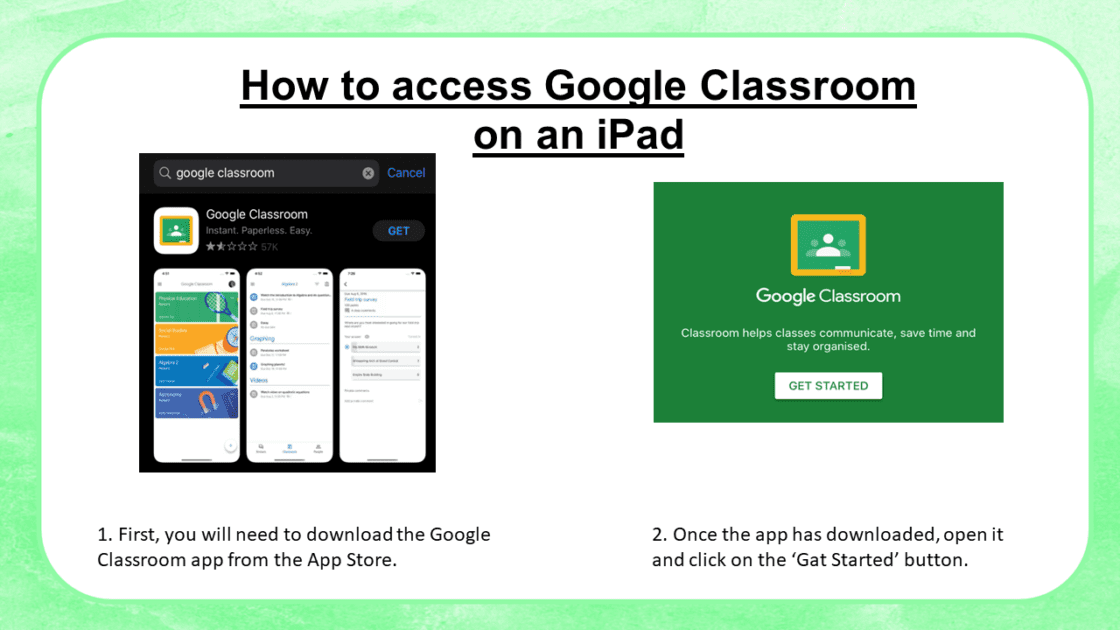
If you want to use Google Classroom directly from your computer, you can download it as an app. Here’s how:
- Download the BlueStacks emulator for Windows or macOS.
- Install BlueStacks and follow the instructions to configure it.
- Open BlueStacks and access the Play Store.
- Search for Google Classroom and install it.
- Use Google Classroom just like you would on your smartphone or tablet.
Using Google Classroom With a Mac
If you’re using a Mac, you can use the same method as above to download and install Google Classroom. Alternatively, you can check out our guide on how to emulate Android on a Mac.
Conclusion
Google Classroom is an excellent tool for students and teachers alike. By following these simple steps, you can access it directly from your PC, whether you’re using Windows or macOS. Whether you’re a student or a teacher, Google Classroom has everything you need to succeed in the digital classroom.
Faqs
- Do I Need to Download Anything to Use Google Classroom on Pc?
No, you don’t need to download anything. Just have an internet connection and a browser! - How do I Access Google Classroom on Pc?
Open your preferred web browser and navigate to the Google Classroom website. - What Are The Features of Google Classroom?
Google Classroom has three main sections: Stream, Works, and Persons. - Can I Use Google Classroom as a Student or Teacher on Pc?
Yes, you can use Google Classroom as either a student or teacher on PC. - Do I Need to Download an App to Use Google Classroom on Pc?
No, you don’t need to download an app. You can access Google Classroom directly from your browser. - What is Bluestacks And How Does it Help me Use Google Classroom on Pc?
BlueStacks is a emulator that allows you to run Android apps on your Windows or macOS computer. - Can I Use Google Classroom With a Mac?
Yes, you can use Google Classroom with a Mac by following the same steps as above. - Is it Safe to Sideload an Apk File Onto my Pc?
We recommend not sideloading an APK file onto your PC, as it may pose safety risks.


