
How to Convert Video Files Free: A Step-by-step Guide
Are you tired of dealing with video files that are too large or in a format that’s not compatible with your device? Converting video files can be a hassle, but don’t worry, we’ve got you covered! In this article, we’ll show you how to convert video files free using various methods and tools.
Why Convert Video Files?
Before we dive into the nitty-gritty of video file conversion, let’s quickly discuss why you might want to do so. Here are some reasons:
- Save Space: Converting video files to a smaller format can help save precious space on your device.
- Compatibility: If you have a video file in a format that’s not supported by your device, converting it to a compatible format can solve the problem.
- Sharing: If you want to share a video with someone who has a different type of device, converting it to a suitable format can make sharing easier.
Method 1: Using Adapter (Windows/MacOS)
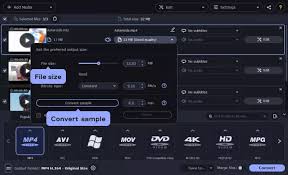
Adapter is one of the most reliable software tools for video file conversion. It’s free, user-friendly, and works on both Windows and MacOS. Here’s how to use it:
- Download Adapter: Go to the Adapter website and download the software.
- Install Adapter: Follow the installation instructions, which will guide you through the process.
- Launch Adapter: Once installed, launch Adapter and browse for the video file you want to convert.
- Choose Output Format: Select the output format from the menu options. You can also choose a specific device profile if needed.
- Convert Video: Click on the “Convert” button, and wait for the conversion process to complete.
Method 2: Using Handbrake (Windows/MacOS/Linux)
HandBrake is another popular video file converter that’s free and open-source. Here’s how to use it:
- Download Handbrake: Go to the HandBrake website and download the software.
- Install Handbrake: Follow the installation instructions, which will guide you through the process.
- Launch Handbrake: Once installed, launch HandBrake and browse for the video file you want to convert.
- Choose Output Format: Select the output format from the menu options. You can also choose a specific device profile if needed.
- Convert Video: Click on the “Convert” button, and wait for the conversion process to complete.
Method 3: Using Cloudconvert
If you don’t want to download and install software, you can use CloudConvert, an online video file converter. Here’s how:
- Visit Cloudconvert: Go to the CloudConvert website.
- Upload Video File: Upload your video file to CloudConvert.
- Choose Output Format: Select the output format from the menu options.
- Convert Video: Click on the “Convert” button, and wait for the conversion process to complete.
Method 4: Using Mobile Media Converter (Windows/MacOS/Linux)
Mobile Media Converter is another online video file converter that works on Windows, MacOS, and Linux. Here’s how:
- Visit Mobile Media Converter: Go to the Mobile Media Converter website.
- Upload Video File: Upload your video file to Mobile Media Converter.
- Choose Output Format: Select the output format from the menu options.
- Convert Video: Click on the “Convert” button, and wait for the conversion process to complete.
Conclusion
Converting video files can seem daunting at first, but with the right tools and knowledge, it’s a breeze! Whether you’re looking to save space, improve compatibility, or make sharing easier, these methods will help you achieve your goals. Remember to choose the method that best suits your needs, and don’t hesitate to reach out if you have any questions.
Frequently Asked Questions
- Q: What is The Best Video File Converter?
A: The best video file converter depends on your specific needs and preferences. Adapter, HandBrake, CloudConvert, and Mobile Media Converter are all popular options. - Q: How Long Does it Take to Convert a Video File?
A: The time it takes to convert a video file depends on the size of the file and the method used. Generally, conversion times range from a few seconds to several minutes. - Q: Can I Convert Multiple Video Files at Once?
A: Yes, most video file converters allow you to convert multiple files simultaneously. - Q: What Output Formats Are Supported by These Converters?
A: The output formats supported by each converter vary. However, most popular formats such as MP4, AVI, MOV, and more are usually supported. - Q: Can I Use These Converters on my Smartphone or Tablet?
A: Yes, some of the converters mentioned can be used directly on your smartphone or tablet. Mobile Media Converter and CloudConvert, for example, have mobile apps that allow you to convert video files on-the-go.


