
How to Transfer Music From Iphone to Mac: A Step-by-step Guide
Are you a proud owner of a new Mac and want to transfer your favorite music from your iPhone? Or perhaps you’re looking for ways to copy songs from a friend’s iPhone to your Mac? Look no further! Transferring music from an iPhone to a Mac is easier than you think, and we’re here to guide you through the process.
Transfer Music With Itunes/music
The easiest way to transfer music from your iPhone to your Mac is by using iTunes or Music. If you’ve acquired songs from the iTunes Store, this method is perfect for you.
- Step 1: Connect Your Iphone to Your Mac
- Use a USB cable to connect your iPhone to your Mac.
- Authorize the communication between the two devices by tapping “Authorize” on your iPhone and then “Continue” on your Mac.
- Step 2: Open Finder And Synchronize Music
- Open Finder on your Mac and select your iPhone from the sidebar.
- Choose “Synchronize Music on [iPhone’s Name]” to copy all your music from your iPhone to your Mac.
- Alternatively, you can select specific artists, albums, genres, or playlists to copy.
Transfer Music Without Itunes
If you don’t want to use iTunes or Music, there are other solutions available. Here are a few options:
- Airdrop
- AirDrop is a fantastic way to transfer music from your iPhone to your Mac using Wi-Fi.
- Make sure both devices have Bluetooth and Wi-Fi enabled.
- On your iPhone, go to Settings > Bluetooth and toggle it on. Then, open the Finder app on your Mac and select “AirDrop” from the sidebar.
- Select the music you want to transfer by tapping the “Share” icon in Music, then choosing AirDrop and your Mac’s name.
Transfer Music With Third-party Apps
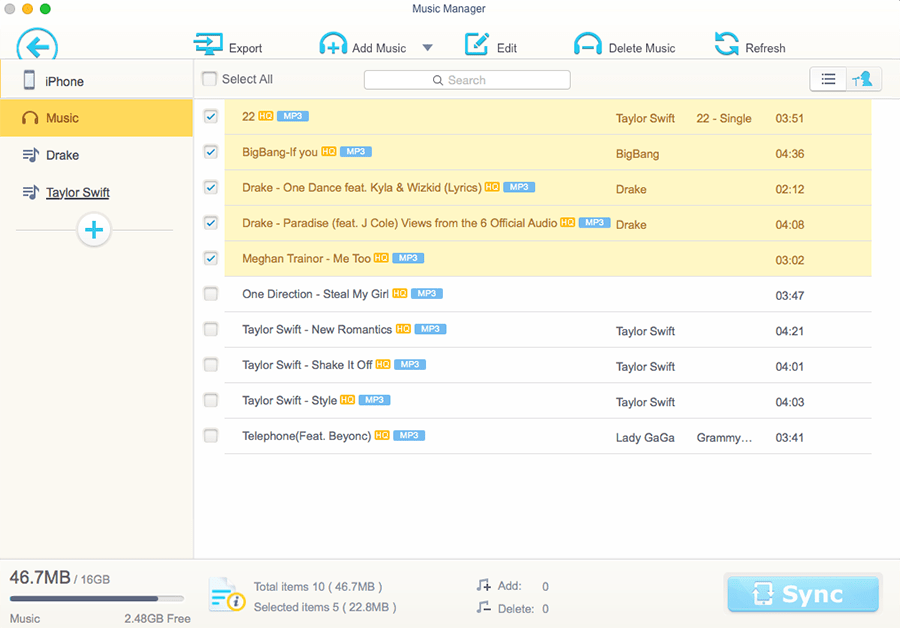
If you have songs on your iPhone that aren’t stored in iTunes or Music, you might need a third-party app to help you transfer them. Here are two popular options:
- Imazing
- IMazing is a powerful tool for transferring files between iOS devices and Macs.
- Download and install iMazing on your Mac.
- Connect your iPhone to your Mac via USB.
- Select the music you want to transfer and choose “Export in Music” or “Export in Folder” to copy it to your Mac.
Transfer Music With Snapdrop
Snapdrop is a web service that lets you share files between devices connected to the same Wi-Fi network. If you have songs stored on iCloud Drive, you can use Snapdrop to transfer them:
- Open the Snapdrop website on your iPhone and select the music you want to transfer.
- Choose “Choose Rows” and follow the instructions to select the song.
- On your Mac, go to the Snapdrop website and click “Save” to download the transferred music.
Transfer Music With Apple Music
If you’re an Apple Music subscriber, you can sync all your music across devices using iCloud. To do this:
- Make sure you have the same Apple ID on both devices.
- Open the Music app on your Mac and select “Account” from the menu bar.
- Choose “Sign In” and enter your Apple ID and password.
Conclusion
Transferring music from an iPhone to a Mac is easier than ever, thanks to these simple steps. Whether you use iTunes, Music, AirDrop, or third-party apps like iMazing or Snapdrop, you’ll be enjoying your favorite tunes on your new Mac in no time!
Faqs
-
Q: What if I Have Music Stored on Icloud Drive?
A: You can use Snapdrop to transfer music from iCloud Drive. -
Q: Can I Transfer Music Without Itunes?
A: Yes, you can use AirDrop or third-party apps like iMazing or Snapdrop. -
Q: How do I Sync my Apple Music Library Across Devices?
A: Make sure you have the same Apple ID on both devices and sign in to Music on your Mac using that ID. -
Q: What if I Have Music Stored on my Iphone But Not in Itunes or Music?
A: You can use third-party apps like iMazing or Snapdrop to transfer those songs to your Mac. -
Q: Can I Transfer Music From a Friend’s Iphone to my Mac?
A: Yes, you can use AirDrop or third-party apps like iMazing or Snapdrop to transfer music from an iPhone to a Mac. -
Q: What if I Have Questions About Transferring Music Between Devices?
A: Feel free to ask us for help! -
Q: Can I Transfer Music Without Connecting my Iphone to my Mac Via Usb?
A: Yes, you can use AirDrop or Snapdrop to transfer music wirelessly. -
Q: What if I Have Issues With Transferring Music Using Third-party Apps?
A: Check the app’s documentation for troubleshooting tips, and don’t hesitate to reach out to us if needed!


