
How to Enlarge Photos Without Losing Quality: A Step-by-step Guide
Are you tired of having blurry photos that don’t do justice to your memories? Do you want to enlarge them without losing their quality? Look no further! In this article, we’ll show you how to enlarge photos using various software and online tools, without compromising on their quality.
The Importance of Photo Enlargement
Enlarging photos can be a great way to relive fond memories or share them with others. However, it’s essential to do so in a way that preserves the original quality of the image. Blurry or pixelated photos can be unflattering and may not convey the intended message.
Software For Enlarging Photos
There are several software programs available that can help you enlarge photos without losing their quality. Here are some of the most popular ones:
Gimp (Windows, Macos, Linux)
GIMP is a free and open-source image editing software that’s widely used by professionals and enthusiasts alike. It offers a range of tools and filters to enhance your photos, including the ability to enlarge them without losing quality.
Step-by-step Guide:
- Download and install GIMP on your computer.
- Open the photo you want to enlarge in GIMP.
- Go to “Image” > “Canvas Size” and enter the desired width and height for your enlarged photo.
- Click “OK” to apply the changes.
- Go to “Filters” > “Sharpen” and select the sharpening tool.
- Adjust the settings as needed to achieve the desired level of sharpness.
- Save your enlarged photo in the desired format.
Smillaenlarger (Windows, Macos)
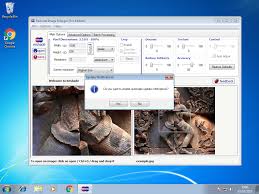
SmillaEnlarger is another software program that can help you enlarge photos without losing their quality. It’s free and offers a range of features, including filters and instruments to enhance your images.
Step-by-step Guide:
- Download and install SmillaEnlarger on your computer.
- Open the photo you want to enlarge in SmillaEnlarger.
- Go to “File” > “Open” and select the image you want to enlarge.
- Adjust the settings as needed to achieve the desired level of enlargement.
- Click “OK” to apply the changes.
- Save your enlarged photo in the desired format.
Other Software For Enlarging Photos
There are several other software programs available that can help you enlarge photos without losing their quality. Some of these include:
- Photoshop (Windows, macOS)
- To THE Image Enlarger
- Image Upscaler
- UpscalePics
Online Tools For Enlarging Photos
If you don’t have access to software or prefer to use online tools, there are several options available that can help you enlarge photos without losing their quality. Here are some of the most popular ones:
Let’s Enhance
Let’s Enhance is a free online tool that allows you to enlarge photos without losing their quality. It uses artificial intelligence to enhance your images and offers a range of features, including filters and instruments.
Step-by-step Guide:
- Go to the Let’s Enhance website.
- Drag and drop the image you want to enlarge into the upload box.
- Adjust the settings as needed to achieve the desired level of enlargement.
- Click “Start Processing” to apply the changes.
- Save your enlarged photo in the desired format.
Other Online Tools For Enlarging Photos
There are several other online tools available that can help you enlarge photos without losing their quality. Some of these include:
- To THE Image Enlarger
- Image Upscaler
- UpscalePics
Conclusion
Enlarging photos can be a great way to relive fond memories or share them with others, but it’s essential to do so in a way that preserves the original quality of the image. By using software programs like GIMP and SmillaEnlarger, or online tools like Let’s Enhance, you can achieve high-quality enlarged photos without losing their detail.
Faqs
- What is The Best Software For Enlarging Photos?
The best software for enlarging photos depends on your specific needs and preferences. However, GIMP and SmillaEnlarger are two popular options that offer a range of features to enhance your images. - Can I Enlarge Photos Without Losing Their Quality?
Yes, it’s possible to enlarge photos without losing their quality by using software programs or online tools that can help you achieve high-quality enlarged images. - How do I Use Let’s Enhance to Enlarge my Photos?
To use Let’s Enhance, simply drag and drop the image you want to enlarge into the upload box, adjust the settings as needed, and click “Start Processing” to apply the changes. - Are There Any Online Tools That Can Help me Enlarge Photos Without Losing Their Quality?
Yes, there are several online tools available that can help you enlarge photos without losing their quality, including Let’s Enhance, To THE Image Enlarger, Image Upscaler, and UpscalePics.
References
- GIMP official website
- SmillaEnlarger official website
- Let’s Enhance official website


