
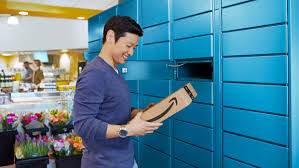
How to Add Amazon Locker as a Delivery Address: A Step-by-step Guide
As an avid online shopper, you’re likely familiar with the convenience of Amazon Locker, which allows you to pick up your packages at a nearby location instead of having them delivered to your home. However, adding an Amazon Locker address can be a bit tricky if you’re not sure how to do it. In this article, we’ll walk you through the process of adding an Amazon Locker as a delivery address on both computers and mobile devices.
Benefits of Using Amazon Locker
Before we dive into the step-by-step guide, let’s quickly discuss the benefits of using Amazon Locker:
- Convenience: Pick up your packages at a nearby location instead of having them delivered to your home.
- Security: Packages are kept safe until you pick them up.
- Flexibility: Choose from various locations and time slots to fit your schedule.
How to Add Amazon Locker as a Delivery Address on Computer
Adding an Amazon Locker address is easy, even if you’re not tech-savvy. Here’s how to do it:
- Log in to Your Amazon Account: Start by logging in to your Amazon account using your login credentials.
- Access Your Account Settings: Once logged in, click on the “Account & Lists” button at the top right corner of the page.
- Select “Addresses”: From the drop-down menu, select “Addresses”.
- Click on “Add a New Address”: In the Addresses section, click on the “Add a new address” button.
- Search For Amazon Lockers: Search for Amazon Lockers in your area by entering your zip code or city and state.
- Select Your Preferred Location: Choose the location that’s most convenient for you from the list of available Amazon Lockers.
- Add The Address to Your Account: Once selected, add the address to your account by clicking on the “Save” button.
How to Add Amazon Locker as a Delivery Address on Mobile Device
Adding an Amazon Locker address is just as easy on mobile devices:
- Open The Amazon App: Open the Amazon app on your smartphone or tablet.
- Log in to Your Account: Log in to your Amazon account using your login credentials.
- Tap on “Account & Lists”: Tap on the “Account & Lists” button at the bottom of the screen.
- Select “Addresses”: From the menu, select “Addresses”.
- Tap on “Add a New Address”: In the Addresses section, tap on the “Add a new address” button.
- Search For Amazon Lockers: Search for Amazon Lockers in your area by entering your zip code or city and state.
- Select Your Preferred Location: Choose the location that’s most convenient for you from the list of available Amazon Lockers.
- Add The Address to Your Account: Once selected, add the address to your account by tapping on the “Save” button.
Tips For Using Amazon Locker
- Choose a Convenient Location: Select a location that’s close to your home or office to make it easy to pick up your packages.
- Check Availability: Make sure the location you choose is available during your preferred time slot.
- Update Your Address: If your address changes, update your Amazon Locker address accordingly.
Conclusion
Adding an Amazon Locker as a delivery address is a straightforward process that can be completed on both computers and mobile devices. By following these step-by-step instructions, you can enjoy the convenience of picking up your packages at a nearby location instead of having them delivered to your home.
Frequently Asked Questions (FAQs)
- Q: Can I Add Multiple Amazon Lockers as Delivery Addresses?
A: Yes, you can add multiple Amazon Lockers as delivery addresses. - Q: How do I Update my Amazon Locker Address if it Changes?
A: To update your Amazon Locker address, follow the same steps as adding a new address. - Q: Can I Use an Amazon Locker For Package Returns?
A: Yes, you can use an Amazon Locker to return packages. - Q: How do I Know if my Amazon Locker is Available During my Preferred Time Slot?
A: Check the availability of your chosen location before selecting it as your delivery address.
More Information
If you have any questions or need further assistance, don’t hesitate to contact Amazon’s customer service department.


