
Understanding And Regulating Cpu Fan Speed: A Comprehensive Guide
Introduction
As technology continues to advance, computer enthusiasts are always on the lookout for ways to optimize their system’s performance. One area that often gets overlooked is the regulation of CPU fan speed. In this article, we will delve into the world of CPU fans, explore their importance, and provide a step-by-step guide on how to regulate their speed.
What Are Cpu Fans?
CPU fans, also known as heat sinks or cooling systems, play a crucial role in maintaining a stable temperature within your computer’s processor. They work by dissipating excess heat generated during processing activities, thus preventing overheating and potential damage to the system.
Why Regulate Cpu Fan Speed?
Regulating CPU fan speed can significantly impact your computer’s performance and lifespan. An excessively high or low fan speed can lead to:
- Overheating: Prolonged exposure to high temperatures can cause permanent damage to the processor.
- Increased Power Consumption: Higher fan speeds often result in increased power consumption, which can lead to higher electricity bills.
Methods For Regulating Cpu Fan Speed
There are several ways to regulate CPU fan speed, and we’ll explore each method in detail:
Method 1: Bios/uefi Settings
Accessing the BIOS or UEFI settings is a straightforward way to adjust your CPU fan speed. Here’s how to do it:
- Restart your computer and press the designated key (usually F2, F10, or Del) to access the BIOS menu.
- Navigate to the “Advanced” or “Performance” section.
- Look for the option that controls the CPU fan speed. It may be labeled as “Fan Speed Control,” “CPU Fan Override,” or something similar.
- Adjust the fan speed according to your needs.
Note: Be cautious when adjusting fan speeds, as incorrect settings can lead to overheating or other issues.
Method 2: Using Software Programs
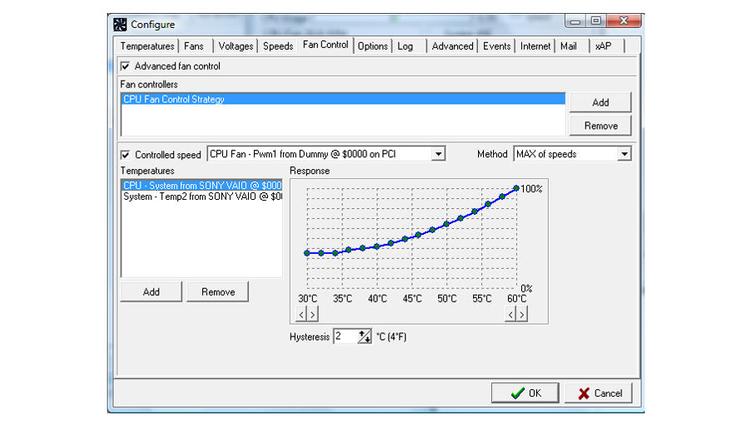
There are several software programs available that allow you to regulate CPU fan speed. One popular option is SpeedFan:
- Download and install SpeedFan on your computer.
- Launch the program and click on the “Speed” tab.
- Adjust the fan speed by setting a desired value for each fan (if multiple fans are installed).
- Save changes and restart your computer.
Another option is smcFanControl, which is designed specifically for Mac users:
- Download and install smcFanControl from the App Store.
- Launch the program and click on the “Preferences” icon.
- Adjust the fan speed by setting a desired value for each fan (if multiple fans are installed).
- Save changes.
Method 3: Hardware Upgrades
If you’re experiencing frequent overheating issues, it may be time to consider upgrading your cooling system. You can:
- Upgrade to a more efficient CPU cooler.
- Install additional case fans or liquid cooling systems.
- Consider upgrading to a higher-end processor that features built-in cooling solutions.
Conclusion
Regulating CPU fan speed is an essential aspect of maintaining a stable and efficient computer system. By following the methods outlined in this article, you can ensure your computer runs at optimal temperatures, reducing the risk of overheating and damage to the processor. Remember to always monitor your system’s temperature and adjust fan speeds accordingly.
Frequently Asked Questions (FAQs)
- Q: Why is my Cpu Fan Running so Fast?
A: A high CPU fan speed indicates that the computer is generating excessive heat, which can be caused by intense processing activities or poor cooling systems. - Q: Can I Adjust my Cpu Fan Speed Without Voiding my Warranty?
A: It’s generally safe to adjust fan speeds in the BIOS or UEFI settings, but making permanent changes may void your warranty. Consult your manufacturer’s documentation for more information. - Q: What’s The Ideal Cpu Fan Speed For my System?
A: The ideal CPU fan speed varies depending on your computer’s specifications and usage patterns. As a general rule, aim to keep your CPU temperature below 80°C (176°F). - Q: Can I Use Multiple Software Programs to Regulate my Cpu Fan Speed?
A: It’s not recommended to use multiple software programs simultaneously, as this can lead to conflicts and instability. Stick to one program that meets your needs. - Q: Are There Any Risks Associated With Regulating my Cpu Fan Speed?
A: Yes, adjusting fan speeds incorrectly or excessively can lead to overheating, reduced system performance, or even damage to the processor. - Q: Can I Upgrade my Cooling System Without Voiding my Warranty?
A: Check your manufacturer’s documentation and warranty information before making any hardware upgrades. - Q: How Often Should I Check my Cpu Fan Speed?
A: Regularly monitor your CPU temperature using software programs or built-in monitoring tools to ensure optimal performance and prevent overheating. - Q: Are There Any Alternative Cooling Methods For my Computer?
A: Yes, consider liquid cooling systems, case fans, or other innovative solutions to enhance your system’s cooling capabilities.


