
How to Rip a Dvd With Mac: A Step-by-step Guide
Are you looking for ways to rip a DVD with your Mac? Look no further! In this article, we will guide you through the process of ripping a DVD with your Mac, using various software programs.
Why Rip a Dvd?
Ripping a DVD allows you to transfer the contents of the disk to your computer or media player, making it easier to access and watch your favorite movies and TV shows. Whether you want to rip a DVD for personal use or share it with friends and family, this guide will show you how.
What You Need to Rip a Dvd on Your Mac
To rip a DVD on your Mac, you will need:
- A DVD drive (either built-in or external)
- A Mac computer running macOS
- A software program designed for ripping DVDs (more on this below)
Software Programs For Ripping Dvds With Mac
There are several software programs available that can help you rip a DVD with your Mac. Here are some of the most popular options:
1. Vlc
VLC is a free and open-source media player that can also be used to rip DVDs. It’s available for macOS and can handle various types of video and audio files.
Step-by-step Guide to Ripping a Dvd With Vlc:
- Download and install VLC on your Mac.
- Insert the DVD into your Mac’s DVD drive.
- Launch VLC and select the “Media” tab from the top menu bar.
- Click on “Convert / Save” and select the DVD as the input file.
- Choose the desired output format (e.G., MP4 or MKV).
- Adjust any additional settings as needed.
- Click on “Save” to begin the ripping process.
2. Handbrake
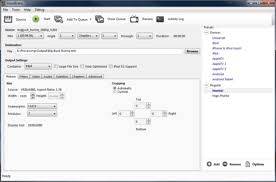
HandBrake is another free software program that can help you rip a DVD with your Mac. It’s available for macOS and can convert various types of video files, including DVDs.
Step-by-step Guide to Ripping a Dvd With Handbrake:
- Download and install HandBrake on your Mac.
- Insert the DVD into your Mac’s DVD drive.
- Launch HandBrake and select the “Source” tab from the top menu bar.
- Click on “Open Source” and select the DVD as the input file.
- Choose the desired output format (e.G., MP4 or MKV).
- Adjust any additional settings as needed.
- Click on “Browse” to select a location for the ripped file.
3. Makemkv
MakeMKV is a paid software program that can help you rip a DVD with your Mac, even if it’s protected by copyright restrictions.
Step-by-step Guide to Ripping a Dvd With Makemkv:
- Download and install MakeMKV on your Mac.
- Insert the DVD into your Mac’s DVD drive.
- Launch MakeMKV and select the “File” tab from the top menu bar.
- Click on “Open File” and select the DVD as the input file.
- Choose the desired output format (e.G., MKV).
- Adjust any additional settings as needed.
- Click on “OK” to begin the ripping process.
4. Other Solutions
If you’re looking for alternative solutions, consider trying:
- Burn: A free software program that can help you rip CDs and DVDs with your Mac.
- MacX DVD Ripper Pro: A paid software program that can help you rip DVDs with your Mac, including those protected by copyright restrictions.
Conclusion
Ripping a DVD on your Mac is easier than ever, thanks to the various software programs available. Whether you choose VLC, HandBrake, MakeMKV, or another solution, this guide has shown you how to get started.
Frequently Asked Questions (FAQs)
- What do I Need to Rip a Dvd With my Mac?
To rip a DVD on your Mac, you will need:
- A DVD drive (either built-in or external)
- A Mac computer running macOS
-
A software program designed for ripping DVDs
-
Which Software Program is The Best Option?
The best option depends on your specific needs and preferences. VLC and HandBrake are both free and open-source options, while MakeMKV is a paid solution that offers additional features.
- Can I Rip a Dvd Protected by Copyright Restrictions With my Mac?
Yes, you can use software programs like MakeMKV to rip DVDs protected by copyright restrictions on your Mac.
- How Long Does it Take to Rip a Dvd on my Mac?
The time it takes to rip a DVD on your Mac depends on various factors, including the size of the file and the speed of your computer.
- Can I Convert Other Types of Video Files With Vlc or Handbrake?
Yes, both VLC and HandBrake can handle various types of video files, not just DVDs.
- Is Ripping a Dvd on my Mac Legal?
Ripping a DVD for personal use is generally considered legal, but be sure to check local laws and regulations before doing so.
- Can I Share Ripped Dvds With Others?
No, sharing ripped DVDs without permission from the copyright owner may infringe on their rights.
- Are There Any Alternatives to These Software Programs?
Yes, other software programs like Burn, MacX DVD Ripper Pro, and Cisdem Video Converter can help you rip DVDs with your Mac.
We hope this article has provided a comprehensive guide to ripping a DVD with your Mac!


