
How to Increase The Volume of Your Laptop
Are you tired of struggling to hear anything on your laptop? Do you want to enjoy your favorite movies, music, or games without straining your ears? Look no further! In this article, we will guide you through the steps to increase the volume of your laptop, whether it’s a Windows PC or a MacBook.
Increasing Volume: A Simple But Often Overlooked Process
First and foremost, let’s address the elephant in the room. Increasing the volume on your laptop is not rocket science, but sometimes, even simple tasks can be tricky for those who are new to technology. Don’t worry; we’re here to help!
Windows Pc: The Basics
For Windows users, there are a few ways to increase the volume of your laptop. Here are some of them:
Using Function Keys
The most straightforward method is to use the function keys (F1-F12) on your keyboard. Specifically, pressing F12 will increase the volume, while F11 will decrease it. If these keys don’t work for you, try holding down the Fn key and using one of the function keys dedicated to volume control.
Using The Volume Indicator in The Taskbar
Another way is to use the volume indicator in the taskbar. Click on the speaker icon located at the bottom right corner of your screen, and then drag the cursor to the right to increase the volume. You can also adjust the volume for individual applications by clicking on the speaker icon and selecting “Open Sound settings.”
Using a Third-party Tool
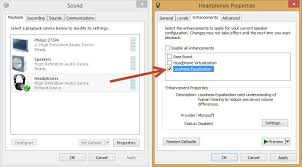
If you need to increase the volume beyond the standard limit set by Windows, you can use an equalizer tool like Boom 3D Desktop. This software allows you to customize the sound settings to your liking.
Macbook: The Easy Way
For MacBook users, there are also several ways to increase the volume of your laptop:
Using Function Keys (Again!)
Similar to Windows PCs, pressing F12 will increase the volume on a MacBook, while F11 will decrease it. If you have a MacBook Pro with Touch Bar, press the speaker icon on the Touch Bar and use the slider to adjust the volume.
Using System Preferences
You can also adjust the volume by going to System Preferences > Sound > Output. Drag the cursor to the right to increase the volume.
Using a Third-party Tool (Again!)
If you need to increase the volume beyond the standard limit set by macOS, consider using a third-party tool like Boom 3D Desktop. This software offers a range of sound settings and customization options.
Conclusion
Increasing the volume on your laptop is not a daunting task, but it’s essential to know where to look for help. Whether you’re a Windows or MacBook user, we hope this article has provided you with the necessary guidance to enjoy your favorite content without straining your ears.
Frequently Asked Questions (FAQs)
Here are some frequently asked questions about increasing laptop volume:
Q: How can I increase the volume on my laptop?
A: Use function keys, adjust settings in the taskbar or System Preferences, or use a third-party tool like Boom 3D Desktop.
Q: Why is my laptop volume so low?
A: It might be due to a software or driver issue. Check your sound settings and update drivers if necessary.
Q: Can I increase the volume beyond the standard limit set by my operating system?
A: Yes, you can use an equalizer tool like Boom 3D Desktop or adjust settings in System Preferences.
Q: What is the best way to increase laptop volume?
A: It depends on your specific device and preferences. Experiment with different methods until you find what works best for you.
Additional Tips
Remember, a clear understanding of the basics can make all the difference in troubleshooting common issues like low laptop volume.


