
How to Cancel Your Spotify Subscription: A Step-by-step Guide
Are you tired of paying for a premium Spotify subscription that you no longer use? Do you want to switch back to the free version of the service without any interruptions? Look no further! In this article, we’ll guide you through the process of canceling your Spotify subscription, whether you’re using an Android device, iPhone, or PC.
Why Cancel Your Spotify Subscription?
Before we dive into the steps, let’s consider why you might want to cancel your Spotify subscription. Perhaps you’ve realized that you don’t use the service as much as you thought, and the premium features aren’t worth the cost. Maybe you’re trying to cut back on expenses and simplify your digital life. Whatever your reason, we’re here to help.
Canceling Your Spotify Subscription: Android
If you’re using an Android device, follow these steps:
- Open The Browser: Use the browser that you normally use to surf online (e.G., Google Chrome).
- Go to The Spotify Login Page: Access your Spotify account by logging in with your credentials.
- Tap on The Three Horizontal Lines: In the top-right corner of the screen, tap on the icon of the three horizontal lines.
- Select “Account”: From the dropdown menu, select “Account.”
- Scroll Down to “Your Plan”: Scroll down to the bottom of the page until you see “Your Plan.”
- Tap on “Cancel Subscription”: Tap on the button labeled “Cancel Subscription.”
Canceling Your Spotify Subscription: Iphone/ipad
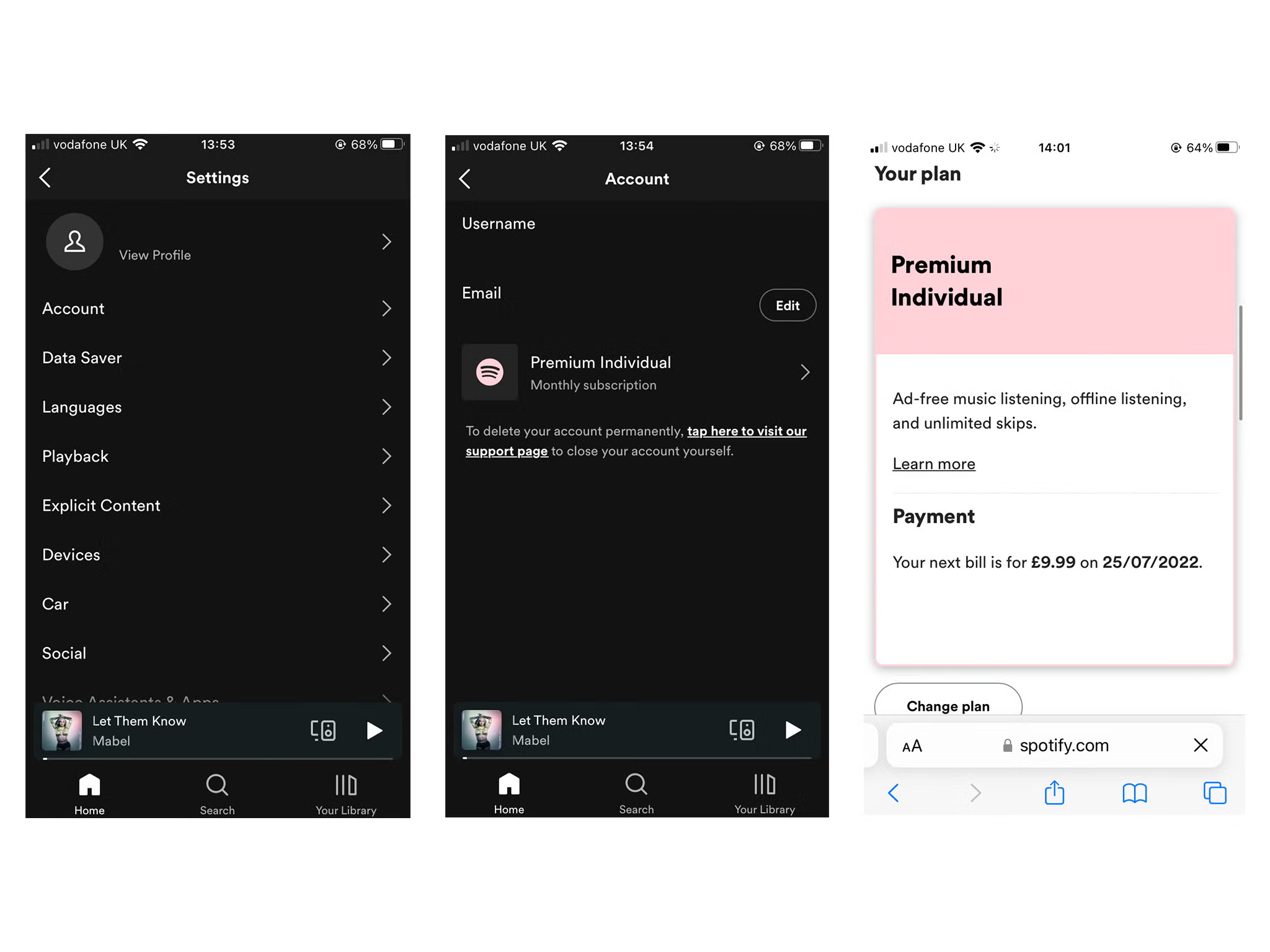
If you’re using an iPhone or iPad, follow these steps:
- Open Safari: Use the browser that comes pre-installed on your device (Safari).
- Access Your Spotify Account: Log in to your Spotify account using your credentials.
- Tap on “Visualize Account”: Tap on the icon of the gear in the top-right corner, then select “Visualize Account.”
- Scroll Down to “Your Plan”: Scroll down to the bottom of the page until you see “Your Plan.”
- Tap on “Cancel Subscription”: Tap on the button labeled “Cancel Subscription.”
Canceling Your Spotify Subscription: PC
If you’re using a PC, follow these steps:
- Visit The Spotify Website: Go to the official Spotify website and log in with your credentials.
- Click on Your Profile Picture: Click on the icon of the three horizontal lines (or your profile picture) in the top-right corner.
- Select “Account”: From the dropdown menu, select “Account.”
- Scroll Down to “Your Plan”: Scroll down to the bottom of the page until you see “Your Plan.”
- Click on “Cancel Subscription”: Click on the button labeled “Cancel Subscription.”
What Happens After You Cancel Your Spotify Subscription?
After canceling your premium subscription, you’ll be switched back to the free version of the service. This means that you’ll still have access to most of Spotify’s features, but with ads and some limitations.
Do I Need to Contact Spotify Support?
In most cases, you won’t need to contact Spotify support to cancel your subscription. However, if you’ve signed up for a premium subscription through a third-party service (e.G., ITunes), you might need to contact their support team to cancel the subscription.
Why Is It So Easy to Cancel My Spotify Subscription?
Spotify wants to make it easy for users to manage their subscriptions and switch between plans. By providing a straightforward cancellation process, they’re showing that they value their customers’ time and preferences.
Frequently Asked Questions (FAQs)
- What Happens to my Music Library After I Cancel my Spotify Subscription?
Your music library will still be accessible, but you won’t have access to the premium features. - Can I Reactivate my Premium Subscription Later?
Yes, you can reactivate your premium subscription at any time by following the same steps as before. - Will I Receive a Refund For The Remaining Days of my Premium Subscription?
No, refunds are not available for unused days after canceling your subscription. - How do I Know if I’ve Successfully Canceled my Spotify Subscription?
After canceling your subscription, you’ll be switched back to the free version of the service. You can verify this by checking your account settings.
We hope this article has helped you understand how to cancel your Spotify subscription. Remember, it’s always a good idea to review your subscription plan and adjust it according to your needs.


