
How to Contact Password Wi-fi: A Step-by-step Guide
As we increasingly rely on Wi-Fi connections for our daily activities, it’s essential to ensure that our passwords are strong and secure. In this article, we’ll guide you through the process of contacting your Wi-Fi password and provide tips for maintaining a safe and secure connection.
Why is a Strong Password Important?
A strong password is crucial in protecting your network from unauthorized access. If someone gains access to your Wi-Fi network, they can compromise sensitive information, including financial data, personal messages, and more. By using a complex password, you’ll minimize the risk of your network being exploited.
Accessing Your Router’s Panel
To contact your Wi-Fi password, you need to access your router’s panel. This is usually done through a web interface, which can be accessed by typing a specific IP address into your browser. The steps may vary depending on your router model, but here’s a general guide:
- Open a web browser and type
192.168.1.1(Or192.168.0.1, If the previous doesn’t work) in the address bar. - Press Enter to access the router’s panel.
- Log in using your admin username and password. The default credentials are usually
admin/adminoradmin/password.
Modifying Your Wi-fi Password
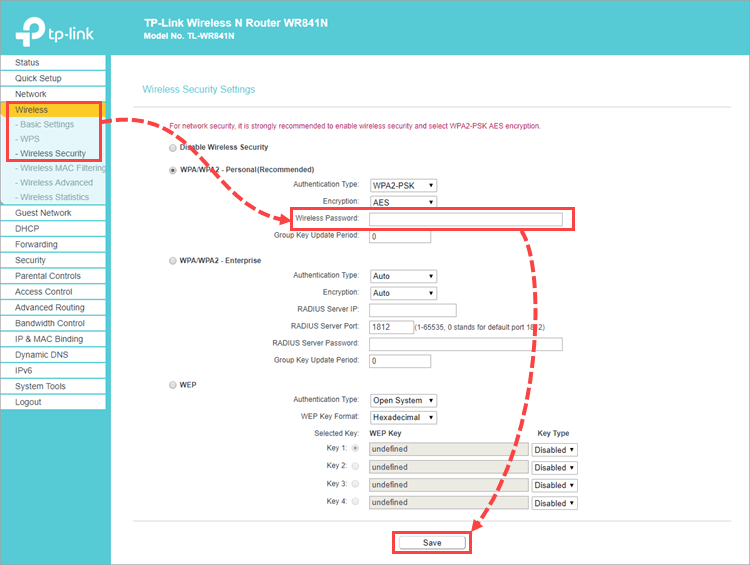
Once you’re logged in, navigate to the Wireless Settings section. Here, you can modify your Wi-Fi password by following these steps:
- Look for the “Wireless Network” or “Wi-Fi” tab.
- Click on it to access the settings.
- Scroll down and look for the “Password” or “Key” field.
- Type in a new, complex password (see below for tips).
- Save your changes by clicking the “Apply” button.
Tips For Creating a Strong Wi-fi Password
Here are some guidelines for creating a strong Wi-Fi password:
- Use 12-16 characters
- Include uppercase and lowercase letters
- Add special characters (!, @, #, etc.)
- Incorporate numbers
- Avoid using your name, birthdate, or common words
Additional Tips For Maintaining a Secure Connection
To further enhance the security of your Wi-Fi network:
- Change Your Router’s Default Password: This is usually found on the underside or back of your router.
- Use Wpa2-aes Encryption: This is currently the most secure encryption method available.
- Disable Wps (Wi-Fi Protected Setup): This feature can be exploited by hackers to gain access to your network.
Troubleshooting Common Issues
If you’re experiencing problems accessing or modifying your Wi-Fi password, try these steps:
- Restart your router and modem
- Check that your browser is up-to-date
- Ensure you’ve entered the correct IP address
Configuring Your Wi-fi Password on Various Devices
Here’s how to configure your Wi-Fi password on different devices:
- PC (Windows): Click on the Wi-Fi icon in your taskbar, select your network, and enter the new password.
- Mac: Go to System Preferences > Network > Advanced > TCP/IP, then click on the “TCP/IP” tab and enter the new password.
- Iphone/ipad: Go to Settings > Wi-Fi, tap on the “i” icon next to your network name, and enter the new password.
- Android: Go to Settings > Connections or Wireless & Networks > Wi-Fi, select your network, and enter the new password.
Conclusion
By following these steps and tips, you’ll be able to securely contact your Wi-Fi password and maintain a safe connection. Remember to change your password regularly and use strong encryption methods to protect your data.
Frequently Asked Questions (FAQs)
- Q: How Often Should I Change my Wi-fi Password?
A: Change your password every 3-6 months or whenever you notice unusual activity on your network. - Q: What’s The Best Encryption Method For my Router?
A: WPA2-AES is currently the most secure option available. - Q: Can I Use a Password Generator to Create a Strong Wi-fi Password?
A: Yes, consider using a password generator to create a unique and complex password. - Q: How do I Configure my Router’s Settings on Multiple Devices?
A: Refer to the manufacturer’s instructions or contact their support team for assistance. - Q: What Should I do if I Forget my Wi-fi Password?
A: Try resetting your router to its default settings, and then reconfigure your network with a new password. - Q: Can I Use a Vpn (Virtual Private Network) to Enhance my Wi-fi Security?
A: Yes, using a VPN can add an extra layer of protection for your online activities. - Q: How do I Protect Myself From Wi-fi Hacking And Unauthorized Access?
A: Regularly update your router’s firmware, use strong passwords, and enable WPA2-AES encryption to minimize the risk.


