
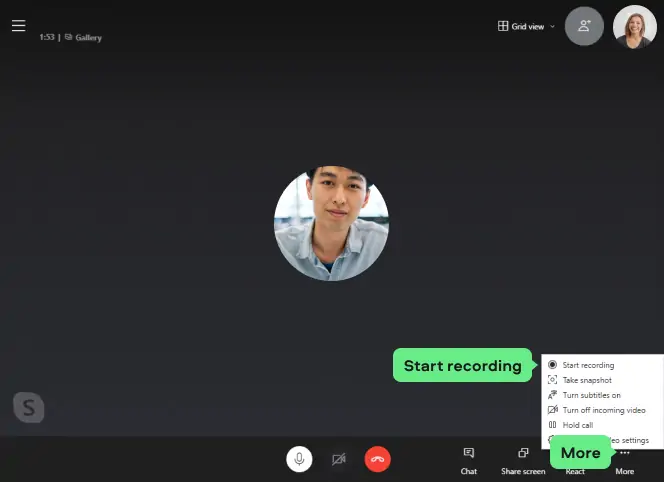
Recording a Video Call: A Step-by-step Guide
Are you looking to record a video call? Perhaps you want to save a memorable conversation with family or friends, or maybe you need to document a business meeting. Whatever your reason, recording a video call can be easily done using various software and apps. In this article, we’ll guide you through the process of recording a video call on both computer and smartphone.
Why Record a Video Call?
Before we dive into the technical aspects, let’s talk about why recording a video call might be useful. Here are some scenarios where recording a video call can come in handy:
- Memories: Recording a video call with family or friends allows you to cherish the memories and relive them whenever you want.
- Business Purposes: Recording business meetings or conferences can help you keep track of important discussions, decisions, and agreements.
- Education: Recording online lectures or tutorials can provide valuable learning resources for students.
Recording a Video Call on Computer
If you’re looking to record a video call on your computer, here are the steps to follow:
- Choose a Software: There are several software options available that allow you to record video calls, such as OBS Studio, Camtasia, and CleanShot X.
- Install The Software: Download and install the chosen software on your computer.
- Configure Settings: Configure the software settings according to your preferences, including audio and video quality.
- Initiate Recording: Start the recording process by initiating a video call with the desired participants.
Recording a Video Call on Smartphone
If you’re using a smartphone or tablet, here’s how to record a video call:
- Check For Built-in Feature: Check if your device has a built-in feature to record video calls.
- Use Third-party Apps: If not, use third-party apps like Android’s Screen Recording or iPhone’s QuickTime Player to record the video call.
Tips And Precautions
When recording a video call, keep these tips in mind:
- Inform Participants: Always inform participants that you’re recording the conversation.
- Respect Privacy: Respect the privacy of all participants and ensure that recordings are not shared without their consent.
- Check Local Laws: Be aware of local laws and regulations regarding video recordings.
Conclusion
Recording a video call can be an excellent way to capture important conversations, memories, or business meetings. By following these steps and tips, you’ll be able to record high-quality video calls on both computer and smartphone.
Frequently Asked Questions
Here are some frequently asked questions about recording video calls:
- What Software Should I Use?
- OBS Studio is a popular choice for recording video calls.
- Can I Record Video Calls on my Smartphone?
- Yes, most smartphones have built-in features or third-party apps to record video calls.
- Do I Need to Inform Participants That I’m Recording The Conversation?
- Always inform participants that you’re recording the conversation.
References
For more information on recording video calls, check out these resources:


