
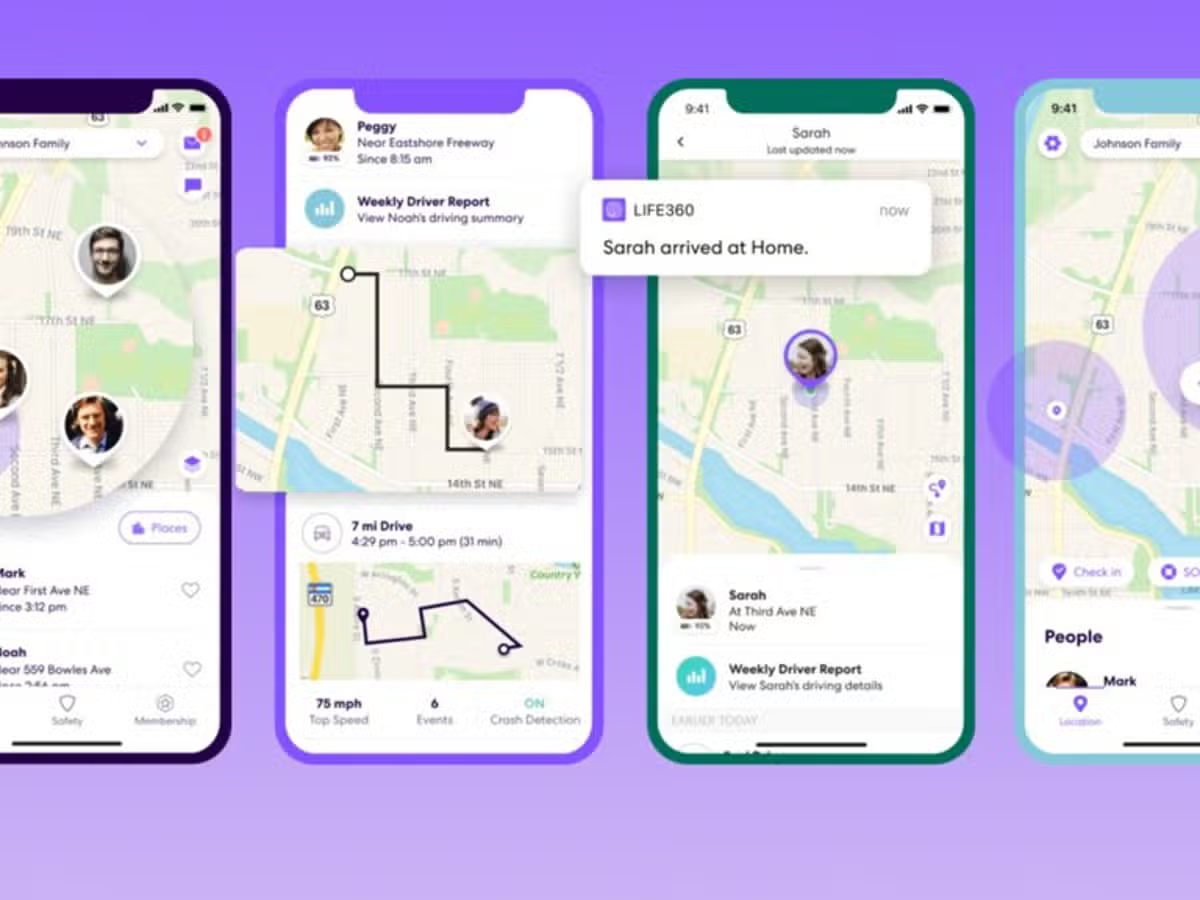
How to Go Out of a Circle on Life360: A Step-by-step Guide
Are you tired of being tracked by your friends or family members on Life360? Do you want to take a break from the constant updates and notifications without deleting your account entirely? Look no further! In this article, we’ll show you how to go out of a circle on Life360, disable sharing of your position, and even delete your account if needed.
Why Go Out of a Circle on Life360?
Before we dive into the step-by-step guide, let’s talk about why you might want to leave a circle on Life360. Perhaps you’re feeling overwhelmed by the constant updates and notifications, or maybe you just need some space from your friends or family members. Whatever your reason, going out of a circle is a great way to take a break without deleting your account entirely.
How to Go Out of a Circle on Life360
To go out of a circle on Life360, follow these simple steps:
- Open The App: First, open the Life360 app on your smartphone.
- Tap on The Gear Icon: Tap on the gear icon in the top-right corner of the screen to access the settings menu.
- Select “Manage Circles”: From the settings menu, select “Manage Circles.”
- Choose The Circle You Want to Leave: Choose the circle you want to leave by selecting it from the list.
- Tap on “Leave Circle”: Tap on the “Leave Circle” button to exit the circle.
What Happens When You Go Out of a Circle?
When you go out of a circle, you’ll no longer be visible on the map, and your friends or family members will no longer receive updates about your location. However, keep in mind that if someone has your permission to track you, they may still be able to see your location.
How to Disable Sharing of Your Position on Life360
If you don’t want to leave a circle entirely but still want to disable sharing of your position, follow these steps:
- Open The App: First, open the Life360 app on your smartphone.
- Tap on The Gear Icon: Tap on the gear icon in the top-right corner of the screen to access the settings menu.
- Select “Sharing”: From the settings menu, select “Sharing.”
- Slide The Switch to “Off”: Slide the switch to the left to turn off sharing of your position.
How to Delete Your Life360 Account
If you want to delete your Life360 account entirely, follow these steps:
- Open The App: First, open the Life360 app on your smartphone.
- Tap on The Gear Icon: Tap on the gear icon in the top-right corner of the screen to access the settings menu.
- Select “Account”: From the settings menu, select “Account.”
- Tap on “Delete Account”: Tap on the “Delete Account” button to delete your account.
What Happens When You Delete Your Life360 Account?
When you delete your Life360 account, all data associated with your account will be deleted, including any circles or shared locations. Keep in mind that if you have a subscription to Life360, deleting your account may not automatically cancel your subscription.
Troubleshooting Tips
If you encounter any problems while trying to go out of a circle or delete your Life360 account, try the following:
- Restart The App: Try restarting the Life360 app to see if that resolves the issue.
- Check For Updates: Make sure you’re running the latest version of the Life360 app.
- Contact Support: If you’re still experiencing issues, contact Life360 support for help.
Conclusion
Going out of a circle on Life360 is a great way to take a break from the constant updates and notifications without deleting your account entirely. By following these simple steps, you can disable sharing of your position or delete your account if needed. Remember to troubleshoot any issues that may arise by restarting the app, checking for updates, or contacting support.
Frequently Asked Questions
- What Happens When I go Out of a Circle on Life360?
When you go out of a circle, you’ll no longer be visible on the map, and your friends or family members will no longer receive updates about your location. - Can I Still See my Friends’ Locations After Going Out of a Circle?
Yes, if someone has your permission to track you, they may still be able to see your location even after you’ve left a circle. - How do I Delete my Life360 Account?
To delete your Life360 account, open the app, tap on the gear icon, select “Account,” and then tap on “Delete Account.” - What Happens When I Delete my Life360 Account?
When you delete your Life360 account, all data associated with your account will be deleted, including any circles or shared locations. - How do I Troubleshoot Issues With The Life360 App?
Try restarting the app, checking for updates, or contacting support if you encounter any issues. - Can I Still Use Life360 on my Computer?
Yes, you can download and install the Life360 app on your computer to access its features. - How do I Contact Life360 Support?
You can contact Life360 support by visiting their website, clicking on “Help,” and then selecting “Contact Support.”


