
Optimizing Emule For Better Performance
Are you tired of slow downloads on eMule? Do you want to get the most out of this popular peer-to-peer file sharing program? Look no further! In this comprehensive guide, we’ll show you how to optimize eMule for better performance.
Why Optimize Emule?
EMule is a powerful tool for downloading and sharing files with others. However, if not configured properly, it can slow down your internet connection and even cause problems on your computer. By optimizing eMule, you can:
- Improve download speeds
- Reduce the risk of disconnections and errors
- Enhance overall system performance
Setting Up Emule For Better Performance
To optimize eMule, follow these steps:
Step 1: Test Your Internet Connection Speed
Before making any changes to eMule settings, test your internet connection speed using a reliable online tool. This will give you an idea of how fast your connection is and help you set realistic expectations.
Step 2: Adjust Emule Settings For Better Performance
- Connection Speed: Set the limit on upload/download speeds according to your internet plan’s maximum data transfer rate. For example, if your plan allows up to 50 Mbps, set the upload speed to around 40-45 Mbps and download speed to around 40-45 Mbps as well.
- Maximum Sources: Increase the number of sources for file downloads to a reasonable limit (around 500-600). This will help eMule find more sources for the files you’re downloading, making it faster and more reliable.
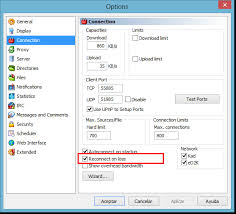
- Automatic Reconnection: Enable automatic reconnection in case your internet connection is lost. This will help eMule reconnect to the network without any manual intervention.
Step 3: Balance Upload And Download Speeds
To ensure a smooth experience, balance upload and download speeds within the program settings. You can do this by checking the “Rapporto Up:Down” statistic in the program’s statistics window. If it’s not equal to 1:1, Adjust the upload speed accordingly.
Step 4: Choose Popular Files For Downloading
When searching for files on eMule, prioritize popular ones with multiple sources. This increases your chances of getting the file quickly and efficiently.
Step 5: Set Up Port Forwarding (If Necessary)
Port forwarding is necessary only if you’re behind a router or firewall that blocks incoming connections from the internet. If this applies to you, follow these steps:
- Open your web browser and navigate to your router’s configuration page.
- Look for a section called “Virtual Servers,” “Port Forwarding,” or something similar.
- Create a new rule by specifying:
- Internal Port: The port number used by eMule (usually 4662 for TCP and 4672 for UDP).
- External Port: A unique external port number that will forward incoming connections from the internet to your internal port.
- Protocol: Choose either TCP or UDP, depending on your router’s configuration.
- IP Address: Enter the IP address of your computer (usually 192.168.X.X).
- Save the changes and restart eMule.
Step 6: Test Your Configuration
After making these adjustments, test your eMule configuration to ensure it works as expected. If you experience any issues or errors, consult our troubleshooting guide for assistance.
By following these steps and adjusting your settings accordingly, you’ll be able to optimize eMule for better performance, ensuring faster downloads and a more enjoyable user experience.
Troubleshooting Common Issues
Are you experiencing problems with eMule? Don’t worry! This section will walk you through the most common issues and their solutions:
- Connection Problems: If you’re unable to connect to the internet or struggle with disconnections, ensure that your router is configured correctly. Consult our guide on configuring routers for more information.
- Slow Downloads: To speed up downloads, try adjusting the connection speed limit in eMule settings. You can also increase the maximum sources allowed for file downloads.
- Upload/download Speed Imbalance: If you notice an imbalance between upload and download speeds, adjust the “Rapporto Up:Down” statistic in the program’s statistics window accordingly.
Conclusion
By following these steps and adjusting your eMule settings, you’ll be able to optimize the software for better performance. Remember to test your configuration regularly to ensure everything is working smoothly.
Do you have any questions about optimizing eMule? Check out our FAQs below:
Frequently Asked Questions (FAQs)
Q1: What Are Some Common Issues With Emule?
A1: Some common issues include connection problems, slow downloads, and an imbalance between upload and download speeds.
Q2: How Can I Troubleshoot These Issues?
A2: To troubleshoot these issues, consult our troubleshooting guide for assistance. Ensure that your router is configured correctly and adjust the connection speed limit in eMule settings as needed.
Q3: Can I Use a Vpn With Emule?
A3: Yes, you can use a Virtual Private Network (VPN) with eMule to secure your internet connection and protect yourself from potential risks.
Q4: Are There Any Alternatives to Emule?
A4: Yes, there are several peer-to-peer file sharing programs available, such as uTorrent and BitTorrent. However, keep in mind that each program has its unique features and settings.
Q5: How Can I Prevent Emule From Slowing Down my Internet Connection?
A5: To prevent eMule from slowing down your internet connection, ensure that you’re not downloading too many files at once. Also, prioritize popular files with multiple sources to speed up the download process.
Q6: Can I Use Emule Behind a Firewall or Router?
A6: Yes, you can use eMule behind a firewall or router. However, if necessary, set up port forwarding according to our guide on configuring routers for assistance.
By following these steps and adjusting your settings accordingly, you’ll be able to optimize eMule for better performance.


