
Downloading Apps on Smart TV Philips: A Step-by-step Guide
Are you excited about your new Smart TV Philips and eager to explore its functionalities? Look no further! This article will guide you through the process of downloading apps on your Smart TV Philips, ensuring that you can fully enjoy all the features and services offered by this device.
Introduction to Smart Tvs And Apps
Smart TVs are becoming increasingly popular due to their ability to provide a wide range of entertainment options, including streaming services, social media, and more. One of the most significant advantages of Smart TVs is their capacity to download various apps, which can be used for various purposes such as streaming movies and TV shows, accessing social media platforms, and even controlling your home devices.
Understanding The Operating System
Before we dive into the process of downloading apps on your Smart TV Philips, it’s essential to understand the operating system used by this device. The latest Smart TVs from Philips come with Android TV, which is an operating system designed specifically for televisions. This means that you can expect a user-friendly interface and access to various Google Play Store features.
Configuring Internet Access
To download apps on your Smart TV Philips, it’s crucial to ensure that the device has internet access. Here are the steps to follow:
- For Android Tvs: Press the “Settings” button on your remote control and navigate to “Wireless & networks.” Select the type of connection you prefer (Ethernet or Wi-Fi) and enter the necessary credentials.
- For Proprietary Operating Systems: Go to the settings menu, select “Connect to net,” and choose the preferred connection method. If using Ethernet, ensure that the cable is correctly connected to the TV and router.
Downloading Apps on Android Tvs
Once you have successfully configured internet access, follow these steps to download apps on your Smart TV Philips with an Android operating system:
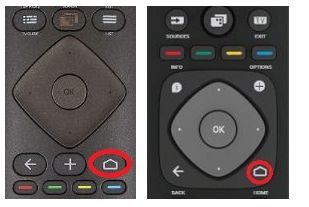
- Open Google Play Store: Use your remote control to navigate to the “Home” screen and find the Google Play Store icon. Select it using the directional arrows and press the OK button.
- Sign in With a Google Account: If you haven’t already, create a Google account or sign in with an existing one. This is necessary for downloading apps from the Google Play Store.
Downloading Apps on Proprietary Operating Systems
For Smart TVs running proprietary operating systems:
- Access The App Store: Press the “Smart TV” button on your remote control and navigate to the app store.
- Search And Download Apps: Browse through the available apps, select the one you’re interested in, and follow the on-screen instructions to download it.
Tips And Tricks
To get the most out of your Smart TV Philips experience:
- Make sure to configure internet access correctly before attempting to download apps.
- Use a Google account to access the Google Play Store and enjoy a seamless app installation process.
- Familiarize yourself with the proprietary operating system’s features and settings to ensure smooth navigation.
Conclusion
Downloading apps on your Smart TV Philips is an exciting experience that can greatly enhance your entertainment options. By following these step-by-step guides, you’ll be able to access various apps and services, making the most out of your new device. Happy downloading!
Frequently Asked Questions
Q: Do I Need a Google Account to Download Apps on my Android Tv?
A: Yes, having a Google account is necessary for downloading apps from the Google Play Store.
Q: How do I Configure Internet Access on my Smart TV Philips With a Proprietary Operating System?
A: Go to the settings menu and select “Connect to net” or press the “Smart TV” button to access the app store.
Q: Can I Download Apps Directly Onto my Smart TV Without Using a Google Account?
A: Yes, if your Smart TV runs a proprietary operating system, you can download apps without needing a Google account.
Q: What Are Some Popular Apps That I Should Consider Downloading on my Smart TV Philips?
A: Some popular apps include Netflix, YouTube, Kodi, and Amazon Prime Video.


