
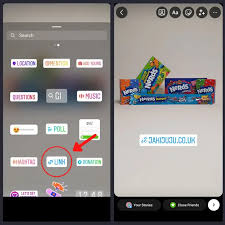
How to Insert a Link in Instagram Stories: A Step-by-step Guide
As an individual or business looking to expand your online presence, utilizing social media platforms like Instagram is crucial. With millions of active users, Instagram offers a vast opportunity for businesses and individuals to promote their website, product, or service. In this article, we’ll delve into the process of inserting a link in Instagram stories, including how to do it on both Android/iOS devices and PC.
Understanding Instagram’s Link-sharing Feature
In the past, users could add a swipe-up link in their Instagram stories, allowing viewers to access an external website or content. However, this feature has been replaced by the “Link” sticker, which can only be accessed through the official Instagram app for Android and iOS devices.
How to Insert a Link in Instagram Stories on Android/ios Devices
To add a link to your Instagram story using a smartphone:
- Open the official Instagram app on your device.
- Log in to your account if necessary.
- Swipe left to access the camera view.
- Take a photo or video, or select one from your gallery.
- Tap the smiley face icon (in the top-right corner) to access the sticker menu.
- Select the “Link” sticker.
- Enter the URL of the website you want to link to in the text field.
- Customize the text as needed using the app’s built-in editor.
- Tap the “Done” button to finalize the link addition.
- Add the link sticker to your story by dragging it to the desired location.
How to Insert a Link in Instagram Stories on PC
To add a link to your Instagram story using a computer:
- Access the Meta Business Suite, which is required for PC-based linking.
- Ensure you have at least 10,000 followers on your Instagram account connected to a Facebook page.
- Log in to your business account’s dashboard.
- Click “Post and Stories” > “Stories” to access the story creation panel.
- Create a new story by clicking the “Create Story” button.
- Add an image or video to your story, or select one from your computer.
- Click on the “Link” sticker in the media library.
- Enter the URL of the website you want to link to in the text field.
- Customize the text as needed using the editor.
- Click the “Share Story” button to publish the story with the added link.
Can You Insert a Link in Instagram Stories Without 10,000 Followers?
Don’t worry if your account doesn’t meet the follower requirement. The ability to add links in Instagram stories is available to all users, regardless of their follower count. To do this on a smartphone:
- Follow the same steps as above.
- Access the link-sharing feature directly through the app.
Meta Business Suite: A Tool For Pc-based Linking
The Meta Business Suite provides an alternative way to add links in Instagram stories using a computer. This tool is specifically designed for businesses and professionals with a connected Facebook page, requiring at least 10,000 followers on their Instagram account.
Frequently Asked Questions (FAQs)
- Can I Add Multiple Links to One Story?
No, you can only add one link per story. - How do I Customize The Text For my Link Sticker?
You can edit the text using the built-in editor within the app or computer tool. - What Happens if Someone Opens a Link From an Instagram Story?
The viewer will be taken directly to the linked website, bypassing the Instagram app. - Can Anyone See Links Added to Stories?
Only users who have accessed your story can view and interact with the linked content.
Conclusion
Adding a link to your Instagram story is a straightforward process that can help expand your online presence. Whether you’re using an Android/iOS device or computer, following these steps will guide you through the process of inserting a link in your Instagram stories.


