
How to Download Videos From Vimeo
Are you looking for a way to download videos from Vimeo? You’re not alone! With the increasing demand for offline video content, many users are searching for ways to download their favorite videos from various platforms, including Vimeo.
In this article, we’ll guide you through the process of downloading videos from Vimeo, exploring the different methods and options available. Whether you want to download a video for offline viewing or need to access it without an internet connection, we’ve got you covered.
Getting Started
Before diving into the nitty-gritty details, let’s cover some essential information.
Vimeo offers two primary functions for downloading videos: One within the Vimeo app on Android and iOS devices (including iPhone/iPad) and another accessible via a web browser on computers, smartphones, and tablets. The latter option is available exclusively for users who have enabled an account feature that allows video downloads.
Downloading Videos From Vimeo
To download a video from Vimeo using your computer:
- Connect to The Vimeo Website: Open a web browser and navigate to Vimeo.Com.
- Search For The Desired Video: Use the search bar to find the video you’re interested in downloading. You can also browse through categories or user profiles if needed.
- Select The Video: Click on the video thumbnail to view its details page.
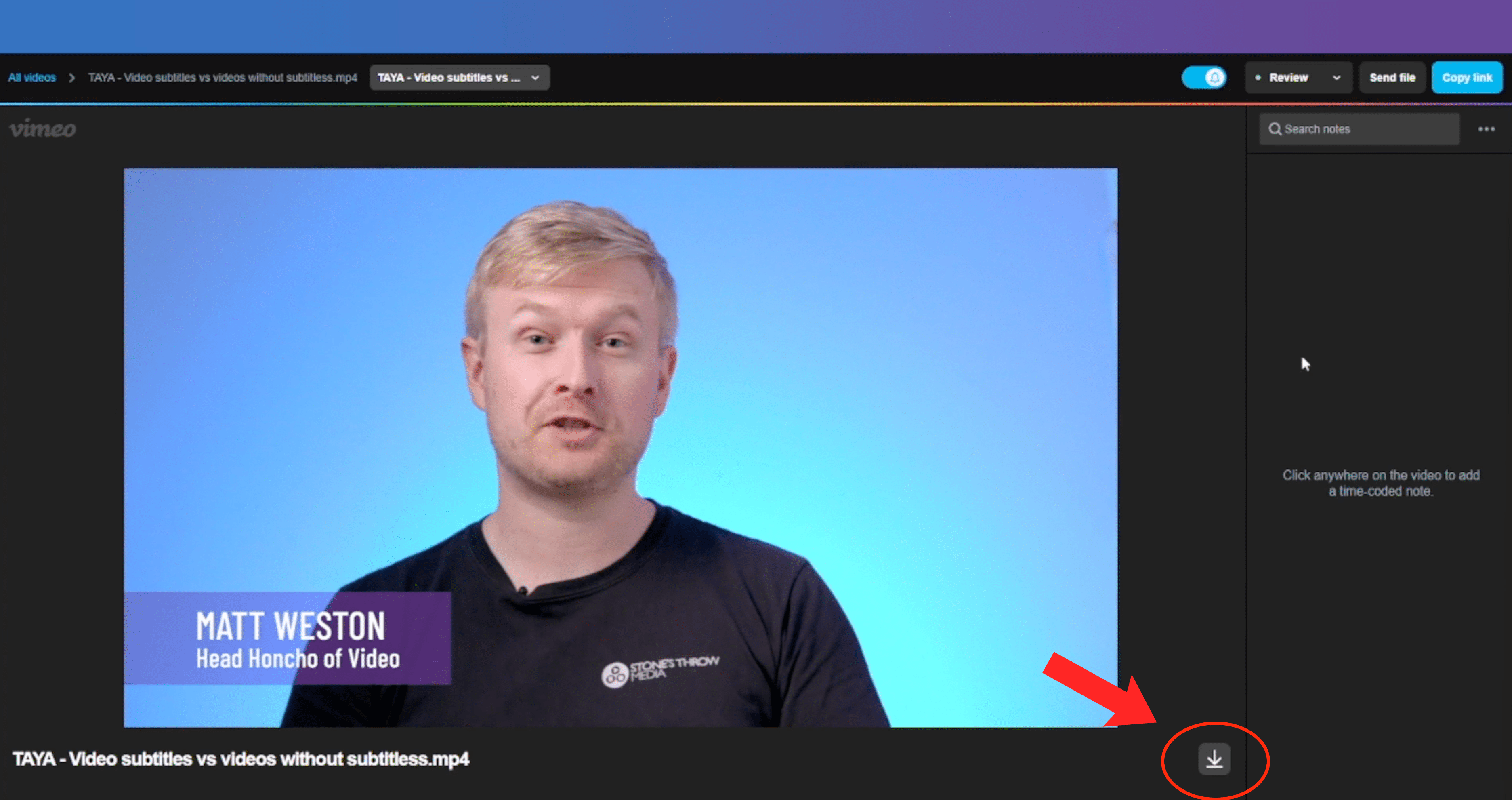
- Check Download Options: Look for the “Download” button (usually marked as a downward arrow) next to the video title. If it’s available, click on this option.
- Choose Your Desired Resolution: Select the desired quality level (e.G., 1080P, 720p, etc.) And confirm the download.
Downloading Videos Using The Vimeo App
To download a video from Vimeo using your smartphone or tablet:
- Open The Vimeo App: Launch the Vimeo app on your Android device (or iOS device).
- Sign in to Your Account: If you’re not logged in, tap the “Log In” button and enter your credentials.
- Search For The Desired Video: Type the title of the video you want to download into the search bar.
- Tap The Three Dots Icon: Select the video by tapping on its thumbnail, then click on the three dots icon (⋯) next to it.
- Select “Add to Offline Playlist”: Choose this option to initiate the download process.
Downloading Videos From Vimeo Using Third-party Services
If the direct download options aren’t available or you prefer an alternative method, consider using third-party services that allow downloading videos from various platforms, including Vimeo. Some popular services include:
- Video Downloader
- OnlineVideoConverter
These tools often require you to copy and paste the video URL into their interface, followed by selecting the desired quality level. Be cautious when using these services, as they may have usage limitations or requirements.
Tips And Considerations
- Resolution Availability: Ensure that the resolution of your choice is available for download.
- Video Length: Longer videos might be divided into smaller segments during the downloading process.
- System Compatibility: Check if the downloaded video plays smoothly on your device.
By following these steps, you’ll be able to download Vimeo videos in a format suitable for offline viewing.


