
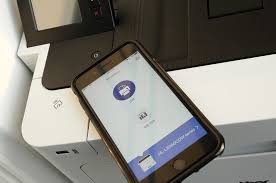
The Ultimate Guide to Printing From Your Smartphone: Top Apps And Features
Are you tired of struggling to print documents or photos from your smartphone? Look no further! In this article, we’ll explore the best apps and features for printing directly from your mobile device.
Understanding The Challenges of Mobile Printing
Printing from a smartphone can be a frustrating experience. Many users encounter issues such as poor print quality, connectivity problems, or difficulties in finding compatible printers. However, with the right tools and knowledge, you can overcome these challenges and enjoy seamless mobile printing.
Top Apps For Mobile Printing
Here are some of the most popular apps for printing from your smartphone:
1. Nokoprint (Android)
NokoPrint is a user-friendly app that allows you to print documents and images directly from your Android device. With its intuitive interface, you can easily select the file you want to print, choose the printer settings, and initiate the printing process.
PrinterShare is another popular app for mobile printing. It supports a wide range of printers and allows you to print documents, photos, contacts, and web pages directly from your smartphone. The app also features a built-in clipboard viewer, making it easy to print content from the clipboard.
3. HP Smart (Android/iOS)
HP Smart is an official app for HP printers that enables mobile printing. With this app, you can print documents, photos, and web pages directly from your smartphone. The app also allows you to manage your printer’s settings and perform maintenance tasks remotely.
4. Epson Iprint (Android/iOS)
Epson iPrint is a dedicated app for Epson printers that enables mobile printing. This app allows you to print documents, photos, and web pages directly from your smartphone. You can also use the app to scan documents and save them as PDF files.
5. Brother Iprint&scan (Android/iOS)
Brother iPrint&Scan is a versatile app for Brother printers that enables mobile printing and scanning. With this app, you can print documents, photos, and web pages directly from your smartphone. You can also use the app to scan documents and save them as PDF files.
6. Canon Print Inkjet/selphy (Android/iOS)
Canon PRINT Inkjet/SELPHY is an official app for Canon printers that enables mobile printing. This app allows you to print documents, photos, and web pages directly from your smartphone. You can also use the app to manage your printer’s settings and perform maintenance tasks remotely.
How to Print With Nokoprint
To print with NokoPrint, follow these steps:
- Download and install the NokoPrint app on your Android device.
- Open the app and select the file you want to print.
- Choose the printer settings and configure the printing options.
- Initiate the printing process and wait for the printer to complete the task.
How to Print With Printershare
To print with PrinterShare, follow these steps:
- Download and install the PrinterShare app on your Android or iOS device.
- Open the app and select the file you want to print.
- Choose the printer settings and configure the printing options.
- Initiate the printing process and wait for the printer to complete the task.
Tips And Tricks
Here are some tips and tricks to keep in mind when using mobile printing apps:
- Make sure your printer is connected to the same network as your smartphone.
- Use a reliable internet connection to ensure smooth printing.
- Adjust the print settings according to your needs, such as paper size and orientation.
- Experiment with different print modes, such as draft or high-quality mode.
Conclusion
Mobile printing has become an essential feature for many users. With the right apps and knowledge, you can enjoy seamless printing experiences from your smartphone. In this article, we’ve explored some of the top apps for mobile printing, including NokoPrint, PrinterShare, HP Smart, Epson iPrint, Brother iPrint&Scan, and Canon PRINT Inkjet/SELPHY.
Frequently Asked Questions
Here are eight frequently asked questions about mobile printing:
- Q: What is The Best App For Mobile Printing?
A: The best app for mobile printing depends on your printer brand and model. However, NokoPrint and PrinterShare are popular choices that support a wide range of printers. - Q: How do I Print From my Smartphone?
A: To print from your smartphone, you’ll need to download and install a mobile printing app, such as NokoPrint or PrinterShare. Follow the app’s instructions to select the file you want to print, choose the printer settings, and initiate the printing process. - Q: What Are The Benefits of Mobile Printing?
A: Mobile printing offers several benefits, including convenience, flexibility, and cost-effectiveness. You can print documents and photos directly from your smartphone without needing a computer or printer in close proximity. - Q: Can I Print Web Pages With These Apps?
A: Yes, most mobile printing apps allow you to print web pages directly from your smartphone. This feature is especially useful for printing online content, such as articles, recipes, or travel guides. - Q: Are There Any Security Concerns With Mobile Printing?
A: As with any internet-connected device, there are some security concerns with mobile printing. However, reputable apps like NokoPrint and PrinterShare prioritize user safety and follow industry-standard security protocols. - Q: Can I Print From Multiple Devices Simultaneously?
A: Yes, many mobile printing apps allow you to print from multiple devices simultaneously. This feature is especially useful for printing family photos or sharing documents with colleagues. - Q: How do I Troubleshoot Common Issues With Mobile Printing?
A: Common issues with mobile printing include connectivity problems, poor print quality, and difficulties in finding compatible printers. Check the app’s documentation and FAQs section for troubleshooting tips and solutions. - Q: Are There Any Alternative Methods For Mobile Printing?
A: Yes, there are alternative methods for mobile printing, such as using a USB printer or a dedicated printing device. However, these options may not offer the same level of convenience and flexibility as mobile printing apps.


