
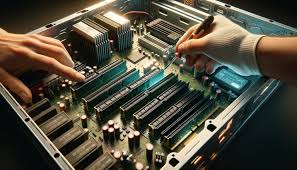
How to Overcome Ram Problems on Your PC
Are you experiencing slow performance on your computer? Do you notice a drop in system speed when running heavy programs? If so, it’s likely that your RAM (Random Access Memory) is the culprit. In this article, we’ll explore the world of RAM and provide you with practical tips to overcome RAM problems on your PC.
What is Ram?
RAM stands for Random Access Memory, which is a type of computer memory that temporarily stores data used by running programs. It’s a fundamental component of any computer system, including smartphones and tablets. When you initiate programs, the system uses RAM to store temporary data. If there isn’t enough RAM, the system can become slow, unresponsive, or even freeze.
Symptoms of Low Ram
If your PC is experiencing low RAM, you may notice:
- Slow performance when running heavy programs
- Frequent crashes or freezes
- Difficulty multitasking
- System slowdowns
Why Does My Computer Have Low Ram?
There are several reasons why your computer might have low RAM. Some common causes include:
- Insufficient RAM installed
- Damaged or faulty RAM modules
- Running too many resource-intensive programs simultaneously
- Malware or viruses consuming system resources
How to Overcome Ram Problems on Your PC
Now that we’ve covered the basics, let’s dive into practical solutions to overcome RAM problems on your PC.
Discharge The Memory (RAM)
Discharging the memory can help improve system performance. Here’s how:
- Close unnecessary programs and background processes
- Disable startup programs you don’t need
- Use a memory cleaner or optimizer tool
Avoid Overloading The Ram
To prevent overloading the RAM, follow these tips:
- Disable automatic startup for unnecessary programs
- Close resource-intensive programs when not in use
- Use lightweight software alternatives (e.G., Adobe Acrobat instead of Microsoft Office)
Augment The Ram
If discharging and avoiding overloading don’t solve your problems, it might be time to augment the RAM. Here’s how:
- Check if you can upgrade your existing RAM or purchase a new one that’s compatible with your PC
- Choose the right type of RAM (e.G., DDR3, DDR4) for your system
Test The Ram
Before making any drastic changes, test your RAM to ensure it’s functioning properly. You can use tools like Memtest 86 or Apple Hardware Test.
How to Overcome Ram Problems on Smartphones And Tablets
While smartphones and tablets have efficient memory management systems, there are still ways to optimize performance:
- Close unnecessary apps
- Disable background app refresh
- Clear cache and storage regularly
Why You Shouldn’t Use Ram Cleaners
Don’t fall for the trap of using RAM cleaners or optimizers! These tools often do more harm than good by consuming system resources and worsening performance.
Conclusion
Overcoming RAM problems on your PC requires a combination of understanding the symptoms, identifying the causes, and implementing practical solutions. By following these tips, you can improve your system’s performance, avoid crashes, and enjoy a smoother computing experience.
Frequently Asked Questions (FAQs)
- What is Ram, And Why do I Need It?
RAM stands for Random Access Memory, which temporarily stores data used by running programs. - Why Does my Computer Have Low Ram?
There are several reasons, including insufficient RAM installed, damaged or faulty RAM modules, and running too many resource-intensive programs simultaneously. - How Can I Discharge The Memory (RAM) on my Pc?
Close unnecessary programs and background processes, disable startup programs you don’t need, and use a memory cleaner or optimizer tool. - Why Should I Avoid Overloading The Ram?
Overloading the RAM can lead to system slowdowns, crashes, and freezes. - Can I Augment The Ram on my Pc?
Yes, but ensure you choose the right type of RAM for your system and follow proper installation procedures. - How do I Test The Ram on my Pc?
Use tools like Memtest 86 or Apple Hardware Test to test your RAM’s health. - Why Shouldn’t I Use Ram Cleaners or Optimizers?
These tools often consume system resources, worsen performance, and can cause more harm than good.
I hope this article has provided you with valuable insights into overcoming RAM problems on your PC. If you have any further questions or concerns, feel free to ask!


