
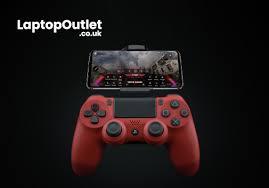
The Ultimate Guide: How to Connect Your Ps4 Controller to Your Phone
Are you tired of being stuck inside on a rainy day? Do you wish you could play your favorite games on the go? Look no further! In this article, we will show you how to connect your PS4 controller to your phone, allowing you to take your gaming experience to new heights.
What You Need to Know
Before we dive into the nitty-gritty of connecting your PS4 controller to your phone, let’s cover a few basics. First and foremost, you’ll need a PS4 controller and a compatible phone (more on that later). Additionally, make sure your phone is running on Android 5 or higher, as this will ensure seamless connectivity.
How to Connect Your Ps4 Controller to Your Phone
Connecting your PS4 controller to your phone is easier than you think. Here’s a step-by-step guide:
- Put The Ps4 Controller in Pairing Mode: Press and hold the PS button and Share button simultaneously until the light bar on the controller starts flashing quickly.
- Go to Your Phone’s Settings: Open up your phone’s Settings app and navigate to the Bluetooth section.
- Enable Bluetooth: Make sure Bluetooth is turned on, then select “Add a device” or “Pair new device”.
- Search For Devices: Your phone will search for available devices. Once it finds your PS4 controller, select it from the list.
- Confirm The Connection: You may need to enter a verification code to confirm the connection.
Using Your Ps4 Controller With Android Devices
If you’re using an Android device (version 5 or higher), connecting your PS4 controller is as simple as following the steps above. Once connected, you can use your controller to play games, control media playback, and even interact with some apps.
How to Use Your Ps4 Controller With Ios Devices
Unfortunately, connecting a PS4 controller to an iPhone or iPad requires a bit more effort. If you’re running iOS 13 or later, Apple has introduced support for external controllers, making it easier to connect your PS4 controller. Here’s how:
- Put The Ps4 Controller in Pairing Mode: Press and hold the PS button and Share button simultaneously until the light bar on the controller starts flashing quickly.
- Go to Your Iphone’s Settings: Open up your iPhone’s Settings app and navigate to the Bluetooth section.
- Enable Bluetooth: Make sure Bluetooth is turned on, then select “Add a device” or “Pair new device”.
- Search For Devices: Your phone will search for available devices. Once it finds your PS4 controller, select it from the list.
- Confirm The Connection: You may need to enter a verification code to confirm the connection.
Tips And Tricks
Here are some additional tips and tricks to keep in mind:
- Make sure your phone and PS4 controller are fully charged before attempting to connect them.
- If you experience any issues with connectivity, try restarting both devices.
- Some games may not be compatible with external controllers. Check the game’s settings or documentation for more information.
Conclusion
Connecting your PS4 controller to your phone is a simple process that can take your gaming experience to new heights. Whether you’re using an Android device or an iOS device, following these steps will ensure seamless connectivity. Happy gaming!
Frequently Asked Questions (FAQs)
Q: Can I connect my PS4 controller to any phone?
A: No, the phone must be running on Android 5 or higher for seamless connectivity.
Q: What if I have a version of iOS older than 13?
A: Unfortunately, you won’t be able to connect your PS4 controller to an iPhone or iPad using the standard method. However, you can try jailbreaking your device (at your own risk).
Q: Can I use my PS4 controller with games that aren’t compatible?
A: Some games may not support external controllers. Check the game’s settings or documentation for more information.
Q: What if I experience issues with connectivity?
A: Try restarting both devices and ensure they are fully charged before attempting to connect them again.
Q: Can I use my PS4 controller with media playback apps?
A: Yes, you can use your PS4 controller to control media playback on some apps. Check the app’s settings for more information.


