
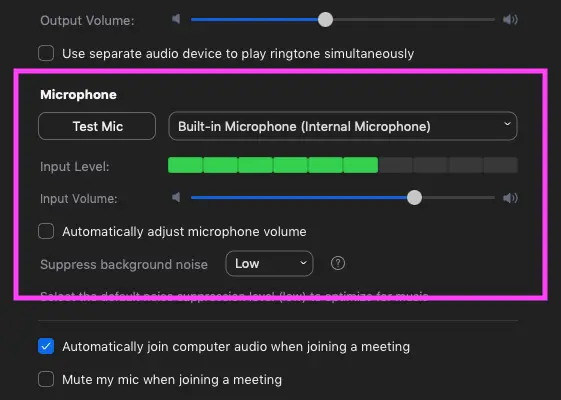
How to Lower The Volume of a Microphone: A Step-by-step Guide
Are you tired of dealing with microphone volume issues during video calls, online meetings, or recordings? Do you struggle to find a balance between clear audio and overpowering sound? Look no further! In this comprehensive guide, we’ll walk you through the process of lowering the volume of a microphone on various devices and platforms.
Table 1: Lowering Microphone Volume on PC
| Device | Steps to Follow |
|---|---|
| Windows 10 | Go to Start > Settings > System > Sound. Select “Recording” and then choose your microphone from the list. Adjust the volume level as needed. |
Lowering Microphone Volume on PC (Continued)
To further adjust the volume, follow these steps:
- Open the Control Panel.
- Click on “Hardware and Sound.”
- Click on “Sound” and select the “Recording” tab.
- Choose your microphone from the list.
- Adjust the volume level as needed.
Lowering Microphone Volume: A Detailed Guide
To ensure optimal audio quality, it’s essential to adjust the microphone volume correctly. Here’s a step-by-step guide:
- Identify The Issue: Determine if the microphone is too loud or overpowering the audio.
- Check The Device Settings: Look for microphone settings on your PC, smartphone, or tablet.
- Adjust The Volume Level: Lower the microphone volume to an acceptable level.
- Test The Audio: Conduct a test call or recording to ensure the volume is within the desired range.
Lowering Microphone Volume: Additional Tips
- Use a pop filter or windscreen to reduce plosive sounds and prevent distortion.
- Adjust the microphone’s gain setting for optimal audio quality.
- Use software to adjust the microphone volume, such as Audacity or Adobe Audition.
- Consider using a separate audio interface or mixer for improved sound quality.
Lowering Microphone Volume on Mac
To lower the microphone volume on a Mac, follow these steps:
- Click on the Apple logo and select “System Preferences.”
- Choose “Sound” from the menu.
- Select the “Input” tab.
- Choose your microphone from the list.
- Adjust the volume level as needed.
Lowering Microphone Volume: Mobile Devices
To lower the microphone volume on mobile devices, follow these steps:
- For Android devices:
- Go to Settings > Sound & notification > Sound settings.
- Select “Recording” and adjust the volume level as needed.
- For iPhone devices:
- Go to Settings > Sounds & Haptics.
- Tap on “Ringtone and alerts” or “Sounds and haptics.”
- Adjust the microphone volume as needed.
Lowering Microphone Volume: Video Conferencing Apps
To lower the microphone volume on popular video conferencing apps, follow these steps:
- For Microsoft Teams:
- Open the app and click on the three dots at the top right corner.
- Select “Settings” and then choose your microphone from the list.
- Adjust the volume level as needed.
- For Google Meet:
- Open the app and click on the three dots at the top right corner.
- Select “Settings” and then choose your microphone from the list.
- Adjust the volume level as needed.
Conclusion
Lowering the microphone volume is a straightforward process that can be achieved on various devices and platforms. By following these step-by-step guides, you’ll be able to adjust the volume level to an acceptable range, ensuring clear audio during video calls, online meetings, or recordings.
Frequently Asked Questions (FAQs)
- Q: How do I Lower The Microphone Volume on my Pc?
A: To lower the microphone volume on your PC, go to Start > Settings > System > Sound and adjust the volume level as needed. - Q: Can I Lower The Microphone Volume on my Smartphone?
A: Yes, you can lower the microphone volume on your smartphone by adjusting the settings in your device’s sound menu. - Q: How do I Lower The Microphone Volume on Video Conferencing Apps?
A: To lower the microphone volume on popular video conferencing apps like Microsoft Teams or Google Meet, follow the step-by-step guides provided earlier. - Q: What Are Some Additional Tips For Lowering The Microphone Volume?
A: Some additional tips include using a pop filter or windscreen to reduce plosive sounds and adjusting the microphone’s gain setting for optimal audio quality.


