
The Ultimate Guide to Choosing The Best App For Chatting With Friends
Are you tired of using multiple apps to stay in touch with your friends? Do you want a single app that can handle all your messaging needs? Look no further! In this article, we’ll explore the best apps for chatting with friends, including WhatsApp, Telegram, Signal, and more.
The Problem With Multiple Apps
Let’s face it – using multiple apps to stay in touch with friends can be cumbersome. You have to juggle different interfaces, notifications, and login credentials. It’s like having too many tabs open on your browser! With the rise of messaging apps, it’s become increasingly difficult to choose just one.
The Solution: Whatsapp
WhatsApp is undoubtedly the most popular and widely used messaging app in the world. Available for both Android and iOS devices, WhatsApp allows you to send messages, make voice and video calls, and even share files. But what makes WhatsApp truly special is its end-to-end encryption feature, which ensures that your conversations are protected from prying eyes.
Other Notable Mentions
While WhatsApp is the clear winner in terms of popularity, there are other notable mentions worth considering:
- Telegram: Known for its fast and secure messaging experience, Telegram offers a range of features like group chats, file sharing, and even video conferencing.
- Signal: This open-source messaging app prioritizes security and encryption, making it an excellent choice for those who value their online privacy.
- Facebook Messenger: With over 1 billion users worldwide, Facebook Messenger is another popular option for staying in touch with friends.
The Verdict: Choosing The Best App
So, which app should you choose? Ultimately, it comes down to your personal preferences and needs. If you prioritize security and encryption, Signal might be the way to go. If you’re looking for a feature-rich experience with a large user base, WhatsApp or Facebook Messenger could be the better choice.
Conclusion
In conclusion, choosing the best app for chatting with friends can be a daunting task, but with this guide, you’ll be well-equipped to make an informed decision. Remember to consider your needs, preferences, and values when selecting an app. Happy messaging!
Frequently Asked Questions
- What is the best app for chatting with friends?
- The answer depends on your personal preferences and needs.
- Which app has the best security features?
- Signal prioritizes encryption and security.
- Can I use multiple apps to stay in touch with friends?
- Yes, but using a single app can simplify your messaging experience.
- Are there any free messaging apps available?
- Yes, many popular messaging apps are available for free.
- How do I choose the best app for my needs?
- Consider factors like security, features, user base, and personal preferences.
The Benefits of Using a Solid-state Drive (SSD)
Are you tired of waiting for your computer to boot up or load applications? Do you want to improve your overall computing experience? Consider upgrading to a solid-state drive (SSD)! In this article, we’ll explore the benefits and types of SSDs available.
What is a Solid-state Drive (SSD)?
A solid-state drive (SSD) is a type of storage device that uses flash memory to store data. Unlike traditional hard disk drives (HDDs), which use spinning disks and mechanical heads to read and write data, SSDs use electronic signals to access and save information.
Benefits of Using an Ssd
Using an SSD can significantly improve your computing experience in several ways:
- Faster Boot Times: SSDs can boot up your computer much faster than traditional HDDs, with some models taking as little as 10 seconds to reach the desktop.
- Improved Performance: SSDs provide faster access times for applications and files, making them ideal for tasks that require quick loading times.
- Increased Reliability: SSDs are less prone to mechanical failure compared to HDDs, which can reduce the risk of data loss.
Types of Ssds
There are several types of SSDs available, each with its own unique characteristics:
- 2.5-Inch Ssds: These are traditional SSDs that fit into a standard 2.5-Inch drive bay.
- M.2 Ssds: These are compact SSDs that use an M.2 Interface to connect to the motherboard.
- Nvme Ssds: These high-performance SSDs use the NVMe protocol to provide ultra-fast read and write speeds.
Choosing The Right Ssd
When selecting an SSD, consider factors like storage capacity, interface type, and compatibility with your computer’s hardware. Make sure to check reviews and specifications before making a final decision.
The Benefits of Upgrading Your Computer’s Storage
Are you tired of running out of space on your computer? Do you want to improve your overall computing experience? Consider upgrading your computer’s storage! In this article, we’ll explore the benefits and options available for upgrading your computer’s storage.
What Are The Benefits of Upgrading My Computer’s Storage?
Upgrading your computer’s storage can provide numerous benefits, including:
- Increased Storage Capacity: With a larger hard drive or SSD, you’ll have more space to store files, programs, and other data.
- Improved Performance: Faster storage drives can significantly improve loading times for applications and files.
- Reduced Risk of Data Loss: By upgrading your storage, you can reduce the risk of losing important files due to mechanical failure.
Options For Upgrading My Computer’s Storage
There are several options available for upgrading your computer’s storage:
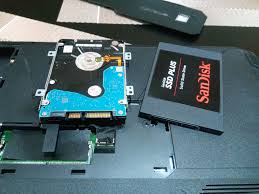
- Replacing Your Hard Drive With a Solid-state Drive (SSD): This is one of the most effective ways to improve your computer’s performance and reduce the risk of data loss.
- Adding an External Hard Drive: An external hard drive can provide additional storage capacity without affecting your computer’s internal storage.
- Upgrading Your Ram: Adding more RAM can also improve your computer’s performance, especially for tasks that require quick access to memory.
How Do I Choose The Right Storage Upgrade?
When selecting a storage upgrade, consider factors like compatibility with your computer’s hardware, storage capacity, and interface type. Make sure to check reviews and specifications before making a final decision.
Upgrading Your Computer’s Storage: A Step-by-step Guide
Are you ready to upgrade your computer’s storage but don’t know where to start? This step-by-step guide will walk you through the process of upgrading your computer’s storage, including replacing your hard drive with an SSD and adding an external hard drive.
Replacing My Hard Drive With a Solid-state Drive (SSD)
To replace your hard drive with a solid-state drive (SSD), follow these steps:
- Backup Your Data: Before starting the upgrade process, make sure to backup all your important files to an external drive or cloud storage.
- Purchase a New Ssd: Choose a compatible SSD that meets your computer’s requirements and purchase it from a reputable retailer.
- Shut Down Your Computer: Completely power down your computer before proceeding with the upgrade.
- Disconnect The Power Cables: Carefully disconnect the power cables from your old hard drive to prevent any accidental boot-ups or data loss.
- Remove The Old Hard Drive: Gently remove the old hard drive from its housing and set it aside.
- Install The New Ssd: Insert the new SSD into the empty bay, making sure it’s securely fastened with screws.
- Reconnect The Power Cables: Reattach the power cables to the new SSD and ensure they’re properly connected.
Adding an External Hard Drive
To add an external hard drive, follow these steps:
- Purchase a Compatible External Hard Drive: Choose a compatible external hard drive that meets your computer’s requirements.
- Connect The External Hard Drive: Connect the external hard drive to your computer using a USB cable or other interface.
- Format The External Hard Drive: Format the external hard drive according to your computer’s operating system.
How Do I Choose The Right Storage Upgrade?
When selecting a storage upgrade, consider factors like compatibility with your computer’s hardware, storage capacity, and interface type. Make sure to check reviews and specifications before making a final decision.


