
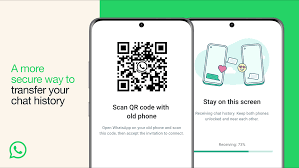
Transfering Whatsapp From One Phone to Another: A Step-by-step Guide
Are you planning to switch to a new smartphone, but don’t want to lose your cherished WhatsApp chats and media? You’re in luck! Transferring WhatsApp from one phone to another is now possible, thanks to the “Backup” feature. In this article, we’ll guide you through the process of transferring WhatsApp from an old phone to a new one, including tips and tricks for both Android and iOS devices.
Why Backup Your Whatsapp?
Before we dive into the transfer process, let’s talk about why backing up your WhatsApp is essential. With over 2 billion monthly active users, WhatsApp has become an integral part of our lives. Losing access to your chats, photos, and videos can be frustrating and time-consuming. By backing up your WhatsApp, you’ll ensure that all your important conversations and media are safely stored in the cloud.
Backing Up Whatsapp on Android
To back up your WhatsApp on Android, follow these steps:
- Open WhatsApp and go to Settings > Chat > Backup.
- Tap on “Backup now” to start the backup process.
- Choose where you want to save your backup (Google Drive or device storage).
- Wait for the backup to complete.
Backing Up Whatsapp on Ios
To back up your WhatsApp on iOS, follow these steps:
- Open WhatsApp and go to Settings > Chats > Chat Backup.
- Tap on “Back up now” to start the backup process.
- Choose where you want to save your backup (iCloud Drive or device storage).
- Wait for the backup to complete.
Transferring Whatsapp From One Phone to Another
Now that we’ve covered backing up your WhatsApp, let’s move on to transferring it from one phone to another. Here are some general steps:
- Same Operating System: If you’re switching between two Android or iOS devices, follow these steps:
- Open WhatsApp on the new device and sign in with the same Google account (Android) or Apple ID (iOS).
- Tap on “Restore chat backup” to restore your backed-up chats.
- Different Operating System: If you’re switching from an Android to an iOS device, or vice versa, follow these steps:
- Use a third-party app like Google Drive or iCloud to transfer your WhatsApp data.
- Alternatively, use the native “Backup” feature on WhatsApp and then restore it on the new device.
Transferring Whatsapp Using Third-party Apps
There are several third-party apps available that can help you transfer WhatsApp from one phone to another. Some popular options include:
- Spend to Ios: A free app developed by Apple that allows you to transfer your WhatsApp data from an Android device to an iPhone.
- Icarefone Transfer: A paid app that helps you transfer WhatsApp chats and media from an Android device to an iPhone.
Tips And Tricks
Here are some additional tips and tricks to keep in mind:
- Use The Same Phone Number: Ensure that both devices have the same phone number associated with them.
- Configure Whatsapp on The New Device: Before transferring your WhatsApp data, configure WhatsApp on the new device using the same Google account (Android) or Apple ID (iOS).
- Use a Stable Internet Connection: Transfering WhatsApp data can be time-consuming, so make sure you have a stable internet connection.
Conclusion
Transferring WhatsApp from one phone to another is now possible, thanks to the “Backup” feature and third-party apps. By following these steps and tips, you’ll ensure that all your cherished chats and media are safely stored in the cloud. Remember to always use the same phone number and configure WhatsApp on the new device before transferring your data.
Frequently Asked Questions (FAQs)
- Q: Can I Transfer Whatsapp From One Phone to Another Without Losing Any Data?
A: Yes, you can transfer WhatsApp from one phone to another without losing any data by using the “Backup” feature or third-party apps. - Q: Do I Need to Use a Specific App to Transfer Whatsapp?
A: No, you don’t necessarily need to use a specific app to transfer WhatsApp. However, some third-party apps like Spend to iOS and iCareFone Transfer can make the process easier. - Q: Can I Transfer Whatsapp From an Android Device to an Iphone or Vice Versa?
A: Yes, you can transfer WhatsApp from an Android device to an iPhone or vice versa using a third-party app or by using the native “Backup” feature on WhatsApp. - Q: Do I Need to Configure Whatsapp on The New Device Before Transferring my Data?
A: Yes, it’s essential to configure WhatsApp on the new device using the same Google account (Android) or Apple ID (iOS) before transferring your data. - Q: Can I Transfer Whatsapp From One Phone to Another Without a Stable Internet Connection?
A: No, it’s not recommended to transfer WhatsApp without a stable internet connection, as this can lead to incomplete or corrupted transfers.
Additional Resources
For more information on transferring WhatsApp, you can refer to the following resources:
- Whatsapp Help Center: The official WhatsApp help center has detailed guides and tutorials on how to transfer WhatsApp from one phone to another.
- Google Drive Backup: Google Drive provides a backup feature that allows you to store your WhatsApp data in the cloud.
- Icloud Backup: ICloud offers a backup feature that allows you to store your WhatsApp data in the cloud.
By following these steps and tips, you’ll be able to transfer WhatsApp from one phone to another with ease.


