
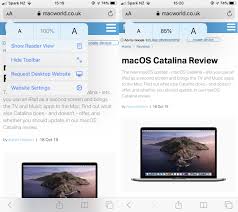
The Ultimate Guide to Increasing Font Size on Your Smartphone
Are you tired of straining your eyes to read text on your smartphone? Do you wish there was a way to make the font bigger without compromising your phone’s performance? Look no further! In this article, we’ll show you how to increase font size on your Android and iOS devices.
Why Increase Font Size on Your Smartphone?
As smartphones become increasingly ubiquitous, our eyes are subjected to an unprecedented amount of screen time. This can lead to eye strain, headaches, and even long-term vision problems. By increasing the font size on your smartphone, you can reduce eye strain and make it easier to read text.
Android: How to Increase Font Size
To increase font size on your Android device, follow these steps:
Step 1: Go to Settings
Open the Settings app on your Android device. You can find it on your home screen or in the app drawer.
Step 2: Select Display
Scroll down and select “Display” from the menu.
Step 3: Tap on Font Size
Tap on “Font size” to adjust the text size on your device.
Step 4: Adjust Font Size
Drag the slider to increase or decrease font size. You can also use the plus and minus buttons to make small adjustments.
Ios: How to Increase Font Size
To increase font size on your iOS device, follow these steps:
Step 1: Go to Settings
Open the Settings app on your iOS device. You can find it on your home screen or in the app drawer.
Step 2: Select Display & Brightness
Scroll down and select “Display & Brightness” from the menu.
Step 3: Tap on Text Size
Tap on “Text size” to adjust the text size on your device.
Step 4: Adjust Font Size
Drag the slider to increase or decrease font size. You can also use the plus and minus buttons to make small adjustments.
Alternative Ways to Increase Font Size on Android And Ios
In addition to adjusting font size in Settings, there are other ways to increase font size on your Android and iOS devices:
- Use Accessibility Features: Both Android and iOS have built-in accessibility features that can help you increase font size. On Android, go to Settings > Accessibility > Display size, and on iOS, go to Settings > Display & Brightness > Text Size.
- Install Font Size Apps: There are several apps available for both Android and iOS that allow you to increase font size. Some popular options include Big Font and Large Text.
- Use Browser Extensions: If you use a web browser on your smartphone, you can install extensions that allow you to increase font size while browsing.
Conclusion
Increasing font size on your smartphone is a simple process that can greatly improve your reading experience. Whether you’re using an Android or iOS device, there are several ways to adjust font size and make it easier to read text. By following the steps outlined in this article, you can say goodbye to eye strain and hello to comfortable reading.
Frequently Asked Questions
- Q: Why is my Phone’s Font Size so Small?
A: The default font size on most smartphones is small to conserve battery life and make the device more portable. - Q: How Can I Increase Font Size on my Android Device?
A: To increase font size on your Android device, go to Settings > Display > Font size, and adjust the slider to your preferred text size. - Q: Can I Increase Font Size on my Ios Device?
A: Yes, you can increase font size on your iOS device by going to Settings > Display & Brightness > Text Size, and adjusting the slider to your preferred text size. - Q: Are There Any Other Ways to Increase Font Size on my Smartphone?
A: Yes, there are several other ways to increase font size on your smartphone, including using accessibility features, installing font size apps, and using browser extensions. - Q: Will Increasing Font Size Affect my Phone’s Performance?
A: Increasing font size may slightly affect your phone’s performance, but it should not have a significant impact unless you’re using an older device. - Q: Can I Change The Font Style on my Smartphone?
A: Yes, you can change the font style on your smartphone by going to Settings > Display > Font style, and selecting from a variety of pre-installed fonts.


