
The Ultimate Guide to Twitter: Unlocking Its Secrets
Are you curious about the world of microblogging? Do you want to stay updated on the latest trends and news? Look no further than Twitter! With over 330 million active users, Twitter is a social network that has become an essential tool for staying informed and connected.
What is Twitter?
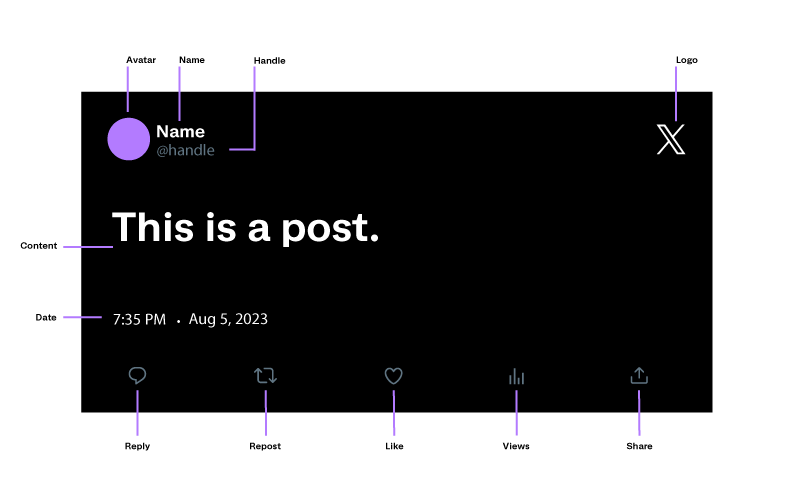
Twitter is a free online platform that allows users to share short messages (called “tweets”) with their followers. These tweets can be up to 280 characters long and are displayed on the user’s profile page, as well as in the feeds of their followers.
Why Use Twitter?
So, why should you use Twitter? Here are just a few reasons:
- Stay updated on current events: Twitter is an excellent source for staying informed about what’s happening in the world.
- Connect with others: Twitter allows you to connect with people from all over the globe, sharing ideas and opinions.
- Increase visibility: By tweeting regularly, you can increase your online presence and reach a wider audience.
Getting Started With Twitter
To get started with Twitter, you’ll need to create an account. Here’s how:
Enrolling on Twitter Using an App or Pc
If you want to enroll on Twitter using an app, simply download the Twitter app from the Apple Store (for iPhone and iPad) or Google Play Store (for Android devices). Then, open the app and tap “Create Account.”
To enroll on Twitter using a PC:
- Go to the Twitter website (www.Twitter.Com) and click on “Sign Up.”
- Enter your name, email address, phone number, and password.
- Choose how you want to receive notifications (e.G., Email or SMS).
- Click on “Create Account.”
Navigating Twitter
Now that you’re enrolled on Twitter, let’s take a look at the main features of the platform:
The Home Tab
When you open Twitter, you’ll see a timeline of tweets from accounts you follow. The home tab is where you can view tweets from your favorite users and engage with their content.
The Search Bar
To find specific tweets or users, use the search bar at the top of the page. You can search by keyword, hashtag, or username.
The Notifications Tab
In this tab, you’ll see notifications about likes, replies, and direct messages from other users.
The Messages Tab
Here’s where you can view your direct messages with other users.
How to Follow Users on Twitter
Following users on Twitter is a great way to stay updated on their tweets. Here’s how:
- Open the Twitter app or website.
- Tap on the search bar and type in the username of the user you want to follow.
- Click on the profile picture of the user to view their tweets.
- Tap on the “Follow” button.
Understanding Hashtags
Hashtags are a way to categorize tweets by topic. They’re usually marked with the “#” symbol and can be used to track conversations around specific subjects.
For example, if you want to follow updates about technology, you could search for the hashtag #tech.
Tweeting on Twitter
Now that you know how to use Twitter, let’s take a look at tweeting!
The Tweet Button
To tweet, tap on the “+” button in the top right corner of the app or website. This will open up the compose box where you can type your message.
Adding Media to Your Tweets
You can add images, videos, and GIFs to your tweets by tapping on the corresponding buttons below the text box.
Reading Tweets
There are several ways to read tweets on Twitter:
- Scroll through your timeline: This is where you’ll see a list of tweets from users you follow.
- Search for hashtags: Use the search bar to find tweets related to specific topics.
- Look at individual user profiles: You can view a user’s profile and their recent tweets by clicking on their name.
Sending Direct Messages
To send direct messages, tap on the “Messages” tab in the bottom left corner of the app or website. Then, type in the username of the person you want to message and start typing your message.
Twitter Spaces: Unlocking Voice Conversations
Twitter has introduced a new feature called Twitter Spaces, which allows users to engage in voice conversations with others. Here’s how it works:
- Open the Twitter app.
- Tap on the “+” button in the top right corner.
- Select “Spaces” from the menu.
- Choose your audience (public or private) and assign a name to the space.
Twitter Blue: A Premium Subscription
Twitter has introduced a premium subscription called Twitter Blue, which offers additional features such as:
- Increased character limit for tweets
- Ability to edit tweets within 30 minutes of posting
- Video recording capability
The cost of Twitter Blue is €8/month or €84/year.
Conclusion
And that’s it! With this guide, you should now have a good understanding of how to use Twitter. Whether you’re looking to stay updated on current events, connect with others, or increase your online presence, Twitter has something for everyone.
Frequently Asked Questions (FAQs)
Here are some frequently asked questions about Twitter:
- Q: How do I Create an Account on Twitter?
A: To create an account, go to the Twitter website and click on “Sign Up.” - Q: What is a Hashtag?
A: A hashtag is a way to categorize tweets by topic. - Q: How do I Follow Users on Twitter?
A: Tap on the search bar, type in the username of the user you want to follow, and click on their profile picture. - Q: What is Twitter Spaces?
A: Twitter Spaces is a feature that allows users to engage in voice conversations with others. - Q: How do I Send Direct Messages on Twitter?
A: Tap on the “Messages” tab and type in the username of the person you want to message. - Q: What is Twitter Blue?
A: Twitter Blue is a premium subscription that offers additional features such as increased character limit, tweet editing, and video recording capability. - Q: How Much Does Twitter Blue Cost?
A: The cost of Twitter Blue is €8/month or €84/year.
Bonus Tips
Here are some bonus tips for using Twitter:
- Use hashtags to categorize your tweets
- Engage with other users by liking, commenting, and retweeting their content
- Use Twitter Spaces for voice conversations
- Consider upgrading to Twitter Blue for additional features
Happy tweeting!


