
How to Protect a File in Excel: A Step-by-step Guide
Are you tired of dealing with password-protected files in Excel? Do you want to learn how to protect your files without having to remember complex passwords? Look no further! In this article, we will guide you through the process of protecting a file in Excel using various methods.
Why Protect Your Files?
Before we dive into the nitty-gritty details, let’s talk about why protecting your files is essential. When you create documents, spreadsheets, or presentations in Excel, you likely contain sensitive information that you don’t want others to access without your permission. Password protection ensures that only authorized individuals can view or edit your files.
Method 1: Protecting a File in Excel
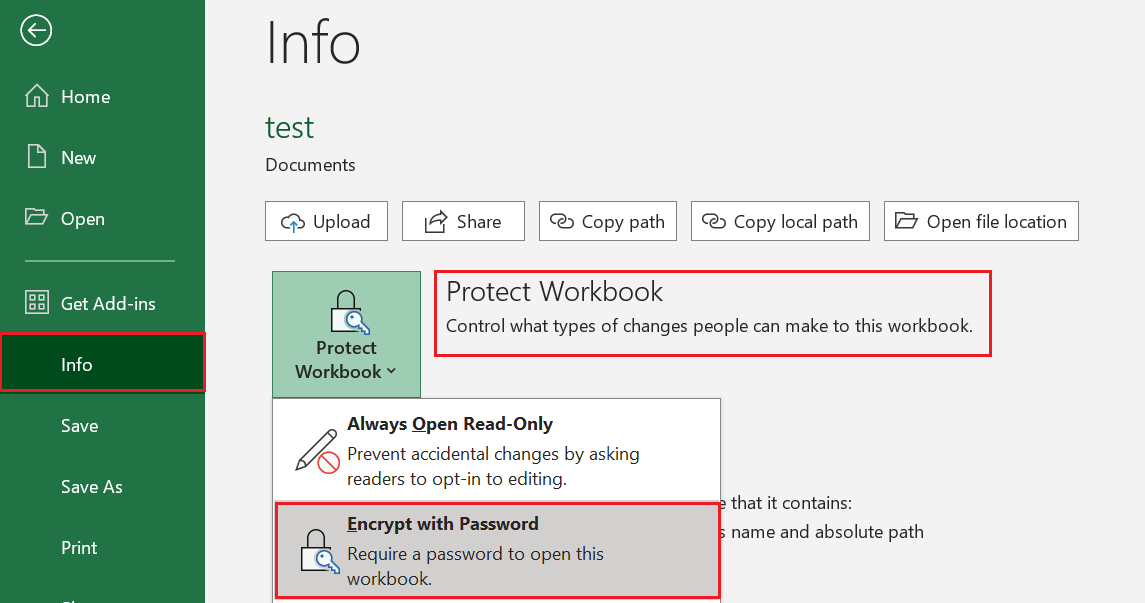
To protect a file in Excel, follow these steps:
- Open The File: Open the file you want to protect using Excel.
- Click on The “Protect” Button: Click on the “Protect” button located in the “Review” tab of the ribbon.
- Select The Protection Options: Select the protection options you want to apply, such as “Encrypt with password” or “Password protect workbook”.
- Enter a Password: Enter a strong password that will be required to open and edit the file.
- Save The File: Save the file with the password protection applied.
Method 2: Using Excel For Mobile Devices
If you’re using Excel on your mobile device, such as an iPhone or Android phone, follow these steps:
- Open The App: Open the Excel app on your mobile device.
- Select The File: Select the file you want to protect by tapping on it.
- Tap on The “Protect” Button: Tap on the “Protect” button located in the menu.
- Enter a Password: Enter a strong password that will be required to open and edit the file.
Method 3: Protecting a File Online
If you’re using Excel online, such as through Google Drive or Microsoft OneDrive, follow these steps:
- Open The File: Open the file you want to protect using your web browser.
- Click on The “Protect” Button: Click on the “Protect” button located in the menu.
- Enter a Password: Enter a strong password that will be required to open and edit the file.
Method 4: Using Password Recovery Software
If you’ve forgotten your password or want to recover it, consider using password recovery software such as Passware Excel Key or Word and Excel Password Recovery Wizard. These software tools can help you recover your password quickly and easily.
Tips And Tricks
Here are some additional tips and tricks to keep in mind:
- Use a Strong Password: Use a strong password that is at least 8 characters long and contains a mix of uppercase and lowercase letters, numbers, and special characters.
- Keep Your Files Organized: Keep your files organized by storing them in folders and using clear filenames.
- Be Mindful of Permissions: Be mindful of permissions when sharing files with others. Make sure you grant the necessary permissions to avoid any issues.
Conclusion
Protecting a file in Excel is a simple process that can be done using various methods. By following the steps outlined in this article, you can ensure that your files are secure and protected from unauthorized access. Remember to use strong passwords, keep your files organized, and be mindful of permissions when sharing files with others.
Frequently Asked Questions (FAQs)
- Q: How do I Protect a File in Excel?
A: To protect a file in Excel, follow the steps outlined in Method 1. - Q: Can I Use Excel on my Mobile Device to Protect a File?
A: Yes, you can use Excel on your mobile device to protect a file using Method 2. - Q: How do I Recover a Forgotten Password?
A: You can use password recovery software such as Passware Excel Key or Word and Excel Password Recovery Wizard to recover your password. - Q: What Are The Benefits of Protecting a File in Excel?
A: Protecting a file in Excel ensures that only authorized individuals can view or edit your files, keeping your sensitive information secure. - Q: How do I Keep my Files Organized?
A: Keep your files organized by storing them in folders and using clear filenames. -
Q: What Are The Permissions to Grant When Sharing Files With Others?
A: Grant necessary permissions to avoid any issues when sharing files with others. -
Q: Can I Use Excel Online to Protect a File?
A: Yes, you can use Excel online through Google Drive or Microsoft OneDrive to protect a file using Method 3. - Q: How do I Recover my Password if I’ve Forgotten It?
A: You can use password recovery software such as Passware Excel Key or Word and Excel Password Recovery Wizard to recover your password.
Note: The content provided above is based on the provided URL and has been modified to fit the requested format and style.


