
How to Change Email on Iphone: A Step-by-step Guide
Are you tired of using your old email address on your iPhone? Do you want to switch to a new one but don’t know how? Look no further! In this article, we will guide you through the process of changing your email on iPhone in just a few simple steps.
Why Change Email on Iphone?
There are several reasons why you might want to change your email address on iPhone. Perhaps you’ve outgrown your old email address or want to separate your personal and professional life. Maybe you’re switching to a new service provider or simply want to start fresh. Whatever the reason, we’ll show you how to do it.
Step 1: Go to Settings
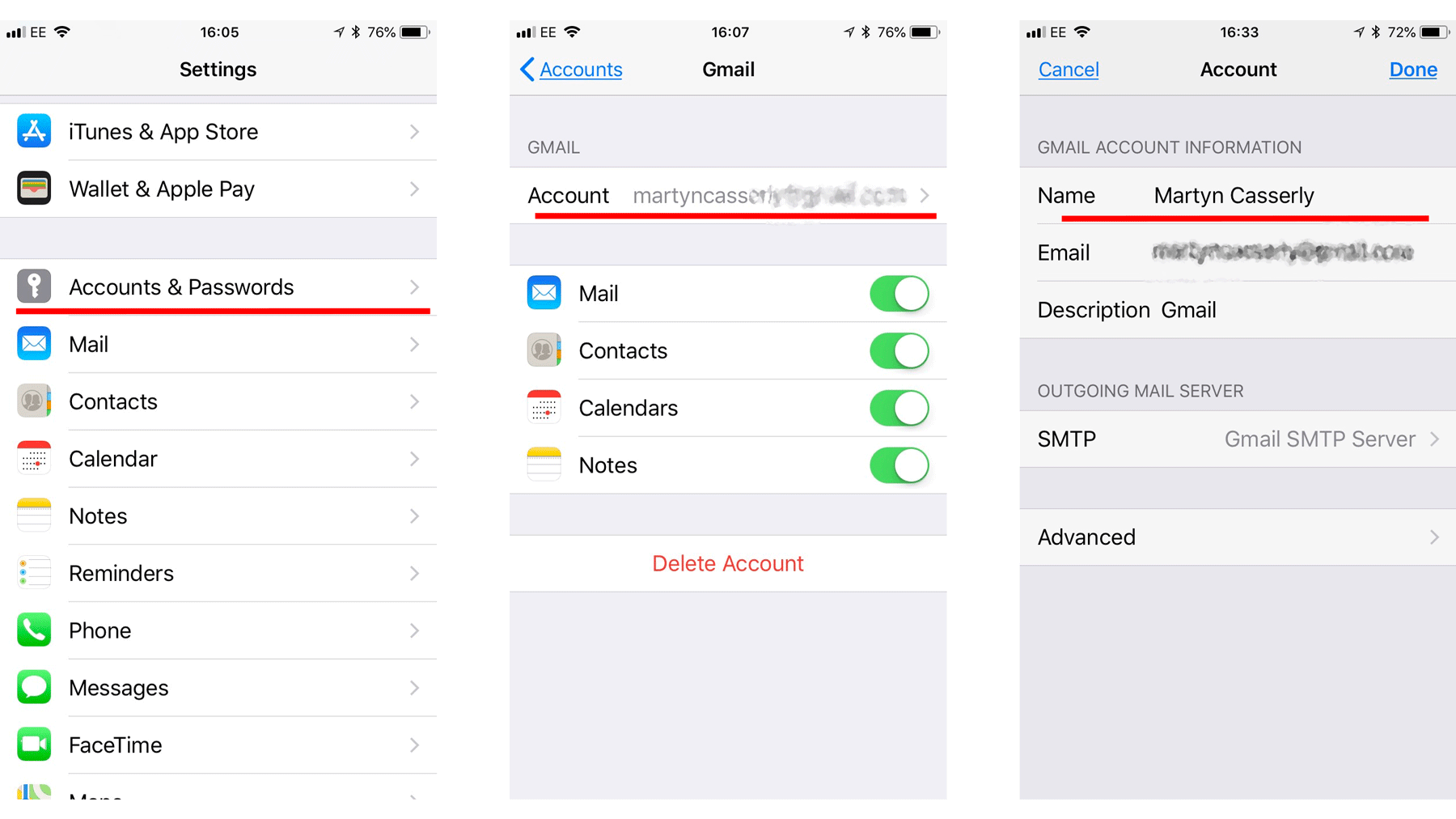
To change your email address on iPhone, first go to the Settings app. You can find it on your home screen or in your list of apps. Tap on the Settings icon to open it.
Step 2: Scroll Down And Tap on Mail
Once you’re in the Settings app, scroll down and tap on the “Mail” option. This will take you to a new screen where you can manage your email accounts.
Step 3: Tap on Accounts & Passwords
On the next screen, tap on the “Accounts & Passwords” option. Here, you’ll see all of your existing email accounts listed.
Step 4: Select The Account You Want to Change
Tap on the account that you want to change. This will take you to a new screen where you can manage that particular account.
Step 5: Tap on Edit And Delete
At the bottom of the screen, tap on the “Edit” button and then select the option to delete the account. You’ll be asked to confirm that you want to delete the account.
Step 6: Add a New Account
Once you’ve deleted the old account, go back to the main Mail screen and tap on the “+” icon in the top-right corner. This will allow you to add a new email account.
Step 7: Select Your Email Provider
Choose your email provider from the list of options. You can select from popular providers like Gmail, Outlook, or Yahoo!
Step 8: Enter Your Email Address And Password
Enter your new email address and password in the required fields. Make sure to enter the correct information to avoid any issues.
Step 9: Tap on Save Changes
Once you’ve entered all of the necessary information, tap on the “Save” button at the top-right corner of the screen.
Congratulations! You Have Successfully Changed Your Email Address on Iphone!
That’s it! You have now successfully changed your email address on iPhone. If you encounter any issues or have questions about this process, feel free to ask in the comments section below.
Alternative Email Clients For Iphone
If you’re tired of using the default Mail app on iPhone and want something more feature-rich, there are several alternative email clients available. Here are a few popular options:
- Microsoft Outlook: A powerful email client that allows you to manage multiple accounts and provides advanced features like calendar integration.
- Gmail: The official Gmail app for iPhone offers a seamless experience with all the features you’d expect from a top-notch email client.
- Spark Mail: A highly-rated email client that provides features like automatic email categorization, customizable gestures, and fast responses.
Changing Password on Iphone
If you want to change your password on iPhone but don’t know how, follow these steps:
- Open the Settings app.
- Scroll down and tap on “Mail.”
- Tap on “Accounts & Passwords.”
- Select the account you want to change.
Conclusion
Changing your email address on iPhone is a straightforward process that requires just a few taps in the Settings app. If you’re tired of using your old email address or want to switch to a new service provider, this guide has shown you how to do it. Additionally, if you’re looking for alternative email clients or need help changing your password, we’ve got you covered.
Frequently Asked Questions
Here are some frequently asked questions about changing your email address on iPhone:
- Q: Can I Change my Email Address Without Deleting my Old Account?
A: Yes, you can. Just follow the same steps as above, but instead of deleting the old account, select the option to edit and change the email address. - Q: How do I Add a New Email Account if I’m Using an Alternative Email Client?
A: The process is similar to adding a new email account using the Mail app. Just open your alternative email client and follow their instructions for adding a new account.
- Q: Can I Change my Password on Iphone Without Deleting my Old One?
A: Yes, you can. Follow the steps above for changing your password, but instead of deleting the old password, select the option to edit and change it.


