
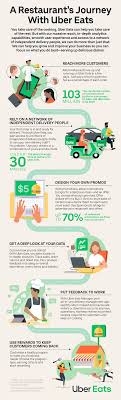
How to Use Uber Eats: A Step-by-step Guide
Are you tired of cooking after a long day? Do you want to try something new without leaving the comfort of your home? Look no further than Uber Eats, the food delivery service that brings the flavors of your favorite restaurants right to your doorstep.
What is Uber Eats?
Uber Eats is a food delivery platform that allows users to order from their favorite restaurants and have it delivered to their doorstep. With a wide range of options to choose from, you can enjoy a variety of cuisines without having to leave your home.
How to Use Uber Eats on Your Smartphone or Tablet
Using Uber Eats on your smartphone or tablet is easy and straightforward. Here’s a step-by-step guide:
Step 1: Download The App
Download the Uber Eats app from the App Store (for iPhone) or Google Play Store (for Android).
Step 2: Create an Account
Create an account by filling out the required information, including your name, email address, and password.
Step 3: Add Your Address
Add your address to receive deliveries. You can also add multiple addresses if you have a business or want to deliver to different locations.
Step 4: Browse Restaurants And Menus
Browse through the list of restaurants available in your area. Select a restaurant that suits your taste, and browse through their menu.
Step 5: Order Your Food
Choose the food items you want to order from the selected restaurant’s menu. You can also add special instructions or requests if needed.
Step 6: Pay For Your Order
Pay for your order using a credit/debit card, PayPal, Google Pay, or Apple Pay.
Step 7: Track Your Delivery
Track the status of your delivery in real-time. Once your food arrives, you’ll receive a notification.
How to Use Uber Eats on Your Computer
Using Uber Eats on your computer is also easy and straightforward. Here’s a step-by-step guide:
Step 1: Visit The Website
Visit the Uber Eats website at www.Ubereats.Com.
Step 2: Create an Account
Create an account by filling out the required information, including your name, email address, and password.
Step 3: Add Your Address
Add your address to receive deliveries. You can also add multiple addresses if you have a business or want to deliver to different locations.
Step 4: Browse Restaurants And Menus
Browse through the list of restaurants available in your area. Select a restaurant that suits your taste, and browse through their menu.
Step 5: Order Your Food
Choose the food items you want to order from the selected restaurant’s menu. You can also add special instructions or requests if needed.
Step 6: Pay For Your Order
Pay for your order using a credit/debit card, PayPal, Google Pay, or Apple Pay.
Step 7: Track Your Delivery
Track the status of your delivery in real-time. Once your food arrives, you’ll receive a notification.
Troubleshooting And Faqs
If you encounter any issues or have questions about using Uber Eats, here are some troubleshooting tips and frequently asked questions:
-
I’m Having Trouble Creating an Account. What Should I Do?
- Try clearing your browser cache and cookies.
- Make sure you’re entering the correct information.
-
How do I Cancel my Order?
-
Go to the “My Orders” section on the Uber Eats app or website.
- Select the order you want to cancel, and follow the prompts.
-
What if my Food Arrives Late or is Incorrect?
-
Contact the restaurant directly to resolve the issue.
- Reach out to Uber Eats customer support for assistance.
Conclusion
Using Uber Eats is a convenient way to enjoy your favorite foods without leaving your home. With this step-by-step guide, you’ll be able to navigate the app or website with ease and order your food in no time. Don’t hesitate to reach out if you have any questions or encounter any issues – our customer support team is here to help.
Frequently Asked Questions
- What are the available payment methods on Uber Eats?
- You can pay using credit/debit cards, PayPal, Google Pay, or Apple Pay.
- How do I track my delivery in real-time?
- Track your delivery status on the Uber Eats app or website.
- Can I cancel my order if it’s already been prepared?
- Try contacting the restaurant directly to see if they can accommodate a cancellation.
- What if I receive incorrect food or it arrives late?
- Reach out to Uber Eats customer support for assistance in resolving the issue.
Stay tuned for more updates, and happy ordering!


