
How to Join Two Partitions: A Step-by-step Guide
Are you tired of dealing with multiple partitions on your computer? Do you want to combine them into one large partition without losing any data? Look no further! In this article, we will guide you through the process of joining two partitions using different operating systems, including Windows 10 and successive versions, macOS, Linux (Ubuntu), and Android.
Preliminary Information
Before proceeding with the guide, there are some important things to consider. Joining two partitions can lead to data loss if not done correctly. To avoid this, it’s essential to create a backup of all your data on both partitions before attempting to join them. We also recommend carrying out a backup of your primary partition for added security.
Windows 10 And Successive Versions
If you’re using Windows 10 or later versions, joining two partitions is a straightforward process. You can use the built-in “Disk Management” tool to achieve this.
- Open Disk Management: Go to the Start menu, type “partition,” and select “Create and format hard disk partitions.”
- Delete The Secondary Partition: Right-click on the secondary partition you want to join and select “Delete volume.” Confirm the deletion by clicking “Yes.”
- Extend The Primary Partition: Right-click on the primary partition and select “Extend volume.” In the resulting window, click on the “Add” button to add the blank space from the deleted partition.
- Apply Changes: Click on the “Apply” button to confirm the changes.
Easeus Partition Master
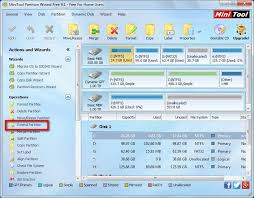
While using Disk Management is a great option, there are times when you might need to resort to third-party software. EaseUS Partition Master is an excellent alternative that can help you join two partitions without losing any data.
- Download And Install: Download and install EaseUS Partition Master on your computer.
- Open The Program: Launch the program and click on the “Partition Manager” button.
- Select The Primary Partition: Select the primary partition to which you want to add the blank space from the secondary partition.
- Join Partitions: Click on the “Join” button, select the secondary partition, and confirm the changes.
Macos
If you’re using a Mac, joining two partitions is also possible using built-in tools.
- Open Disk Utility: Go to Applications > Utilities > Disk Utility.
- Select The Secondary Partition: Select the secondary partition you want to join and click on the “Partition” button.
- Delete The Secondary Partition: Confirm the deletion by clicking “Yes.”
- Extend The Primary Partition: Select the primary partition and drag it to take up all the available space.
Terminal
If you’re comfortable with using Terminal, joining two partitions can also be achieved using this method.
- Open Terminal: Go to Applications > Utilities > Terminal.
- List Partitions: Run the command “diskutil list” to view a list of all partitions on your Mac.
- Delete The Secondary Partition: Use the command “diskutil deleteContainer [partition identifier]” to delete the secondary partition.
- Extend The Primary Partition: Use the command “diskutil resizeVolume [primary partition identifier] 0” to extend the primary partition using the blank space from the deleted partition.
Ubuntu
Joining two partitions on Ubuntu is also a straightforward process.
- Open Disk Utility: Go to Applications > Utilities > Disk Utility.
- Select The Secondary Partition: Select the secondary partition you want to join and click on the “Delete” button.
- Extend The Primary Partition: Confirm the changes by clicking “Yes.”
Android
If you’re using an Android device, joining two partitions is not possible directly on the device. However, you can use a computer to achieve this.
- Connect Your Device: Connect your Android device to your computer and follow the steps for Windows or macOS above.
Conclusion
Joining two partitions may seem daunting at first, but with these step-by-step guides, you should be able to accomplish it easily. Remember to create backups of all your data before attempting to join partitions to avoid any potential losses.
Frequently Asked Questions (FAQs)
- Can I Join More Than Two Partitions?
Yes, you can join multiple partitions, but this may require additional steps and considerations. - Will Joining Partitions Affect my Files?
No, joining partitions should not affect your files, as long as you’ve created backups of all data on both partitions before attempting to join them. - Can I Use Third-party Software For Joining Partitions?
Yes, there are many third-party software options available that can help you join partitions without losing any data. - Is Joining Partitions a Safe Process?
Joining partitions is generally a safe process if done correctly. However, it’s essential to create backups of all data on both partitions before attempting to join them. - Can I Undo The Partition Joining Process?
In most cases, yes, you can undo the partition joining process by reversing the steps taken to join the partitions. - Will Joining Partitions Affect my Operating System?
No, joining partitions should not affect your operating system, as long as you’ve created backups of all data on both partitions before attempting to join them. - Can I Join Partitions on a Mac or Pc?
Yes, joining partitions is possible on both macOS and Windows operating systems. - Is There a Risk of Data Loss During The Partition Joining Process?
Yes, there is a risk of data loss if not done correctly. It’s essential to create backups of all data on both partitions before attempting to join them.


