
How to Delete a Youtube Channel: A Step-by-step Guide
Are you tired of managing multiple YouTube channels? Do you want to delete one or more of your existing channels, but not sure how to do it? Look no further! In this article, we’ll guide you through the process of deleting a YouTube channel on both mobile and computer devices.
Why Delete a Youtube Channel?
Before we dive into the step-by-step instructions, let’s consider why you might want to delete a YouTube channel. Perhaps you:
- Created a channel for a specific project or event that’s now over
- Want to consolidate your online presence by merging channels
- Need to remove a channel that’s no longer relevant or useful
Whatever your reason, deleting a YouTube channel is a relatively simple process that can be completed in just a few steps.
Preparation: Backing Up Your Data
Before you delete your YouTube channel, make sure to back up any important data associated with it. This includes:
- Videos
- Comments
- Subscriptions
- Playlists
To do this, follow these steps:
- Go to the Google Takeout website (www.Google.Com/takeout)
- Sign in with your Google account credentials
- Select “YouTube” as the service you want to export data from
- Choose what data you want to export (e.G., Videos, comments, subscriptions)
- Click on “Create export” and wait for the process to complete
Deleting a Youtube Channel: Mobile Device
If you’re deleting your channel using a mobile device, follow these steps:
- Open the YouTube app
- Tap on the profile icon in the top right corner
- Select the channel you want to delete from the list of available channels
- Tap on the three dots next to the channel name and select “Settings”
- Scroll down to the “Delete channel” section and tap on it
- Confirm that you want to delete the channel by tapping “Yes, delete this channel”
Deleting a Youtube Channel: Computer Device
If you’re deleting your channel using a computer device, follow these steps:
- Go to the YouTube website (www.Youtube.Com)
- Sign in with your Google account credentials
- Click on your profile picture in the top right corner and select “Settings”
- Scroll down to the “Advanced” section and click on it
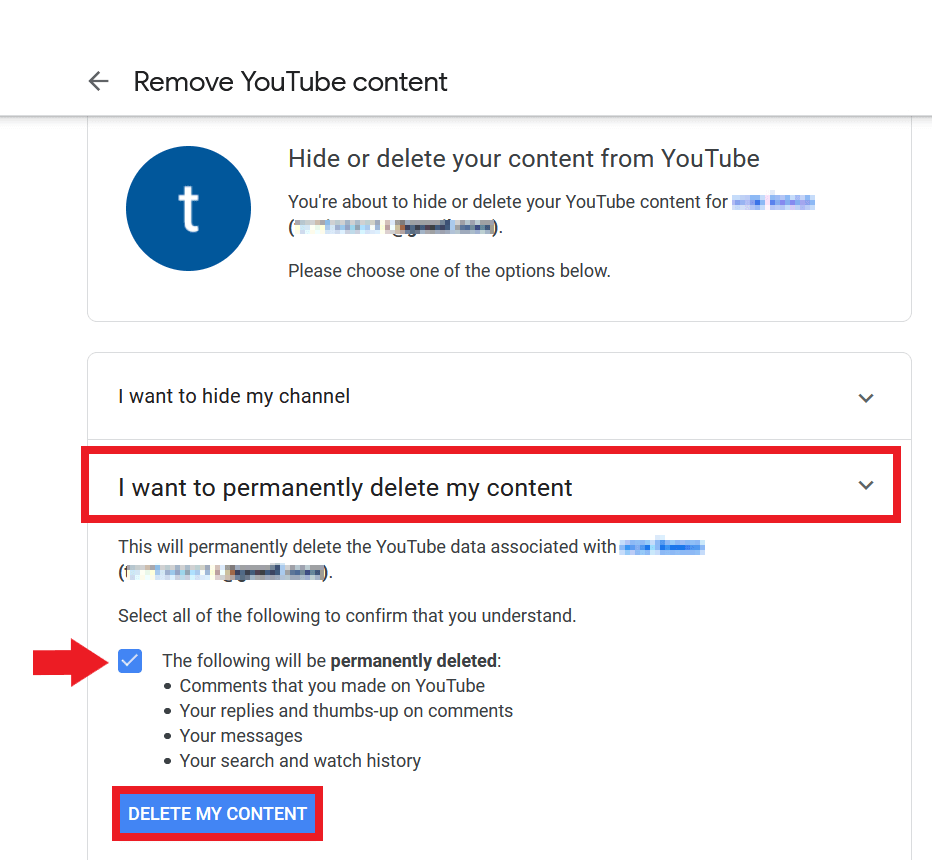
- Select “Delete channel” from the menu
- Confirm that you want to delete the channel by clicking “Yes, delete this channel”
Deleting a Youtube Channel Registration: Mobile Device
If you only want to delete the registration for one of your channels (e.G., Because you’re no longer following it), follow these steps:
- Open the YouTube app
- Tap on the profile icon in the top right corner
- Select the channel you want to remove from the list of available channels
- Tap on the three dots next to the channel name and select “Settings”
- Scroll down to the “Manage” section and tap on it
- Select the channel you want to delete registration for and tap on the “Cancel” button
Deleting a Youtube Channel Registration: Computer Device
If you’re using a computer device, follow these steps:
- Go to the YouTube website (www.Youtube.Com)
- Sign in with your Google account credentials
- Click on your profile picture in the top right corner and select “Settings”
- Scroll down to the “Manage” section and click on it
- Select the channel you want to delete registration for and click on the “Cancel” button
Conclusion
Deleting a YouTube channel is a relatively simple process that can be completed in just a few steps. Remember to back up any important data associated with your channel before deleting it, and follow the instructions above to ensure a smooth deletion process.
Frequently Asked Questions (FAQs)
- What Happens to my Videos When I Delete a Youtube Channel?
When you delete a YouTube channel, all videos associated with that channel will also be deleted. However, if you’ve exported your data using Google Takeout, you can still access and view your videos.
- Will Deleting a Youtube Channel Affect my Other Google Services?
No, deleting a YouTube channel will not affect any of your other Google services (e.G., Gmail, Google Drive).
- Can I Recover Deleted Content From a Youtube Channel?
Unfortunately, no. Once you delete a YouTube channel and its associated content, it’s gone for good.
- How Long Does The Deletion Process Take?
The deletion process is typically instant, but in some cases (e.G., If your account has a lot of data), it may take up to 30 days for all data to be deleted.
- Can I Delete Multiple Youtube Channels at Once?
Yes, you can delete multiple YouTube channels simultaneously by following the same steps above.
- Will Deleting a Youtube Channel Affect my Google Takeout Export?
No, deleting a YouTube channel will not affect your Google Takeout export. Your exported data is separate from your YouTube account and will remain intact even if you delete your channel.
- Can I Delete a Youtube Channel Without Deleting Its Associated Content?
Yes, you can delete a YouTube channel without deleting its associated content by following the steps above for deleting registration only.
Additional Resources
For more information on deleting a YouTube channel, including troubleshooting tips and best practices, please refer to Google’s official support documentation:
Note: This article is intended for general guidance purposes only and should not be considered as professional advice. If you’re unsure about any aspect of the deletion process, please consult Google’s official support documentation or contact their customer support team directly.


