
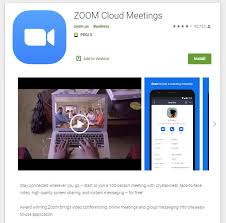
How to Install Zoom on Android: A Step-by-step Guide
Are you struggling to install Zoom on your Android device? Don’t worry, we’ve got you covered! In this article, we’ll walk you through a step-by-step guide on how to install Zoom on your Android device, whether you’re using the Google Play Store or not.
Why Install Zoom on Android?
Zoom is a popular video conferencing app that allows you to connect with friends, family, and colleagues from anywhere in the world. With Zoom, you can participate in virtual meetings, make voice or video calls, and even collaborate on projects remotely.
Installing Zoom on Android Via Google Play Store
If you have an Android device running Android 5.0 Or later, you can easily install Zoom from the Google Play Store.
- Open The Google Play Store: Tap the Google Play Store icon on your home screen to open it.
- Search For Zoom: Type “Zoom” in the search bar and tap the magnifying glass icon.
- Select Zoom: From the search results, select the Zoom app.
- Install Zoom: Tap the “Install” button to download and install the Zoom app on your device.
- Open Zoom: Once installed, tap the “Open” button or find the Zoom icon in your app drawer.
Installing Zoom on Android Without Google Play Store
If you don’t have access to the Google Play Store on your device, you can still install Zoom from other sources.
- Enable Unknown Sources: Go to Settings > Safety and privacy > Allow installation of apps from unknown sources.
- Download Amazon Appstore: Download and install the Amazon Appstore app.
- Install Zoom: Search for Zoom in the Amazon Appstore and download it.
- Open Zoom: Once installed, tap the “Open” button or find the Zoom icon in your app drawer.
Troubleshooting Tips
If you encounter any issues while installing Zoom on your Android device, try these troubleshooting tips:
- Check if your device meets the minimum requirements for running Zoom (Android 5.0 Or later).
- Ensure that your internet connection is stable and strong.
- Restart your device and try again.
- Contact Zoom support for further assistance.
Conclusion
Installing Zoom on your Android device is a straightforward process, whether you’re using the Google Play Store or not. By following these step-by-step guides, you should be able to install Zoom on your device in no time! If you have any questions or encounter any issues, don’t hesitate to reach out to us.
Frequently Asked Questions (FAQs)
- Q: What is The Minimum Android Version Required For Installing Zoom?
A: The minimum Android version required for installing Zoom is 5.0. - Q: Can I Install Zoom on an Android Device Without Google Play Store?
A: Yes, you can install Zoom from alternative sources like Amazon Appstore. - Q: Why is Zoom Not Installing on my Device?
A: Check if your device meets the minimum requirements and ensure a stable internet connection. - Q: How do I Enable Unknown Sources on my Android Device?
A: Go to Settings > Safety and privacy > Allow installation of apps from unknown sources. - Q: Can I Use Zoom on Multiple Devices at Once?
A: Yes, you can use Zoom on multiple devices simultaneously with a single account.
Hope this helps!


