
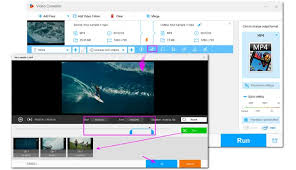
Cutting Video Mp4: A Step-by-step Guide
Are you tired of dealing with long videos that take up too much space on your computer or smartphone? Do you want to cut out unnecessary parts and save storage space without compromising video quality? Look no further! In this article, we’ll show you how to cut video MP4 files using various methods.
Why Cut Video Mp4 Files?
Cutting video MP4 files is a simple yet effective way to conserve storage space on your devices. By removing unwanted parts of the video, you can save time and effort when sharing videos with others or storing them in cloud storage services.
Method 1: Cutting Video Mp4 With Avidemux (Windows)
Avidemux is a free, open-source video editing software that supports various file formats, including MP4. Here’s how to use it:
Step-by-step Guide
- Download And Install Avidemux: Visit the FossHub website and download the 64-bit or 32-bit Windows installer, depending on your system architecture.
- Open Avidemux: Launch the program and click on the “Start” button (represented by a blue folder icon).
- Select Video File: Browse to the location of your MP4 video file and select it.
- Output Settings: Go to the “Output Video” menu and choose “Copy” instead of “Convert.” This will prevent any quality loss during the process.
- Container Output: Select the same output format as the original video (MP4).
- Split Video: Place the cursor on the timeline bar at the desired point for splitting the video. Click on the “B” button to set a new beginning point and click on the “C” button to delete any unwanted parts.
- Repeat Steps 5-6: Continue splitting the video into smaller sections until you’ve removed all unnecessary parts.
- Save Video: Click on the floppy disk icon to save the edited video as a new MP4 file.
Method 2: Cutting Video Mp4 With Vlc (Windows, Macos, Linux)
VLC is another popular media player that can also be used for video editing. Here’s how:
Step-by-step Guide
- Download And Install Vlc: Visit the official website to download the software.
- Open Vlc Media Player: Launch the program and go to “Media” > “Open File” (or press Ctrl + O).
- Select Video File: Choose your MP4 video file from the browser window.
- Pause And Record: Press the “Spacebar” to pause the video, then click on the “Record” button to split the video into smaller sections.
- Split Video: Place the cursor on the timeline bar at the desired point for splitting the video.
- Save Video: Click on the floppy disk icon to save the edited video as a new MP4 file.
Method 3: Cutting Video Mp4 With Quicktime Player (macOS)
QuickTime Player is a free media player that comes pre-installed on macOS devices. Here’s how:
Step-by-step Guide
- Open Quicktime Player: Launch the program and go to “File” > “Import…” (Or press Command + I).
- Select Video File: Choose your MP4 video file from the browser window.
- Split Video: Place the cursor on the timeline bar at the desired point for splitting the video.
- Save Video: Click on the floppy disk icon to save the edited video as a new MP4 file.
Method 4: Cutting Video Mp4 Online
If you don’t want to install any software, you can use online services like CutVideo (123Apps). Here’s how:
Step-by-step Guide
- Visit Cutvideo Website: Go to the website and upload your MP4 video file.
- Split Video: Place the cursor on the timeline bar at the desired point for splitting the video.
- Save Video: Click on the “Save” button to save the edited video as a new MP4 file.
Method 5: Cutting Video Mp4 With Movie Maker (Windows)
Note: This method requires the installation of Movie Maker software, which is an outdated program and no longer supported by Microsoft.
Step-by-step Guide
- Download And Install Movie Maker: Visit the official website to download the software.
- Open Movie Maker: Launch the program and go to “File” > “New Project” (or press Ctrl + N).
- Import Video File: Choose your MP4 video file from the browser window.
- Split Video: Place the cursor on the timeline bar at the desired point for splitting the video.
- Save Video: Click on the floppy disk icon to save the edited video as a new MP4 file.
Method 6: Cutting Video Mp4 With Imovie (iOS, Ipados)
IMovie is a free media editing software developed by Apple. Here’s how:
Step-by-step Guide
- Open Imovie: Launch the program and go to “File” > “New Project” (or press Command + N).
- Import Video File: Choose your MP4 video file from the browser window.
- Split Video: Place the cursor on the timeline bar at the desired point for splitting the video.
- Save Video: Click on the floppy disk icon to save the edited video as a new MP4 file.
Method 7: Cutting Video Mp4 With Youcut (Android)
YouCut is a free media editing software available on Android devices. Here’s how:
Step-by-step Guide
- Download And Install Youcut: Visit the Google Play Store to download and install the app.
- Open Youcut: Launch the program and go to the “+” button at the bottom right corner.
- Import Video File: Choose your MP4 video file from the gallery or cloud storage services.
- Split Video: Place the cursor on the timeline bar at the desired point for splitting the video.
- Save Video: Click on the “Save” button to save the edited video as a new MP4 file.
Conclusion
Cutting video MP4 files can be a simple process when using the right tools and techniques. By following these step-by-step guides, you should be able to remove unwanted parts of your videos without compromising quality or sacrificing storage space. Happy editing!
Faqs
Q: What is the best method for cutting video MP4 files?
A: The best method depends on your specific needs and preferences.
Q: Can I cut video MP4 files online?
A: Yes, you can use online services like CutVideo (123Apps) to split your videos.
Q: How do I save a cut video as an MP4 file?
A: Use the “Save” or “Export” button to export the edited video in MP4 format.
Q: Can I use other software to cut video MP4 files?
A: Yes, you can experiment with different media editing software like Avidemux, VLC, QuickTime Player, and more.


