
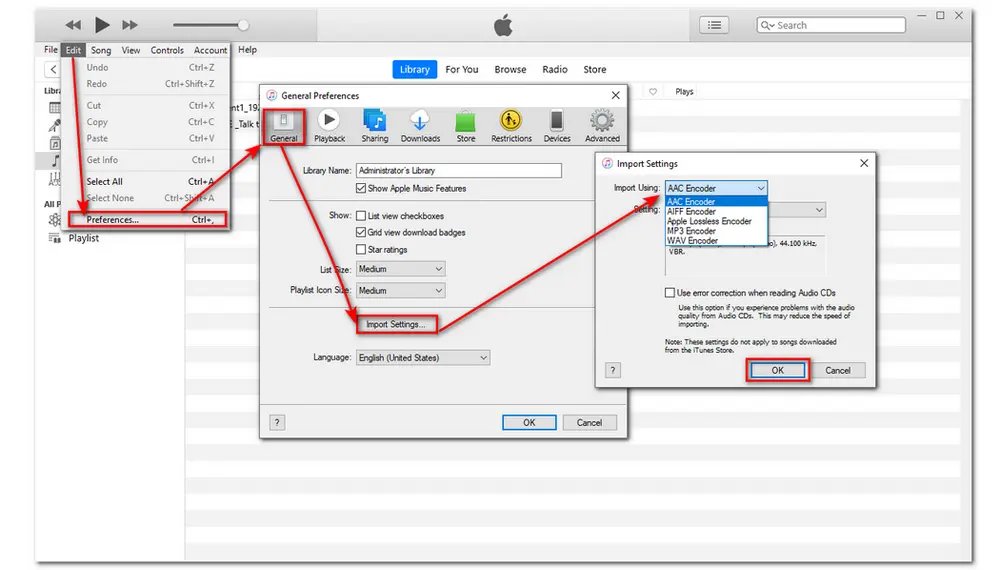
How to Convert Aac to Mp3: A Step-by-step Guide
Are you struggling to convert your favorite music files from AAC to MP3? Don’t worry, we’ve got you covered! In this article, we’ll show you how to easily convert AAC to MP3 on both Windows and macOS, as well as on Android and iOS devices.
Why Convert Aac to Mp3?
Before we dive into the conversion process, let’s quickly discuss why you might want to convert your music files from AAC to MP3. The main reason is that MP3 is a more widely supported format than AAC, which means you can play it on almost any device or platform.
How to Convert Aac to Mp3 on Windows
To convert AAC to MP3 on Windows, you’ll need to use a dedicated audio converter software. Here are some popular options:
1. Fre:ac (Windows, Macos, Linux)
Fre:Ac is a free and open-source audio converter that supports all major formats, including AAC and MP3. To get started, download the software from the official website and follow these steps:
- Open the program and select the file you want to convert by clicking on the “+” button.
- Choose the output format as MP3.
- Adjust the quality settings if needed.
- Click on the “Convert” button to start the process.
2. Mediahuman Audio Converter (Windows, Macos)
MediaHuman Audio Converter is another popular option that supports AAC and MP3 formats. Here’s how to use it:
- Download the software from the official website and install it.
- Open the program and select the file you want to convert by clicking on the “+” button.
- Choose the output format as MP3.
- Adjust the quality settings if needed.
- Click on the “Convert” button to start the process.
3. Switch Audio Converter (Windows, Macos)
Switch Audio Converter is a user-friendly program that supports AAC and MP3 formats. Here’s how to use it:
- Download the software from the official website and install it.
- Open the program and select the file you want to convert by clicking on the “+” button.
- Choose the output format as MP3.
- Adjust the quality settings if needed.
- Click on the “Convert” button to start the process.
How to Convert Aac to Mp3 Online
If you don’t have a computer or prefer not to install software, there are also online services that allow you to convert AAC to MP3. Here are some popular options:
1. Convertio
Convertio is an online audio converter that supports all major formats, including AAC and MP3.
- Go to the website and select the file you want to convert by clicking on the “Choose File” button.
- Choose the output format as MP3.
- Adjust the quality settings if needed.
- Click on the “Convert” button to start the process.
2. Zamzar
Zamzar is another online audio converter that supports AAC and MP3 formats.
- Go to the website and select the file you want to convert by clicking on the “Choose File” button.
- Choose the output format as MP3.
- Adjust the quality settings if needed.
- Click on the “Convert” button to start the process.
How to Convert Aac to Mp3 on Android
If you’re using an Android device, there are also dedicated audio converter apps that can help you convert AAC to MP3. Here’s how to use them:
1. Audio Converter (Android)
Audio Converter is a popular app that supports AAC and MP3 formats.
- Download the app from the Google Play Store.
- Open the app and select the file you want to convert by clicking on the “+” button.
- Choose the output format as MP3.
- Adjust the quality settings if needed.
- Click on the “Convert” button to start the process.
2. Converter Audio (iOS, Ipados)
Converter Audio is an app designed specifically for iOS and iPadOS devices that can help you convert AAC to MP3.
- Download the app from the App Store.
- Open the app and select the file you want to convert by clicking on the “+” button.
- Choose the output format as MP3.
- Adjust the quality settings if needed.
- Click on the “Convert” button to start the process.
Conclusion
Converting AAC to MP3 is a simple process that can be done using various software and online services. Whether you’re on Windows, macOS, Android, or iOS, there’s an option available for you. Just remember to choose the right format and quality settings according to your needs.


