
How to Recover Deleted Files With Recuva: A Step-by-step Guide
Are you looking for a reliable solution to recover deleted files on your computer or other devices? Look no further than Recuva, a powerful and user-friendly file recovery software that can help you retrieve lost data in a few easy steps. In this article, we’ll guide you through the process of downloading, installing, and using Recuva to recover deleted files, including its portable version.
What is Recuva?
Recuva is a free file recovery software developed by Piriform that can help you retrieve deleted files from your computer’s hard drive, USB drives, memory cards, smartphones, tablets, and other electronic devices. The program uses advanced algorithms to search for deleted files on your device and recover them with high success rates.
Requirements And Supported Devices
Before we dive into the instructions, it’s essential to note that Recuva is only available for Windows operating systems and not compatible with macOS or Linux. However, the software can run on a wide range of devices, including:
- Hard disk drives (HDDs)
- Solid-state drives (SSDs)
- USB drives
- Memory cards (SD, SDHC, SDXC, etc.)
- Smartphones (Android, iOS)
- Tablets (Android, iOS)
How to Download And Install Recuva
To get started with Recuva, follow these simple steps:
- Download The Software: Visit the official Piriform website and click on the “Free Download” button to download the software.
- Install The Software: Run the downloaded executable file (rcsetup.Exe) and follow the installation wizard to install Recuva on your computer.
- Choose Your Preferred Language: Select the Italian option from the menu to use the software in your native language.
How to Use Recuva
Now that you have installed Recuva, let’s move on to the actual file recovery process:
- Launch The Program: Click on the Recuva icon on your desktop or start menu to launch the software.
- Select The Device: Choose the device from which you want to recover deleted files (e.G., Hard drive, USB drive, memory card).
- Choose The File Type: Select the type of files you want to recover (e.G., Images, music, documents, video, compressed files).
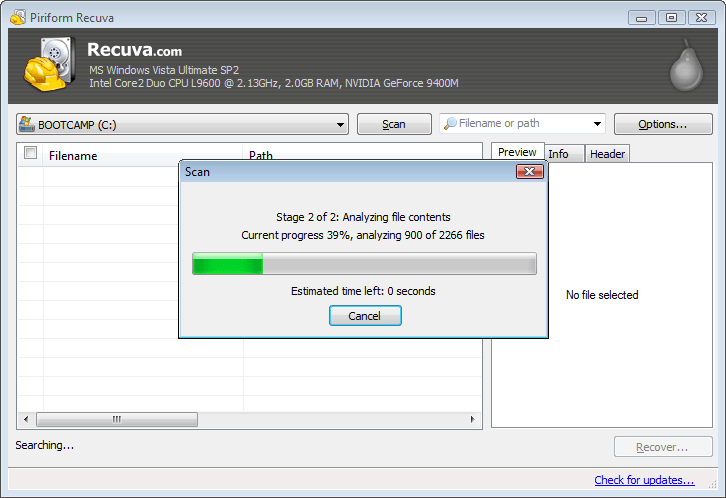
- Initiate Scanning: Click on the “Scan” button to initiate the scanning process.
- Select Recovered Files: Once the scanning is complete, select the deleted files you want to recover by checking the boxes next to them.
- Save The Recovered Files: Choose a folder to save the recovered files and click on the “Save” button.
How Recuva Portable Works
If you cannot or do not want to install software on your computer, you can use the portable version of Recuva:
- Download The Portable Version: Visit the Piriform website and download the portable version of Recuva.
- Run The Program: Run the executable file (Recuva.Exe) from a USB drive or other portable device.
- Follow The Same Steps as Above: Use the software to select the device, choose the file type, initiate scanning, select recovered files, and save them.
Tips For Successful File Recovery
To increase your chances of successful file recovery with Recuva:
- Act Quickly: Try to recover deleted files as soon as possible before other data is written over them.
- Avoid Using The Device: Do not use the device from which you are trying to recover files until the scanning process is complete.
- Use The Deep Scan Option: If the standard scan doesn’t find your desired file, try using the deep scan option for a more thorough search.
Conclusion
Recuva is an excellent tool for recovering deleted files on various devices, including hard drives, USB drives, memory cards, smartphones, and tablets. By following these steps and tips, you can increase your chances of successful file recovery and retrieve lost data with ease.


