
How to Access And Modify Your Netgear Modem Settings
As a homeowner, having a reliable internet connection is crucial for various aspects of your life, including work, entertainment, and communication. If you’re using a Netgear modem, it’s essential to know how to access and modify its settings to ensure optimal performance and security. In this article, we’ll guide you through the process of accessing your Netgear modem panel and modifying its settings.
Before You Begin
Before attempting to access or modify your Netgear modem settings, make sure that you have:
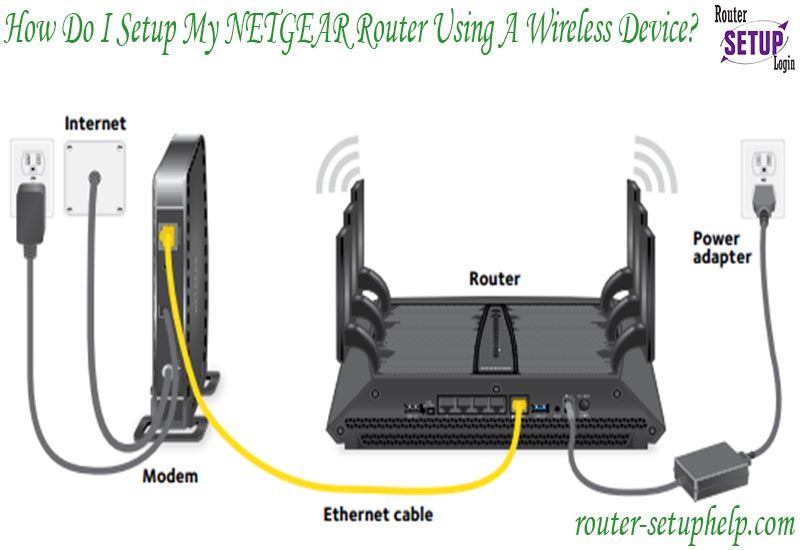
- Connected your computer or mobile device to the modem using an Ethernet cable or Wi-Fi.
- Identified the IP address of your modem (usually 192.168.1.1 Or 192.168.0.1).
Accessing Your Netgear Modem Panel
To access your Netgear modem panel, follow these steps:
- Open a web browser on your computer or mobile device.
- Type the IP address of your modem in the address bar and press Enter.
- Log in using the default username and password (usually “admin” for both).
- Once logged in, you’ll see the Netgear modem panel.
Modifying Your Netgear Modem Settings
Now that you’ve accessed your Netgear modem panel, let’s explore some of the settings you can modify:
1. Modifying The Wi-fi Password
- Click on the “Wireless” tab.
- Select the “Security Options” section.
- Enter a new password in the “Passphrase” field.
- Confirm the new password and click “Apply.”
2. Changing The Wi-fi Channel
- Click on the “Wireless” tab.
- Select the “Channel” dropdown menu.
- Choose a different channel from the list.
3. Modifying The Modem’s Password
- Click on the “Advanced” tab.
- Select the “Administration” section.
- Enter your current password in the “Old Password” field.
- Create a new password in the “New Password” and “Confirm New Password” fields.
- Click “Apply” to save changes.
4. Opening Ports
- Click on the “Advanced” tab.
- Select the “Inbound Rules” section.
- Add a new rule by clicking the “+” button.
- Enter the desired protocol, port number, and other settings as required.
- Click “Apply” to save changes.
5. Modifying Connection Parameters
- Click on the “Home” tab.
- Select the “Internet” section.
- Modify the DNS and NAT settings as needed.
- Click “Apply” to save changes.
Troubleshooting Tips
If you encounter any issues while accessing or modifying your Netgear modem settings, try the following:
- Check your internet connection is stable.
- Restart your modem and router.
- Consult the Netgear support website for troubleshooting guides.
Conclusion
Accessing and modifying your Netgear modem settings can be a bit complex, but with this guide, you should be able to navigate the process with ease. Remember to always save changes before applying them, and don’t hesitate to contact Netgear support if you need further assistance.
Frequently Asked Questions (FAQs)
- What is my Netgear Modem’s IP Address?
Your modem’s IP address can usually be found on the device itself or in your router’s documentation.
- How do I Reset my Netgear Modem to Its Factory Settings?
To reset your modem, click on the “Advanced” tab and select the “Administration” section. Click on the “Backup Settings” button, then select “Restore Factory Settings.”
- Can I Change The Wi-fi Channel on my Netgear Modem?
Yes, you can modify the Wi-Fi channel by clicking on the “Wireless” tab and selecting a different channel from the dropdown menu.
- How do I Open Ports on my Netgear Modem?
To open ports, click on the “Advanced” tab and select the “Inbound Rules” section. Add a new rule with the desired protocol, port number, and other settings as required.
- Can I Modify The Connection Parameters of my Netgear Modem?
Yes, you can adjust the DNS and NAT settings by clicking on the “Home” tab and selecting the “Internet” section.
- What is The Default Password For my Netgear Modem?
The default username and password are usually “admin” for both.
- How do I Reset my Netgear Modem’s Password?
To reset your modem’s password, click on the “Advanced” tab and select the “Administration” section. Click on the “Backup Settings” button, then select “Reset Password.”
- Can I Access my Netgear Modem Settings Remotely?
Yes, you can access your modem settings from a remote device by using the IP address of your modem and logging in with your username and password.
Remember to bookmark this article for future reference!


