
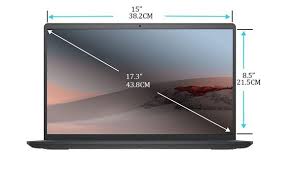
How to Know The Dimensions of Your Monitor: A Step-by-step Guide
Are you curious about the dimensions of your monitor? Do you want to know how wide or tall it is, without having to measure it manually? Well, you’re in luck! In this article, we’ll show you how to easily find out the dimensions of your monitor, whether it’s a PC, Mac, Android smartphone, or iPhone.
Why Knowing Your Monitor’s Dimensions Matters
Before we dive into the nitty-gritty, let’s talk about why knowing your monitor’s dimensions is important. Having this information can be useful in various situations, such as:
- Purchasing a new monitor: If you’re planning to buy a new monitor, knowing its dimensions will help you choose one that fits perfectly with your existing setup.
- Configuring your workspace: Knowing the dimensions of your monitor can also help you optimize your workspace for maximum productivity.
- Troubleshooting issues: In some cases, knowing your monitor’s dimensions might be necessary to troubleshoot issues related to screen size or resolution.
How to Know Your Monitor’s Dimensions on a PC
If you’re using a Windows computer, you can easily find out the dimensions of your monitor by following these steps:
- Open the Start menu and click on the “Settings” icon (it looks like a gear).
- Click on “System” and then select “Display” from the left-hand menu.
- Scroll down to the “Display settings” section and look for the “Resolution” dropdown menu.
- Click on the dropdown menu to view your monitor’s resolution, which will include its dimensions.
How to Know Your Monitor’s Dimensions on a Mac
If you’re using a Mac, knowing your monitor’s dimensions is just as easy:
- Click on the Apple logo in the top left corner of your screen.
- Select “About This Mac” from the dropdown menu.
- Click on the “Display” tab and look for the “Resolution” section.
- Your monitor’s dimensions will be displayed next to the resolution.
How to Know Your Monitor’s Dimensions on an Android Smartphone
If you’re using an Android smartphone, knowing your screen’s dimensions is a bit more complicated:
- Download and install a third-party app like CPU-Z or Device Info Lite.
- Launch the app and select “Device” from the menu.
- Look for the “Display” section, which will show you your screen’s dimensions.
How to Know Your Monitor’s Dimensions on an Iphone
If you’re using an iPhone, knowing your screen’s dimensions is also a bit more complicated:
- Download and install a third-party app like Lirum Device Info Lite.
- Launch the app and select “This device” from the menu.
- Look for the “Display” section, which will show you your screen’s dimensions.
How to Calculate Your Monitor’s Dimensions
If you don’t have access to any of these methods, you can also calculate your monitor’s dimensions manually:
- Measure the diagonal distance between the opposite corners of your monitor.
- Convert this measurement from centimeters to inches by dividing it by 2.54.
Conclusion
Knowing your monitor’s dimensions is easier than you think! Whether you’re using a PC, Mac, Android smartphone, or iPhone, there are various ways to find out its dimensions. By following the steps outlined in this article, you’ll be able to determine the width and height of your screen with ease.
Faqs
- Q: Why is it Important to Know my Monitor’s Dimensions?
A: Knowing your monitor’s dimensions can help you optimize your workspace for maximum productivity. - Q: How do I Measure my Monitor’s Diagonal Distance?
A: To measure your monitor’s diagonal distance, simply measure the distance between the opposite corners of your screen. - Q: Can I Calculate my Monitor’s Dimensions Manually?
A: Yes, you can calculate your monitor’s dimensions by converting the diagonal measurement from centimeters to inches. - Q: Do I Need Any Special Software or Apps to Know my Monitor’s Dimensions?
A: No, there are various free and third-party apps available that can help you determine your screen’s dimensions. - Q: Can I Use a Ruler to Measure my Monitor’s Diagonal Distance?
A: Yes, a ruler will suffice for measuring your monitor’s diagonal distance. - Q: Why is it Necessary to Convert The Measurement From Centimeters to Inches?
A: The conversion is necessary because most screen manufacturers and device makers list their products’ dimensions in inches rather than centimeters. - Q: Are There Any Online Resources That Can Help me Calculate my Monitor’s Dimensions?
A: Yes, there are numerous online calculators available that can help you determine your screen’s dimensions based on its diagonal measurement. - Q: Can I Use a Calculator to Convert The Measurement From Centimeters to Inches?
A: Yes, most electronic and scientific calculators will allow you to perform this conversion quickly and accurately.


