
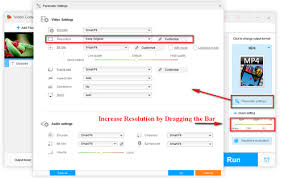
How to Enhance The Resolution of a Video: A Comprehensive Guide
Have you ever recorded a video with your smartphone or computer, only to find that it looks blurry or low-resolution? Augmenting the resolution of a video can be a great way to improve its quality and make it more engaging. In this article, we will explore various methods to enhance the resolution of a video on different devices.
Understanding Video Resolution
Before diving into the techniques for enhancing video resolution, let’s first understand what video resolution means. Video resolution refers to the number of pixels in a video frame. Common resolutions include 720p (HD), 1080i (HDTV), 1080p (Full HD), and 2160p (Ultra HD). Each resolution has its own set of parameters, including width and height.
Common Resolutions
- 720P: This is the most basic form of high-definition video. It has a resolution of 1280×720 pixels.
- 1080I: This resolution is also known as HDTV or High Definition Television. It has a resolution of 1920×1080 pixels and an interlaced scan.
- 1080P: This is the most common form of Full HD video. It has a resolution of 1920×1080 pixels with a progressive scan.
- 2160P: Also known as Ultra HD or UHD, this resolution offers extremely high image quality. It has a resolution of 3840×2160 pixels.
Enhancing Video Resolution on PC
If you want to enhance the resolution of a video on your computer, there are several software options available. Here are a few:
- Avidemux: This is a free and open-source video editor that allows you to enhance video resolution using filters.
- Adobe Premiere: This professional-level video editing software offers advanced features for enhancing video resolution.
Using Avidemux
To use Avidemux, follow these steps:
- Download and install the software on your computer.
- Open Avidemux and select “File” > “Open” to import the video file you want to enhance.
- Click on “Filters” in the panel on the left-hand side of the screen.
- Select “Transform” from the filter menu, then choose “Resize”.
- In the resizing dialog box, select the new resolution and click “OK”.
Using Adobe Premiere
To use Adobe Premiere:
- Download and install the software on your computer.
- Open Premiere and create a new project.
- Import the video file you want to enhance into the project.
- Select “File” > “Export” from the menu.
- Choose the desired resolution from the format options, then select the export settings.
Other Solutions For PC
If you’re looking for alternative software solutions, here are a few:
- Vidmore Video Converter: This software is specifically designed to convert and enhance video resolutions on your computer.
- Davinci Resolve 17: This professional-level video editing software offers advanced features for enhancing video resolution.
- Shotcut: Another free and open-source video editor that allows you to enhance video resolution using filters.
Enhancing Video Resolution on Smartphone
If you want to enhance the resolution of a video on your smartphone, there are several app options available. Here are a few:
- Inshot: This is a popular video editing app that offers advanced features for enhancing video resolution.
- Power Director: Another powerful video editing app that allows you to enhance video resolution using filters.
Using Inshot
To use Inshot:
- Download and install the app on your smartphone.
- Open Inshot and select “Create New” from the menu.
- Choose the video file you want to enhance, then click “Edit”.
- Select the “Resolution” option in the editing menu, then choose the desired resolution.
Other Solutions For Smartphone
If you’re looking for alternative app solutions, here are a few:
- Video Dieter Trim & Edit: A free video editing app that allows you to enhance video resolution using filters.
- Imovie: If you have an Apple device, iMovie is a great video editing app that offers advanced features for enhancing video resolution.
Enhancing Video Resolution Online
If you want to enhance the resolution of a video online, there are several services available. Here are a few:
- Clipchamp: A powerful online video editor that allows you to enhance video resolution using filters.
- Convert-video-online: This service is specifically designed to convert and enhance video resolutions online.
Conclusion
In conclusion, enhancing the resolution of a video can be achieved on various devices using different software and app options. By understanding the basics of video resolution and choosing the right tool for your needs, you can improve the quality of your videos and make them more engaging.
Faqs
- What is The Best Way to Enhance Video Resolution?
The best way to enhance video resolution depends on your device and software preferences. - Can I Use Software to Enhance Video Resolution?
Yes, there are several software options available for enhancing video resolution on PC. - Can I Use Apps to Enhance Video Resolution on my Smartphone?
Yes, there are several app options available for enhancing video resolution on smartphones. - What is The Maximum Resolution That Can be Enhanced Using Software or Apps?
The maximum resolution that can be enhanced depends on the software or app being used. - Can I Enhance Video Resolution Online?
Yes, there are several services available for enhancing video resolution online. - How do I Choose The Right Tool For Enhancing Video Resolution?
To choose the right tool, consider your device and software preferences, as well as your level of expertise with video editing software or apps. - Can I Enhance Video Resolution Without Losing Quality?
Yes, by choosing the right tool and following proper procedures, you can enhance video resolution without losing quality. - What Are Some Common Resolutions That Can be Enhanced Using Software or Apps?
Note: The FAQs section is designed to provide additional information and answer frequently asked questions related to the topic of enhancing video resolution.


