
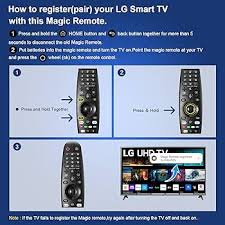
How to Reset Your LG Magic Remote: A Step-by-step Guide
Are you tired of dealing with a malfunctioning remote control? Look no further! In this article, we will guide you through the process of resetting your LG Magic Remote and associating it with other devices.
The Problem With a Non-functoning Remote Control
Like many of us, you’ve probably encountered a situation where your remote control suddenly stops working. It’s frustrating, especially when you’re in the middle of watching your favorite show or movie. But don’t worry, we’ve got the solution for you!
Why Reset Your LG Magic Remote?
Resetting your LG Magic Remote is a simple and effective way to resolve any issues with it. By following these steps, you’ll be able to get your remote up and running in no time.
Step 1: Turn on Your TV And Wait
First, turn on your LG Smart TV and wait for around 10 seconds until WebOS starts its functions and renders the Home section available.
How to Reset Your LG Magic Remote: A Step-by-step Guide
If you’re having trouble turning on your TV without a remote control, check out our separate guide on how to do so.
Step 2: Hold The Remote Close to The TV
Take your LG Magic Remote and hold it close to the TV (no more than a meter away) so that the IR receiver can receive the signal from the transmitter of the remote.
Step 3: Press And Hold The Guide Button
Press and hold the Guide button on the remote for around 7 seconds until the LED light on the power button stops flashing three times. Then, release the button.
What Happens Next?
After performing this operation, your LG Magic Remote should automatically reset and match with the TV. You might see a notification indicating that the operation was successful. To confirm, try using the remote to navigate through menus or change channels.
Troubleshooting: If The Remote Still Doesn’t Work
If the above steps don’t work for you, don’t worry! There are other troubleshooting methods we can try. Check if the batteries are charged and correctly inserted. Also, ensure there are no physical obstacles between the remote and TV that could interfere with signal transmission.
How to Associate Your LG Magic Remote With Other Devices
Once your remote is reset and functioning properly, you’ll need to associate it with any other devices connected to your TV via HDMI. Follow these steps:
- Select the device you want to control (e.G., Set-top box, DVD player) from the list of available devices.
- Choose the correct HDMI port the device is connected to.
- Configure the remote according to your preferences regarding SIMPLINK and Sinc car alimentation.
- Test the remote by selecting virtual buttons on the monitor and checking if the corresponding actions occur on the connected device.
Common Issues With Your LG Magic Remote
If you’re still experiencing issues after trying these steps, it’s possible that there’s a hardware problem with your remote control. Don’t worry; we’ve got some advice for you:
- Check if the batteries are charged and correctly inserted.
- Ensure there are no physical obstacles between the remote and TV that could interfere with signal transmission.
- Contact an authorized LG service center or use one of their contact channels to report a hardware malfunction.
Conclusion
Resetting your LG Magic Remote is a simple process that can be completed within minutes. If you’re having trouble, don’t hesitate to try these troubleshooting steps or seek assistance from authorized centers. With this guide, you should now be able to enjoy hassle-free remote control with your LG Smart TV!


