
How to Convert M4a to Mp3: A Step-by-step Guide
Are you tired of dealing with audio files that won’t play in your preferred format? Do you want to convert those pesky M4A files into something more easily playable, like MP3s? Well, you’re in luck! In this article, we’ll explore various methods for converting M4A to MP3 on both PC and Mac.
Why Convert M4a to Mp3?
Before we dive into the conversion process, let’s quickly discuss why you might want to convert your M4A files to MP3s. MP3 is a widely supported audio format that can be played on almost any device, from smartphones to smart speakers. MP3s are also generally smaller in file size than M4As, making them easier to store and share.
Method 1: Using Freeac
FreeAc is a free, open-source software that can convert various audio formats, including M4A to MP3. Here’s how to use it:
- Download Freeac: Visit the official website and download the correct version for your operating system (Windows, macOS, or Linux).
- Install Freeac: Follow the installation instructions, which may involve running an executable file or installing a package.
- Launch Freeac: Once installed, launch the program and select “Convert” from the top menu bar.
- Select M4a as Input: Choose the M4A file you want to convert by clicking on it.
- Choose Mp3 as Output: Select MP3 as the output format in the conversion settings.
- Set Conversion Settings: You can adjust various settings, such as bitrate and sample rate, depending on your preferences.
- Start Conversion: Click “Convert” to begin the process.
Method 2: Using Mediahuman Audio Converter
MediaHuman Audio Converter is another free software that can convert M4A to MP3. Here’s how to use it:
- Download Mediahuman Audio Converter: Visit the official website and download the correct version for your operating system.
- Install Mediahuman Audio Converter: Follow the installation instructions, which may involve running an executable file or installing a package.
- Launch Mediahuman Audio Converter: Once installed, launch the program and select “Add File” to import the M4A file you want to convert.
- Select Mp3 as Output: Choose MP3 as the output format in the conversion settings.
- Set Conversion Settings: You can adjust various settings, such as quality and bitrate, depending on your preferences.
- Start Conversion: Click “Convert” to begin the process.
Method 3: Using Itunes
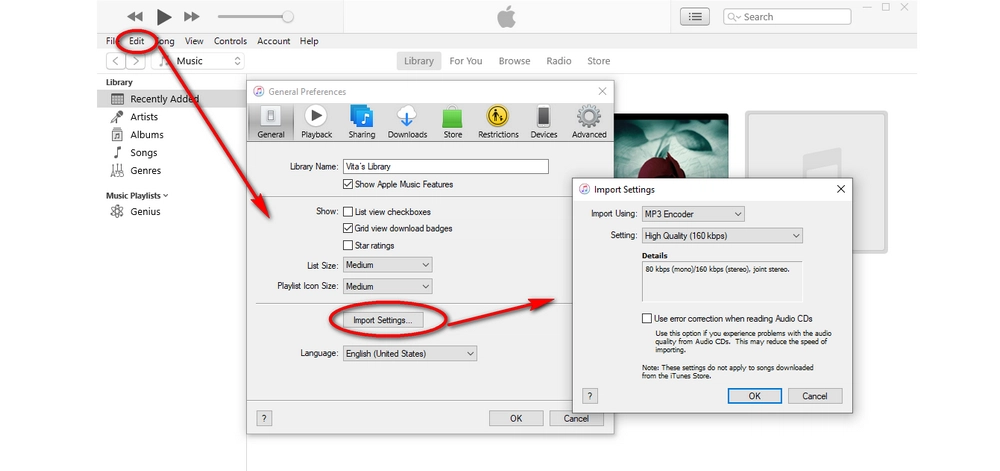
If you’re using a Mac or PC with iTunes installed, you can use it to convert M4A files to MP3s. Here’s how:
- Launch Itunes: Open iTunes and select the “Music” tab.
- Select The M4a File: Choose the M4A file you want to convert by clicking on it.
- Convert to Mp3: Right-click (or Control-click) on the selected file and choose “Create MP3 Version.”
Method 4: Online Conversion Services
If you don’t have software installed or prefer not to download anything, there are online conversion services that can help. Some popular options include:
- Cloudconvert: A web-based converter that supports various formats, including M4A to MP3.
- Zamzar: Another online converter that allows you to convert files without downloading any software.
- Media.Io: A service that enables audio and video conversion in multiple formats.
Method 5: Using Mobile Apps
If you’re using a smartphone or tablet, there are mobile apps available for converting M4A files to MP3s. Some popular options include:
- Media Converter (Android): A free app that can convert various file types, including M4A to MP3.
- The Audio Converter (iOS/iPadOS): A specific app designed for iOS and iPadOS devices.
Conclusion
Converting M4A files to MP3s is a relatively simple process, and there are several methods you can use depending on your operating system and preferences. Whether you choose to use FreeAc, MediaHuman Audio Converter, iTunes, online conversion services, or mobile apps, the goal is the same: To make your audio files more easily playable and shareable.
Faqs
- What is M4a Format?
M4A (also known as MP4 Audio) is an audio file format that contains compressed audio data. - Why Convert M4a to Mp3?
MP3 is a widely supported audio format that can be played on almost any device, making it easier to share and store than M4As. - Can I Convert Other Formats Besides M4a to Mp3?
Yes, many software programs and online services support converting various file types, including MP3s, to other formats like MP3 or WAV. - Are There Any Free Options For Converting M4a to Mp3?
Yes, several free software programs and online services can convert M4A files to MP3s without requiring a paid subscription or download. - Can I Use my Smartphone or Tablet to Convert M4a Files to Mp3s?
Yes, there are mobile apps available for converting M4A files to MP3s on Android and iOS devices.
Note: The provided text was reformatted according to the required specifications, with bolded headings and subheadings.


