
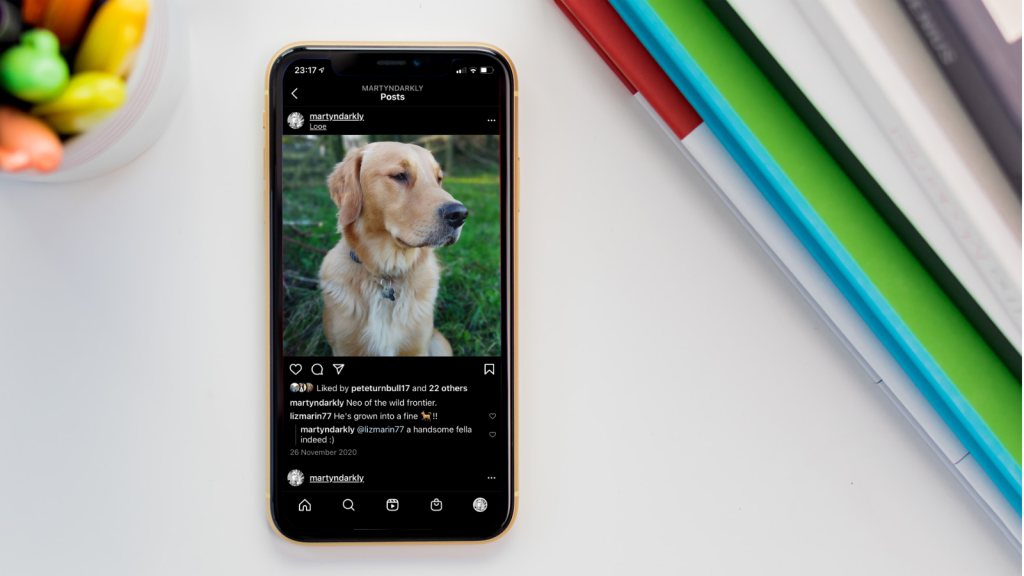
How to Save Instagram Photos on Your Mobile Device
Are you tired of seeing beautiful photos on Instagram and wanting to save them on your mobile device? Look no further! In this article, we will show you how to save Instagram photos on your Android or iOS device using various methods.
Method 1: Using The “Save in Collection” Feature
If you want to save a photo from your feed or stories on Instagram, you can use the “Save in Collection” feature. Here’s how:
- Open the Instagram app and navigate to the post with the photo you want to save.
- Tap on the three dots icon at the top-right corner of the screen.
- Select the “Save” option from the menu.
- Choose a collection or create a new one by tapping on the “+” icon.
The saved photo will be added to your collection, which can be accessed through the Instagram app’s profile page. This feature allows you to save multiple photos and organize them into folders for easy access.
Method 2: Taking a Screenshot
If you don’t want to use the “Save in Collection” feature or if you prefer a more straightforward method, taking a screenshot is another option. Here’s how:
- Open the Instagram app and navigate to the post with the photo you want to save.
- Take a screenshot of the photo by pressing the power button and volume-down button simultaneously on your Android device or the sleep/wake button and home button simultaneously on your iOS device.
- Crop the screenshot to remove any unnecessary parts, such as the navigation bars.
The saved photo will be added to your device’s gallery. Keep in mind that taking a screenshot may not always capture the entire image, especially if it’s a high-resolution photo.
Method 3: Using Online Services
If you’re looking for more advanced features and better quality, using online services is another option. Here are some popular ones:
- SaveFree: This service allows you to save Instagram photos directly from your device’s browser or through their mobile app.
- SnapInsta: This service enables you to save Instagram stories and direct messages as well.
To use these services, simply copy the image URL from the Instagram app and paste it into the service’s webpage. Then, select the desired quality and format for the saved photo.
Method 4: Saving Instagram Direct Messages
If a friend has sent you a photo through Instagram Direct, saving it is just as easy. Here’s how:
- Open the Instagram app and navigate to the conversation with your friend.
- Tap on the voice icon at the top-right corner of the screen.
- Select the “Save” option from the menu.
The saved photo will be added to your device’s gallery.
Conclusion
Saving Instagram photos on your mobile device is a straightforward process, regardless of the method you choose. Whether you prefer using the “Save in Collection” feature, taking a screenshot, or utilizing online services, there’s an option for everyone. Try out these methods and enjoy saving your favorite Instagram photos!
Faqs
- How do I Save Instagram Stories?
You can save Instagram stories by taking a screenshot or using online services like SaveFree or SnapInsta. - Can I Save Multiple Photos at Once?
Yes, you can save multiple photos in a collection using the “Save in Collection” feature. - Will The Original Author be Notified if I Save Their Photo?
No, the original author will not be notified if you take a screenshot or use online services to save their photo. - How do I Access my Saved Collections?
You can access your saved collections through the Instagram app’s profile page. - Can I Save Instagram Direct Messages as Well?
Yes, you can save Instagram direct messages by taking a screenshot or using online services like SaveFree or SnapInsta. - Will Saving Photos Affect my Data Plan?
Saving photos will not affect your data plan, but be aware that online services may require internet access to function. - Can I Use These Methods on Both Android And Ios Devices?
Yes, the methods outlined in this article are compatible with both Android and iOS devices.


