
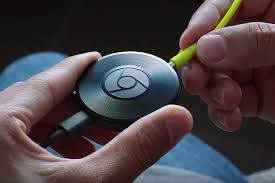
The Ultimate Guide to Configuring And Using Chromecast
Are you tired of complicated technology? Do you want to experience the thrill of streaming your favorite content on a big screen without breaking the bank? Look no further than Google’s Chromecast!
In this article, we’ll take you through the step-by-step process of configuring and using Chromecast. From setting it up for the first time to navigating its various features, we’ve got you covered.
What is Chromecast?
Chromecast is a small device that plugs into your TV’s HDMI port, allowing you to stream content from your smartphone, tablet, or computer directly onto the big screen. It’s a game-changer for anyone who wants to enjoy their favorite shows and movies in high definition without the hassle of complicated equipment.
Why Choose Chromecast?
There are many reasons why Chromecast stands out from the competition. Here are just a few:
- Cost: Chromecast is incredibly affordable, with prices starting at just 39 euros for the basic model.
- Simplicity: Setting up Chromecast is a breeze, and navigating its features is easy peasy.
- Compatibility: Chromecast works seamlessly with a wide range of devices, including smartphones, tablets, computers, and TVs.
Configuring Chromecast: A Step-by-step Guide
Configuring Chromecast for the first time is a straightforward process that requires minimal effort. Here’s how to do it:
Initial Configuration
- Plug in Chromecast: Connect the Chromecast device to your TV’s HDMI port.
- Power on Chromecast: Use an electrical cord or USB cable to power up the device (note: If you have a Chromecast with Google TV or Ultra, you’ll need to use the provided power adapter).
- Select The Correct Source: Choose the correct HDMI input on your TV.
Setting Up Chromecast
- Download And Install Google Home: Get the Google Home app on your smartphone or tablet.
- Connect to Your Wi-fi Network: Ensure your device is connected to the same Wi-Fi network as Chromecast.
- Follow The In-app Instructions: The app will guide you through the configuration process.
Using Chromecast: A Beginner’s Guide
Now that you’ve set up Chromecast, it’s time to start using it! Here are some basic tips to get you started:
- Stream Content: Use the Google Home app to stream your favorite shows and movies from services like Netflix, YouTube, and Spotify.
- Mirror Your Screen: Display your smartphone or tablet screen on the big TV for an immersive experience.
- Cast Videos: Send videos from your device to Chromecast for a seamless viewing experience.
Advanced Configuration Options
Once you’ve got the basics down, it’s time to explore some of the more advanced features of Chromecast. Here are a few:
- Customize Your Settings: Use the Google Home app to customize your Chromecast settings, including things like HDMI mode and guest mode.
- Update Your Software: Keep your Chromecast up-to-date with the latest software updates for optimal performance.
Troubleshooting Tips
We know that technical issues can be frustrating. Here are some troubleshooting tips to help you get back on track:
- Restart Chromecast: Try restarting Chromecast if you’re experiencing connectivity issues.
- Check Your Wi-fi Network: Ensure your device is connected to the same Wi-Fi network as Chromecast.
Conclusion
Configuring and using Chromecast is a breeze, even for beginners. With its affordable price tag, simplicity of use, and compatibility with a wide range of devices, it’s no wonder why Chromecast has become a favorite among tech-savvy enthusiasts. Whether you’re looking to stream your favorite shows or mirror your screen, Chromecast has got you covered.
Frequently Asked Questions (FAQs)
- Q: What is The Cost of Chromecast?
A: The basic model starts at 39 euros. - Q: Is Chromecast Compatible With my Tv?
A: Yes, as long as your TV has an HDMI port! - Q: Can I Use Chromecast Without Wi-fi?
A: Unfortunately, no. Chromecast requires a stable internet connection to function properly. - Q: How do I Update my Chromecast Software?
A: Simply open the Google Home app and follow the on-screen instructions. - Q: What Are Some Popular Apps That Support Chromecast?
A: Netflix, YouTube, Spotify, and many more! - Q: Can I Use Chromecast With my Pc?
A: Yes, but you’ll need a device running Android to set up and configure Chromecast. - Q: How do I Troubleshoot Connectivity Issues?
A: Try restarting Chromecast or checking your Wi-Fi network. - Q: What Are Some Advanced Configuration Options For Chromecast?
A: Customize your settings, update software, and more!
We hope this comprehensive guide has helped you navigate the world of Chromecast! If you have any further questions, feel free to ask us in the comments below.


