
How to Protect Your Instagram Account From Hackers
As a user of the popular social media platform, Instagram, you may be concerned about the security of your account. With the increasing number of hacking incidents on the platform, it’s essential to take proactive measures to protect yourself from unauthorized access.
In this article, we’ll guide you through some simple yet effective tips to secure your Instagram account and prevent hackers from accessing your profile.
Why Should You Be Concerned About Hacking?
While hacking incidents are rare, they can have severe consequences. Hackers may gain access to your personal information, photos, and other sensitive data. In extreme cases, they might even use your account to spread malware or engage in other malicious activities.
Tip 1: Keep Your Instagram App Updated
One of the most critical steps to protect your Instagram account is to keep the app updated. Regular updates often include security patches that fix vulnerabilities that hackers could exploit. To update the Instagram app on Android, follow these steps:
- Open the Play Store
- Search for Instagram in the search bar
- Check if there’s an available update
- If so, tap the “Update” button to download and install the latest version
Alternatively, you can also enable automatic updates by going to Settings > Preferences of net > Automatic Update app of the Play Store.
If you’re using an iPhone, follow these steps:
- Open the App Store
- Search for Instagram in the search bar
- Check if there’s an available update
- If so, tap the “Update” button to download and install the latest version
Tip 2: Use a Strong Password
A strong password is essential to protect your Instagram account. Avoid using easily guessable information such as your name, birthdate, or common words. Instead, use a combination of uppercase letters, lowercase letters, numbers, and special characters.
To change your Instagram password on Android or iOS:
- Open the Instagram app
- Go to your profile page
- Tap the three horizontal lines in the top-right corner
- Select Settings and privacy > Account management > Password and safety > Modify password
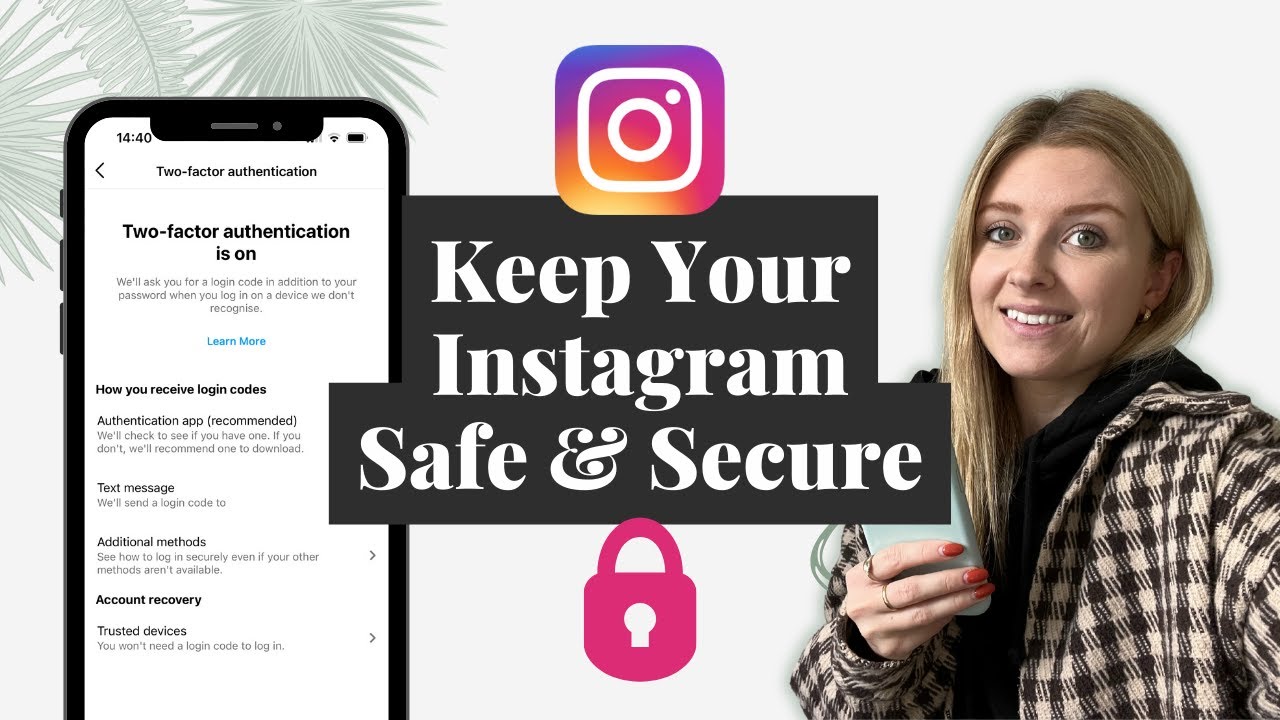
Tip 3: Enable Two-factor Authentication
Two-factor authentication (2FA) adds an extra layer of security to your Instagram account. This feature requires you to enter a code sent via SMS or use an authenticator app in addition to your password.
To enable 2FA on Android or iOS:
- Open the Instagram app
- Go to your profile page
- Tap the three horizontal lines in the top-right corner
- Select Settings and privacy > Account management > Password and safety > Authentication to two factors
Tip 4: Check Your Saved Access Information
If you’ve used public computers or devices to access your Instagram account, it’s essential to check if any unauthorized access information has been saved.
To do this on Android or iOS:
- Open the Instagram app
- Go to your profile page
- Tap the three horizontal lines in the top-right corner
- Select Settings and privacy > Account management > Password and safety > Devices of cui have carried out the access
Tip 5: Monitor Your Email
Keep an eye on your email for any suspicious messages from Instagram. If you receive a message asking you to verify your account, be cautious and check the authenticity of the request.
To monitor your email on Android or iOS:
- Open the Instagram app
- Go to your profile page
- Tap the three horizontal lines in the top-right corner
- Select Settings > Safety > Email of Instagram
Tip 6: Control Connected Apps
Be mindful of which apps are connected to your Instagram account. Some apps may have access to sensitive information, so it’s essential to review and revoke any unnecessary permissions.
To control connected apps on Android or iOS:
- Open the Instagram app
- Go to your profile page
- Tap the three horizontal lines in the top-right corner
- Select Settings and privacy > Authorisations of the website > App and websites
Additional Tips
Here are some additional tips to help you protect your Instagram account:
- Avoid using public Wi-Fi networks or unsecured hotspots, as they can be vulnerable to hacking.
- Use a password manager to generate and store unique passwords for each account.
- Regularly review your account settings and privacy options to ensure you’re not sharing more than necessary.
By following these tips, you’ll significantly reduce the risk of your Instagram account being hacked. Remember to stay vigilant and take proactive measures to protect yourself from cyber threats.


