
How to Set Google as Your Initial Page on a New Tab
Are you tired of seeing the default new tab page every time you open a new browser window? Do you want to set Google as your initial page instead? Look no further! In this article, we will guide you through the steps to personalize your new tab page and set Google as your default search engine on various browsers.
Why Set Google as Your Initial Page?
Setting Google as your initial page can make your browsing experience more efficient. With Google’s search bar at the center of your new tab page, you can quickly search for anything you want without having to navigate through multiple menus. Plus, with Google’s advanced algorithms and vast index of websites, you’re likely to get accurate results.
Setting Google as Your Initial Page on Desktop Browsers
Google Chrome (Windows/macOS)
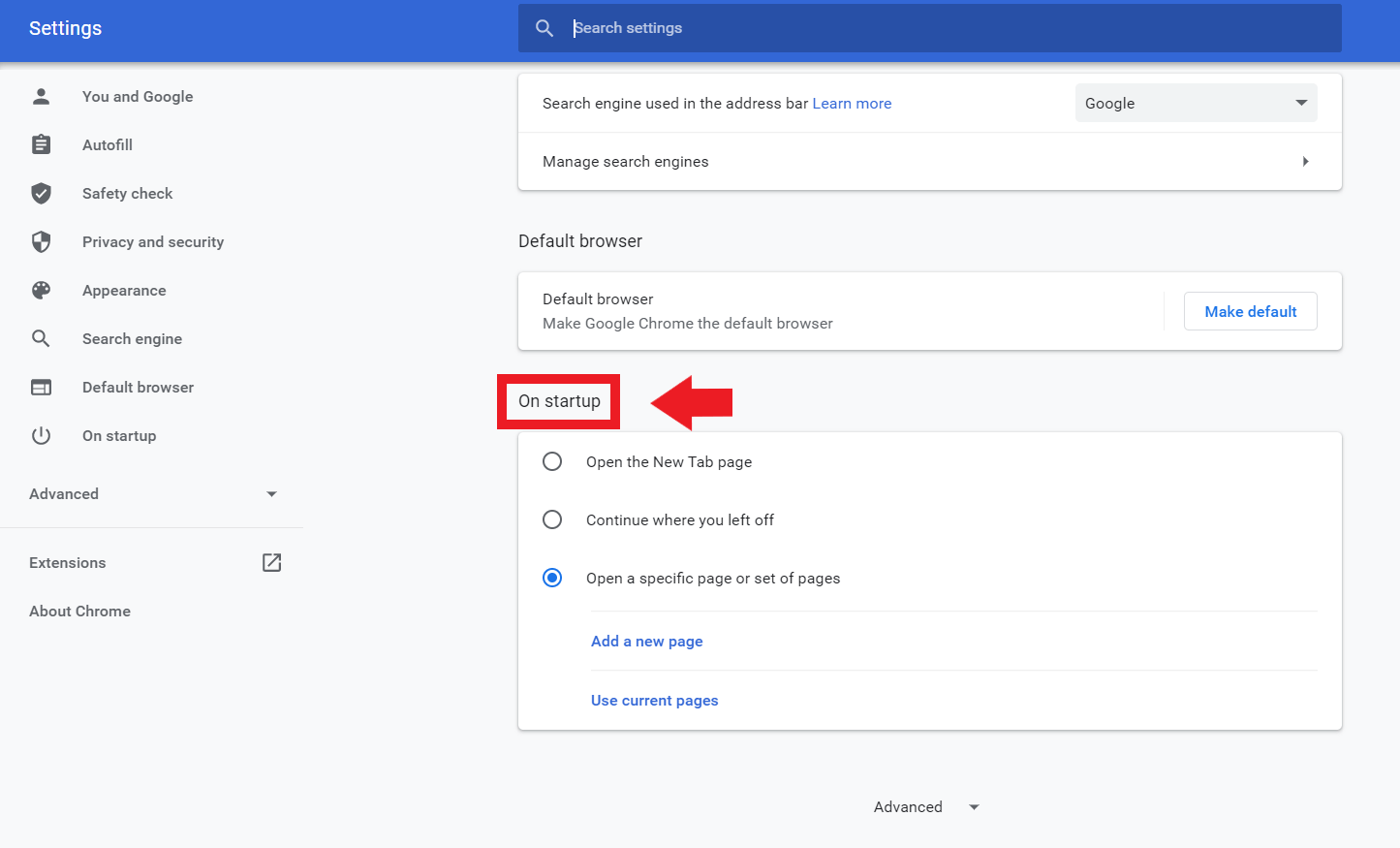
To set Google as your initial page on Google Chrome, follow these steps:
- Open a new tab in Google Chrome.
- Look for the search bar at the center of the page. This is the default search bar that comes with Google Chrome.
- If you want to remove any additional shortcuts or links from the page, click on the three dots (⋯) at the top right corner of the browser and select “Settings”.
- In the Settings page, scroll down to the “Appearance” section and toggle off the switch next to “Show Home button”.
- Now, every time you open a new tab in Google Chrome, it will display the Google search bar at its center.
Mozilla Firefox (Windows/macOS)
To set Google as your initial page on Mozilla Firefox:
- Open a new tab in Mozilla Firefox.
- Click on the three horizontal lines (≡) at the top right corner of the browser to open the menu.
- Select “Options” from the menu.
- In the Options page, click on the “Home Page” button and select “Google” as your home page.
- If you want to remove any additional shortcuts or links from the page, uncheck the box next to “Show Home button”.
Microsoft Edge (Windows/macOS)
To set Google as your initial page on Microsoft Edge:
- Open a new tab in Microsoft Edge.
- Click on the three dots (⋯) at the top right corner of the browser to open the menu.
- Select “Settings” from the menu.
- In the Settings page, scroll down to the “Search engine” section and select Google as your default search engine.
- Now, every time you open a new tab in Microsoft Edge, it will display the Google search bar at its center.
Setting Google as Your Initial Page on Mobile Devices
Google Chrome (Android/iPhone/iPad)
To set Google as your initial page on Google Chrome for mobile devices:
- Open a new tab in Google Chrome.
- Tap on the three dots (⋯) at the top right corner of the browser to open the menu.
- Select “Settings” from the menu.
- In the Settings page, scroll down to the “Search engine” section and select Google as your default search engine.
Firefox (Android/iPhone/iPad)
To set Google as your initial page on Firefox for mobile devices:
- Open a new tab in Firefox.
- Tap on the three horizontal lines (≡) at the top right corner of the browser to open the menu.
- Select “Settings” from the menu.
- In the Settings page, scroll down to the “Search engine” section and select Google as your default search engine.
Safari (iPhone/iPad)
To set Google as your initial page on Safari:
- Open the Settings app on your iPhone or iPad.
- Tap on the “Safari” option.
- Scroll down to the “Search engine” section and select Google as your default search engine.
Conclusion
Setting Google as your initial page is a simple process that can make your browsing experience more efficient. Whether you’re using a desktop browser or a mobile device, following these steps will help you personalize your new tab page and set Google as your default search engine. Happy browsing!
Frequently Asked Questions (FAQs)
- What is The Advantage of Setting Google as my Initial Page?
Setting Google as your initial page allows you to quickly search for anything you want without having to navigate through multiple menus.
- Can I Set Google as my Initial Page on All Browsers?
Yes, you can set Google as your initial page on most popular desktop and mobile browsers, including Google Chrome, Mozilla Firefox, Microsoft Edge, Google Chrome for Android/iPhone/iPad, and Safari for iPhone/iPad.
- How do I Remove Any Additional Shortcuts or Links From my New Tab Page?
To remove any additional shortcuts or links from your new tab page, follow the steps outlined in each browser’s section above.
- Can I Change my Default Search Engine to Another Provider?
Yes, you can change your default search engine to another provider by following the steps outlined in each browser’s section above.
- Will Setting Google as my Initial Page Affect my Browsing Experience?
No, setting Google as your initial page will not affect your browsing experience. You can still access all your favorite websites and features just as before.
- Can I Set Google as my Initial Page on a Public Computer or Device?
Yes, you can set Google as your initial page on a public computer or device by following the steps outlined above.
- Will Setting Google as my Initial Page Save me Any Time or Effort?
Yes, setting Google as your initial page will save you time and effort by allowing you to quickly search for anything you want without having to navigate through multiple menus.
- Is it Safe to Set Google as my Initial Page on my Device?
Yes, it is completely safe to set Google as your initial page on your device.


