
Remote PC Control: A Comprehensive Guide
Are you tired of constantly helping your friends and family with their computer-related issues? Do you find yourself getting frustrated with the constant requests to download and install programs? Well, you’re not alone! In this article, we’ll explore the world of remote PC control, a solution that allows you to access and manage another person’s computer from afar.
Why Remote PC Control is a Game-changer
Remote PC control technology has come a long way in recent years. With the rise of cloud computing and digital communication, it’s now easier than ever to access and manage someone else’s computer without having to physically be present.
Imagine being able to help your friend fix their computer issue from the comfort of your own home. No more traveling across town or waiting for hours on end for a technician to arrive. With remote PC control, you can troubleshoot and resolve issues in real-time, making it an incredibly efficient solution for both parties involved.
Windows Remote Desktop: A Built-in Solution
If you’re using Windows 10 Pro or higher, you have access to the built-in Remote Desktop feature. This software allows you to connect to another Windows machine remotely, giving you full control over the desktop and all its applications.
To set up Remote Desktop on your Windows computer, follow these steps:
- Go to Settings > System > Remote Desktop.
- Toggle the switch to turn Remote Desktop on.
- Set a password for remote access.
- Select which users can access the PC remotely.
Macos Sharing Monitor: A Similar Solution
If you’re using macOS, you have the Sharing Monitor feature built-in as well. This allows you to share your screen with others, giving them full control over your desktop and applications.
To set up Sharing Monitor on your Mac:
- Go to System Preferences > Sharing.
- Select “Screen Sharing” from the list of services.
- Set a password for remote access.
- Choose which users can access the screen remotely.
Third-party Solutions: Teamviewer, Anydesk, And More
While Windows Remote Desktop and macOS Sharing Monitor are excellent built-in solutions, there are also many third-party programs available that offer similar functionality.
Some popular options include:
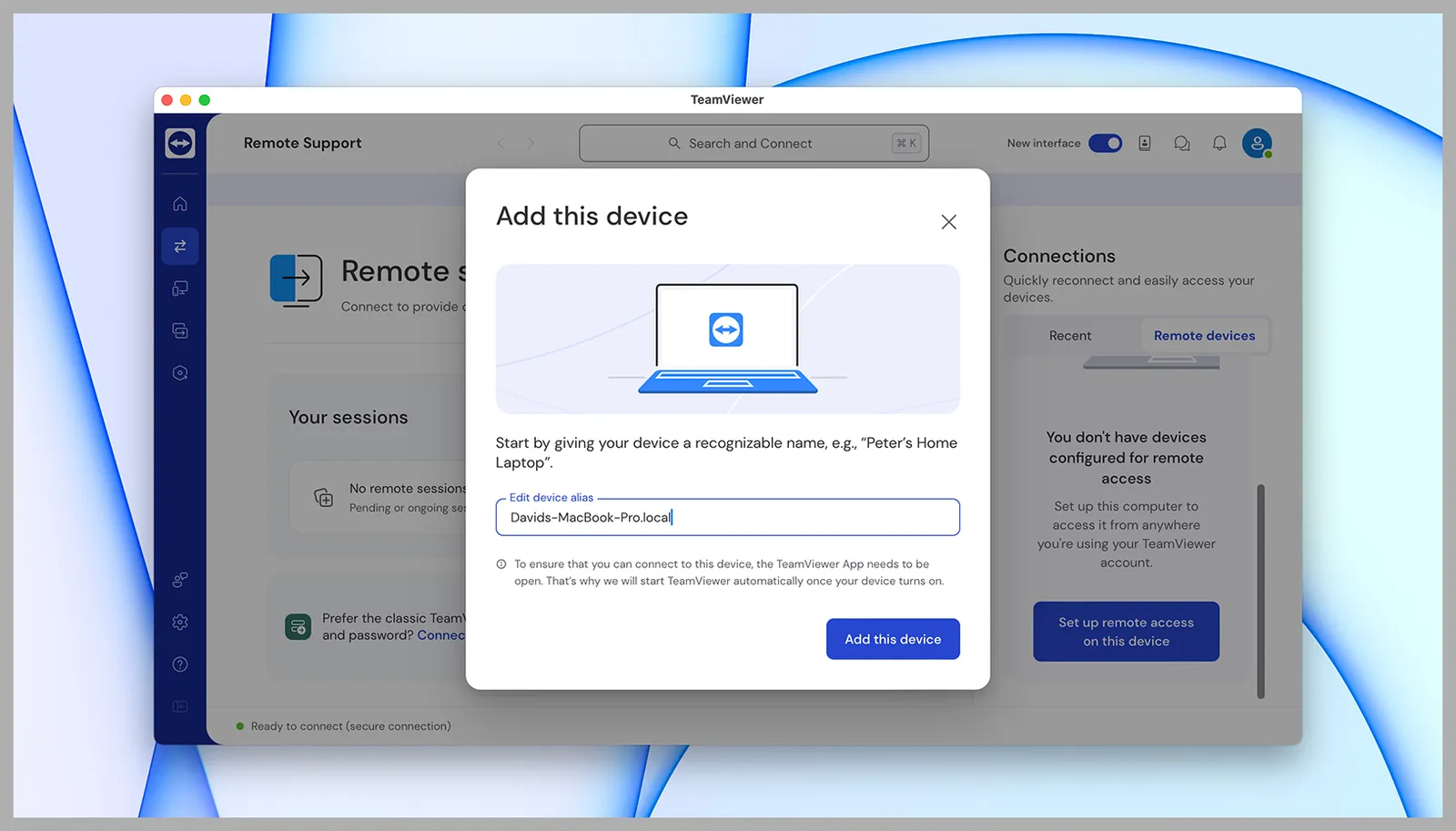
- Teamviewer: A free remote access software that allows you to connect to another computer remotely.
- Anydesk: A powerful remote access tool that offers a range of features, including file transfer and printer sharing.
- Dwservice: A cloud-based platform for remote access and control.
- Supreme: A simple and intuitive remote access software.
How Remote PC Control Works
So, how does remote PC control actually work? In essence, it involves establishing a connection between two computers over the internet. This allows one computer (the “client”) to remotely access and control another computer (the “server”).
The process typically involves:
- Installing software on both computers.
- Configuring settings on both computers for remote access.
- Establishing a connection between the two computers.
Benefits of Remote PC Control
Remote PC control offers numerous benefits, including:
- Convenience: No more traveling across town or waiting for hours on end for a technician to arrive.
- Efficiency: Troubleshoot and resolve issues in real-time, saving time and effort for both parties involved.
- Cost-effective: Reduce costs associated with travel, equipment, and personnel.
Conclusion
Remote PC control is an incredibly powerful solution that can save you time, effort, and resources. Whether you’re a tech-savvy individual or just someone who wants to help their friends and family with computer-related issues, remote PC control has got you covered.
In this article, we explored the world of remote PC control, including built-in solutions like Windows Remote Desktop and macOS Sharing Monitor, as well as third-party software options. We also discussed the benefits and how it works in practice.
Frequently Asked Questions
Q: What is remote PC control?
A: Remote PC control allows you to access and manage another person’s computer from afar, using software or hardware to establish a connection between computers.
Q: Is remote PC control secure?
A: Yes, remote PC control can be very secure if implemented correctly. Look for software and services that offer robust security features, such as encryption and password protection.
Q: Can I use remote PC control with any operating system?
A: While some built-in solutions like Windows Remote Desktop and macOS Sharing Monitor are available on specific platforms, many third-party programs can run across multiple operating systems.
Q: Do I need to install software on both computers for remote access?
A: Yes, you typically need to install software on both computers for remote access. However, some services may offer mobile apps or web-based interfaces that don’t require installation.
Q: Can I use remote PC control to transfer files between computers?
A: Yes, many remote access programs allow file transfer capabilities, making it easy to share files and collaborate with others.
Q: Are there any additional costs associated with remote PC control?
A: Some third-party services may charge for premium features or subscription-based models. However, many built-in solutions are free or included in the cost of your operating system.
Q: How do I get started with remote PC control?
A: Simply follow our guide above to set up and use remote PC control software on your Windows or macOS device.


