
Installing WordPress on Your Local Device: A Step-by-step Guide
Are you interested in learning how to install WordPress on your local device? Look no further! In this article, we will guide you through the process of installing WordPress on your Windows or macOS computer.
What is WordPress?
WordPress is a Content Management System (CMS) that allows users to create and manage their own websites without requiring any technical expertise. It is open-source, free, and widely used by millions of users around the world.
Why Install WordPress Locally?
Installing WordPress locally on your device allows you to test and experiment with different themes, plugins, and configurations before making them live on your website. This can be especially useful for developers, designers, and bloggers who want to try out new ideas or troubleshoot issues without affecting their online presence.
Methods of Installing WordPress Locally
There are several methods to install WordPress locally, including:
- Xampp: XAMPP is a free and open-source application that allows you to create a local web server on your Windows or macOS device.
- Bitnami: Bitnami is a software platform that provides pre-configured stacks of popular applications, including WordPress.
- Mamp: MAMP (Mac OS X Application Manager) is a free and open-source application that allows you to create a local web server on your Mac.
Installing WordPress Using Xampp
To install WordPress using XAMPP, follow these steps:
- Download the latest version of XAMPP from the official website.
- Install XAMPP on your Windows or macOS device by following the installation wizard.
- Configure the Apache and MySQL settings to ensure that they are running correctly.
- Download the WordPress installer from the official website.
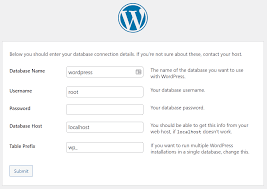
- Run the WordPress installer and follow the prompts to configure your database and set up your WordPress installation.
Installing WordPress Using Bitnami
To install WordPress using Bitnami, follow these steps:
- Download the latest version of Bitnami for Windows or macOS from the official website.
- Install Bitnami on your device by following the installation wizard.
- Configure the settings to ensure that they are running correctly.
- Run the WordPress installer and follow the prompts to configure your database and set up your WordPress installation.
Installing WordPress Using Mamp
To install WordPress using MAMP, follow these steps:
- Download the latest version of MAMP from the official website.
- Install MAMP on your Mac by following the installation wizard.
- Configure the Apache and MySQL settings to ensure that they are running correctly.
- Download the WordPress installer from the official website.
- Run the WordPress installer and follow the prompts to configure your database and set up your WordPress installation.
Conclusion
Installing WordPress locally on your device is a straightforward process that can be completed using various methods, including XAMPP, Bitnami, and MAMP. By following these step-by-step guides, you can have a fully functional WordPress installation up and running in no time.
Faqs
- Q: What is The Difference Between Installing WordPress Locally And Online?
A: Installing WordPress locally allows you to test and experiment with different themes, plugins, and configurations before making them live on your website. - Q: Can I Use my Existing Database With WordPress?
A: Yes, you can use an existing database with WordPress by configuring the settings correctly. - Q: How do I Configure The Apache And Mysql Settings For Xampp or Mamp?
A: Follow the prompts in the installation wizard to ensure that they are running correctly. - Q: Can I Use Bitnami on my Mac?
A: Yes, you can use Bitnami on your Mac by downloading the latest version from the official website and following the installation wizard. - Q: How do I Access The WordPress Dashboard?
A: Access the WordPress dashboard by typing in the URL of your local server (e.G., Http://Localhost/wordpress/wp-admin) into your web browser.
Recommended Reading
I hope this article has been helpful in guiding you through the process of installing WordPress locally on your device. Happy blogging!


