
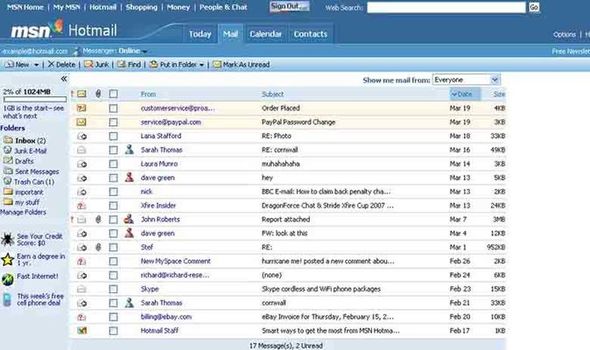
How to Reset Your Hotmail Password: A Step-by-step Guide
Are you tired of worrying about your Hotmail password being compromised? Do you want to ensure that only you have access to your email account? Look no further! In this article, we will guide you through the process of resetting your Hotmail password.
Why Resetting Your Hotmail Password is Important
Your Hotmail password is the key to accessing your email account. If someone gains unauthorized access to your account, they can read and send emails, delete messages, and even change your password. By resetting your Hotmail password regularly, you can prevent this from happening and ensure that only you have control over your account.
How to Reset Your Hotmail Password: A Step-by-step Guide
Resetting your Hotmail password is a simple process that can be completed in just a few steps. Here’s how:
- Go to The Microsoft Account Website: First, go to the Microsoft account website at www.Account.Microsoft.Com. Click on the “Sign in” button and enter your email address and password.
- Click on “Forgot My Password”: Once you’re signed in, click on the “Forgot my password” link located below the sign-in form.
- Choose a Recovery Method: Choose how you want to receive your verification code. You can choose from an email address, phone number, or authenticator app.
- Enter Your Verification Code: Enter the verification code sent to you via email or phone. If you chose an authenticator app, open the app and enter the code displayed there.
- Create a New Password: Once you’ve entered your verification code, create a new password for your account. Make sure it’s strong and unique.
- Save Your Changes: Click on the “Save” button to save your changes.
How to Change Your Hotmail Password in Windows 10 or Windows 11
If you’re using Windows 10 or Windows 11, you can also change your Hotmail password from within the operating system. Here’s how:
- Open The Settings App: Open the settings app on your computer.
- Click on “Account”: Click on the “Account” option located on the left-hand side of the window.
- Click on “Sign-in Options”: Click on the “Sign-in options” button.
- Change Your Password: Click on the “Change password” button and follow the prompts to change your password.
How to Recover a Forgotten Hotmail Password
If you’ve forgotten your Hotmail password, don’t worry! You can recover it by following these steps:
- Go to The Microsoft Account Website: Go to the Microsoft account website at www.Account.Microsoft.Com.
- Click on “Forgot My Password”: Click on the “Forgot my password” link located below the sign-in form.
- Choose a Recovery Method: Choose how you want to receive your verification code. You can choose from an email address, phone number, or authenticator app.
- Enter Your Verification Code: Enter the verification code sent to you via email or phone. If you chose an authenticator app, open the app and enter the code displayed there.
- Create a New Password: Once you’ve entered your verification code, create a new password for your account. Make sure it’s strong and unique.
Frequently Asked Questions (FAQs)
Here are some frequently asked questions about resetting and recovering your Hotmail password:
- Q: How Often Should I Reset my Hotmail Password?
A: It’s recommended to reset your Hotmail password every 72 days or whenever you feel it’s necessary. - Q: What if I Forget my Verification Code?
A: If you forget your verification code, click on the “Forgot my verification code” link located below the sign-in form and follow the prompts to receive a new code. - Q: Can I Change my Hotmail Password From Within Windows 10 or Windows 11?
A: Yes, you can change your Hotmail password from within Windows 10 or Windows 11 by following the steps outlined above.
Conclusion
Resetting your Hotmail password is an important step in keeping your account secure. By following the steps outlined in this article, you can ensure that only you have access to your email account and prevent unauthorized access. Remember to change your password regularly and use a strong and unique password for your account. If you’ve forgotten your password, don’t worry! You can recover it by following the steps outlined above.
Faqs
Here are some additional FAQs about resetting and recovering your Hotmail password:
- Q: What if I’m Having Trouble Signing in to my Hotmail Account?
A: Try resetting your password or contact Microsoft support for assistance. - Q: Can I Use a Third-party App to Manage my Hotmail Account?
A: Yes, you can use a third-party app to manage your Hotmail account, but be sure to choose an app that is secure and trusted by Microsoft. - Q: How do I Know if Someone Has Accessed my Hotmail Account Without my Permission?
A: Check your email account for any suspicious activity or changes made to your account settings. - Q: Can I Recover a Deleted Message From my Hotmail Account?
A: Unfortunately, no. Once a message is deleted, it’s gone forever.
I hope this article has been helpful in answering your questions about resetting and recovering your Hotmail password!


