
Understanding Defragmentation: A Guide For PC Users
In today’s digital age, our computers play a vital role in our daily lives. Whether it’s work, entertainment, or communication, our PCs are always just a click away. However, like any other machine, they require regular maintenance to function optimally. One such process is defragmentation.
What is Defragmentation?
Defragmentation is the process of reorganizing data on a hard drive to improve performance and speed. When you save files on your computer, the operating system breaks them down into small pieces called fragments. These fragments are then scattered across the hard drive. Over time, these fragments can become disorganized, leading to slower access times.
When Do You Need Defragmentation?
Defragmentation is essential for mechanical hard drives, especially if you’re using older versions of Windows. However, with the advancement in technology, solid-state drives (SSDs) have become the norm, and they don’t require defragmentation.
Why Do Mechanical Hard Drives Require Defragmentation?
Mechanical hard drives use spinning disks to store data. These disks can become fragmented over time, leading to slower access times. Defragmentation helps to reorganize these fragments, ensuring that your files are stored in a contiguous manner, making them easier to access.
Do I Need Defragmentation on My Mac?
While defragmentation is not necessary for most Mac users, it can be beneficial if you’re using mechanical hard drives and frequently work with large files. However, if you have an SSD or Fusion Drive, macOS handles the optimization process automatically, making defragmentation unnecessary.
How to Defragment Your Hard Drive on Windows
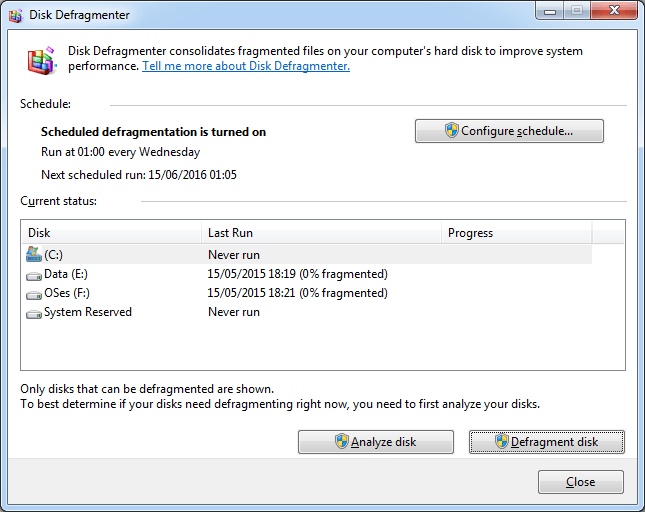
Windows includes a built-in utility called “Optimize Drives” that performs defragmentation automatically. To access this feature:
- Click on the Start button and search for “Defrag.”
- Select the “Optimize Drives” option.
- Choose the drive you want to optimize.
- Select the type of optimization you prefer (e.G., Full Defrag).
- Click on the “Run” button.
How to Check if Your Drive Needs Defragmentation
To check if your drive needs defragmentation, follow these steps:
- Open the “Optimize Drives” utility.
- Select the drive you want to analyze.
- Click on the “Analyze” button.
- The utility will display a report indicating whether the drive requires defragmentation.
How to Defragment Your Ssd
If you have an SSD, it’s essential to enable TRIM (Trim Force Enable) to maintain optimal performance. To do this:
- Open the Command Prompt as an administrator.
- Type “fsutil behavior query DisableDeleteNotify” and press Enter.
- If the result is 0, TRIM is enabled, and you don’t need to do anything.
- If the result is 1, TRIM is not enabled. To enable it, type “fsutil behavior set DisableDeleteNotify 0” and press Enter.
Conclusion
In conclusion, defragmentation is an essential process for mechanical hard drives, especially if you’re using older versions of Windows. However, with the advancement in technology, SSDs have become the norm, and they don’t require defragmentation. By understanding when to perform defragmentation and how to do it correctly, you can ensure that your PC runs smoothly and efficiently.
Frequently Asked Questions
- Q: What is Defragmentation?
A: Defragmentation is the process of reorganizing data on a hard drive to improve performance and speed. - Q: Do I Need Defragmentation on my Mac?
A: While not necessary, defragmentation can be beneficial if you’re using mechanical hard drives and frequently work with large files. - Q: How do I Defragment my Hard Drive on Windows?
A: You can use the built-in utility called “Optimize Drives” to perform defragmentation automatically. - Q: Do I Need to Defragment my Ssd?
A: No, SSDs don’t require defragmentation. However, it’s essential to enable TRIM (Trim Force Enable) to maintain optimal performance. - Q: How Often Should I Defragment my Hard Drive?
A: The frequency of defragmentation depends on usage and storage capacity. It’s recommended to run the utility regularly to maintain optimal performance. - Q: Can I Use Third-party Software For Defragmentation?
A: Yes, there are various third-party software available that can help with defragmentation, such as Defraggler. - Q: Will Defragmenting my Hard Drive Delete Any Files?
A: No, defragmenting your hard drive will not delete any files. It will only reorganize the data to improve performance and speed. - Q: Can I Use Defragmentation on a Network Drive?
A: Yes, you can use defragmentation on a network drive. However, it’s essential to ensure that all users are aware of the process and its benefits.


